1 Terminal and Shell
Before you start giving the computer commands, get comfortable with the place where you will type them. You will spend a lot of time here. Being able to open another session, find something that scrolled away, and copy an error message makes that time much more productive.
In this chapter you will open a terminal, see which shells it can run, read a prompt, and learn to use the window around the command line. You do not need to install a collection of hacker tools first. Start with the terminal available on your computer.
The concepts in this chapter are:
- the terminal, the shell, and the operating system, and which job belongs to which;
- the prompt and the cursor;
- the shells this book uses: Bash, zsh, PowerShell, and Command Prompt;
- tabs, panes, and focus;
- copy, paste, scrollback, and terminal search;
- command history as a shell feature;
- terminal profiles and ending a session.
1.1 Terminal, Shell, and Operating System
A terminal application displays text from programs and passes your keyboard input to them. You may also hear it called a terminal emulator. It does the job once performed by a separate terminal device attached to a computer. [1]
The shell is the program that interprets the commands you type. It can do some work itself and start other programs to do the rest. Bash, zsh, PowerShell, and Command Prompt are shells.
The operating system, or OS, manages resources such as files, running programs, and devices. Windows, macOS, and Linux are operating systems you will encounter in this book.
These pieces work together, but they have different jobs:
| Piece | What you do with it | Examples |
|---|---|---|
| Terminal | Display output, accept keyboard input, copy text | Windows Terminal, macOS Terminal, GNOME Terminal, xterm |
| Shell | Enter commands, recall previous commands, connect programs | PowerShell, Command Prompt, Bash, zsh |
| Operating system | Store files, run processes, control access to resources | Windows, macOS, Linux |
Changing the terminal’s background color does not change the language your shell understands. Opening a different shell in the same terminal can change that language completely.
We will use console informally for this command-line workspace. When a distinction matters, we will name the terminal, shell, or operating system explicitly.
In the screen capture below, xterm is the terminal application and Bash is the shell running inside it. The shell prompt is the text Bash displays when it is ready for a command. The cursor is the blue block marking where the next character you type will appear.
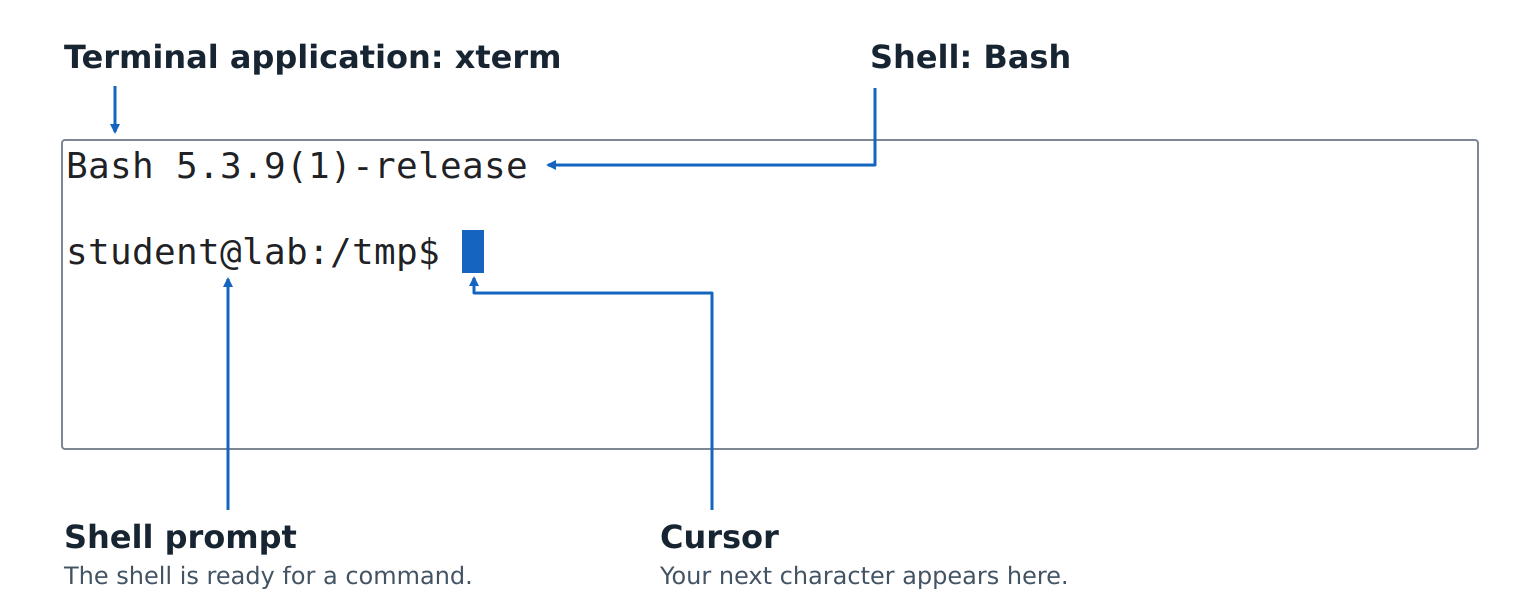
The shell label points to Bash’s version banner to show which program is handling this session. Linux is the operating system supporting both programs.
1.2 Open a Terminal
Follow the section for your computer. You can read the other sections to recognize the tools your classmates use.
1.2.1 Windows
Open the Start menu, search for Terminal, and launch Windows Terminal if it is installed. Its tab dropdown lets you choose among available profiles, such as Windows PowerShell, PowerShell, and Command Prompt. Windows Terminal supports multiple shells in one application. [2]
If Terminal is not available, search Start for Windows PowerShell or Command Prompt and open that instead. You can try the commands there, though the window may not provide all the features described below. The application hosting these shells depends on your Windows setup.
Choose a normal session for these chapters. There is no need to select Run as administrator.
1.2.2 macOS
Open Spotlight with Command+Space, search for Terminal, and open it. You can also find Terminal in the Utilities folder inside Applications. Apple’s Terminal provides a command-line interface to macOS. [3]
On a Mac, the Command key is the one marked ⌘. It is a different key from Control. When the book says Ctrl+C, it means Control, even on a Mac.
1.2.3 Linux
Open your desktop’s application launcher and look for a terminal application. Its name might be Terminal, GNOME Terminal, Console, Konsole, or xterm. Linux desktops do not all ship the same application or assign the same shortcuts. The figure above uses xterm; the Linux shortcut examples in this chapter are specifically for GNOME Terminal.
If you already have a terminal open without a graphical desktop, you can still follow the command examples. Tabs and graphical settings depend on the terminal application you use to connect.
1.2.4 Inside an Editor
If you already use Visual Studio Code, select Terminal > New Terminal. Its integrated terminal can run installed shells, and the dropdown beside the new-terminal button lets you select a profile. [4]
The terminal panel and the editor are separate places to type. Entering a command into an open text file just adds text to that file. Click inside the terminal panel when you want the shell to receive it.
1.3 The Shells We Will Use
This book has two main tracks: Bash/zsh and PowerShell. We will also cover Windows Command Prompt, because you will encounter instructions and tools that use it.
| Shell | Where you will encounter it | How this book uses it |
|---|---|---|
| Bash | Linux, macOS, and UNIX-style environments on Windows | A main shell for UNIX command-line work and scripts |
| zsh | macOS and systems where it has been installed | A main interactive UNIX shell, with differences from Bash called out |
| PowerShell | Windows; PowerShell 7 also runs on macOS and Linux | The main Windows track and its object-based approach to automation |
Command Prompt (cmd.exe) |
Windows | Native Windows commands and batch-file conventions |
An interactive shell reads commands as you enter them. A script stores commands in a file so a shell can run them later. We start interactively so that you can inspect each result before moving on.
Bash and zsh share much of their everyday command syntax, but they are different programs. Where an example works in both, we will label it Bash/zsh. Where the behavior differs, we will give separate examples.
Current macOS installations normally use zsh as the default shell in Terminal. Your account or terminal settings can select another shell. [5] Linux systems also vary; your terminal’s profile settings determine which shell it starts.
1.3.1 Two PowerShells on Windows
Windows PowerShell 5.1 and PowerShell 7 are separate products. Windows PowerShell comes with Windows and runs only on Windows; PowerShell 7 is also available for macOS and Linux. [6]
On Windows, powershell.exe starts Windows PowerShell, while pwsh.exe starts the newer PowerShell when it is installed. Installing PowerShell 7 does not replace Windows PowerShell 5.1; they can exist side by side. [7]
Our main PowerShell track targets PowerShell 7. The examples in this chapter also work in Windows PowerShell 5.1. You can start with the version you already have; later chapters will mark examples that require newer features.

Trap: Updating Windows Terminal does not update the shell running inside it. The terminal and PowerShell have their own versions. When comparing your results with a tutorial, check which one the tutorial is talking about.
1.3.2 Windows Can Host More Than Windows Shells
Windows Subsystem for Linux, or WSL, lets you work in a Linux environment on Windows. A WSL profile in Windows Terminal can therefore start a Linux shell. The surrounding window still belongs to Windows Terminal. [2]
You may also encounter Git Bash, the Bash environment supplied with Git for Windows. It is a different environment from WSL. [8] Record which environment you are using; it affects available commands and how paths work. Either one lets you follow the UNIX track on Windows.
1.4 Read the Prompt
Here are examples of prompts you might see. These are illustrations, not commands to type:
student@laptop:~$
student@MacBook ~ %
PS C:\Users\student>
C:\Users\student>
The first two are typical UNIX-style prompts. They show a username, a computer name, and a location; ~ commonly represents your home directory. The last two resemble default PowerShell and Command Prompt prompts on Windows, including a path to the current directory.
A directory is what a graphical file manager calls a folder. Your shell has a current directory, which gives commands a starting place for finding files. We will explore directories properly in Chapter 3.
Prompts are customizable. A $, %, or > at the end is a clue, not proof of which shell is running. A tab title can also be renamed. Look at your terminal’s profile settings to see which shell it starts.
1.5 Your First Command
The shell normally displays a prompt when it is ready for a command. The prompt may contain your username, the computer’s name, or a folder path. The examples above show how its appearance varies between shells.
In the console boxes in this book, bold lines are commands you type, and ordinary lines are output. The $ at the start of a command is our prompt marker, even for Windows shells; do not type it.
Click inside the terminal window so it has focus, type the following line, and press Enter (Return on a Mac):
$ echo console-ready
console-ready
This particular command works in Bash, zsh, PowerShell, and Command Prompt. echo asks for the following text to be written as output. The line console-ready underneath the command is its output.
Then the prompt returns. You entered a command, the shell handled it, and the terminal displayed the result. That is the basic conversation we will build on.
In the HTML edition, Copy commands copies only the commands from a console box, without the $ markers or output. Read each command before pasting it into your shell.
Trap: Do not type the prompt along with a command. If a tutorial shows $ echo hello, the $ may be its way of marking the prompt. The command is echo hello.
1.6 Tabs, Panes, and Focus
A tab gives you another workspace inside the same terminal window. Opening a new shell tab normally starts another shell session. The shells can use the same files, but each has its own immediate state, such as the command currently being typed.
Open a second tab through your terminal’s menu or new-tab button. Type echo second-tab there, then return to the first tab. Your original conversation should still be visible. Two tabs let you keep two tasks within reach without mixing their output.
A pane is a section of a window. Windows Terminal can split a tab into panes running separate sessions. For example, hold Alt while selecting a profile in its dropdown to open that profile in a new pane. Its default Alt+Arrow bindings move focus between panes. [9]
Focus identifies which pane receives your typing. Before entering a command, find the cursor or the active-pane highlight. You can have the right command and still enter it in the wrong session.
Different terminal applications use the word split differently. In macOS Terminal, Split Pane gives you another view of the same session’s scrollback; use a new tab or window for a separate shell. VS Code’s terminal splits, by contrast, can host separate terminal sessions. [4], [10]
1.7 Copy and Paste Are Terminal Features
Select the output text console-ready with your mouse. Use the terminal’s Copy action, then paste it into a notes document. Copying text is useful for recording results and asking a precise question about an error.
The following are default bindings in the named applications. Your settings may override them. [10], [11], [12]
| Action | Windows Terminal | macOS Terminal | GNOME Terminal |
|---|---|---|---|
| New tab | Ctrl+Shift+T |
Command+T |
Ctrl+Shift+T |
| Copy selected text | Ctrl+Shift+C |
Command+C |
Ctrl+Shift+C |
| Paste | Ctrl+Shift+V |
Command+V |
Ctrl+Shift+V |
| Search displayed text | Ctrl+Shift+F |
Command+F |
Ctrl+Shift+F |
Ctrl+C has another important job: it commonly requests that the current command stop, or cancels a line you are entering. Some terminals also use it for copying when text is selected. Using the explicit Copy action avoids that ambiguity.
To practice pasting a command, copy just echo pasted-on-purpose from this sentence. Paste it at an empty prompt, inspect it, and press Enter.
Trap: A paste can contain more than one line, including an Enter character at the end. Depending on the shell and terminal, that can execute commands immediately. For this exercise, copy only the single command, without a newline.
1.8 Scrollback and Search
The terminal keeps a scrollback buffer: earlier displayed text you can revisit after it leaves the screen. Run echo another-line once. At the next prompt, press Up Arrow to recall that command, then press Enter to run it again. Repeat this a few times without retyping the command. Make the window short enough that some output scrolls above the visible area. Use the scrollbar or mouse wheel to look back.
Scrolling changes what you see. It does not return the shell to an earlier point in time. The shell is still waiting at its current prompt.
Use your terminal’s Find action to search for console-ready in the first tab. This searches text the terminal has retained. It does not search the contents of files on disk. Later we will use other tools for that.
1.9 Recall and Edit a Command
The Up Arrow you used above relies on command history: the commands the shell remembers so you can recall and edit them. History belongs to the shell, not the terminal. Scrollback can include commands, output, and error messages. History generally contains commands, not their output.
You can also edit a recalled command before running it. With the usual shell key bindings, try this at an empty prompt:
- Press Up Arrow to bring back
echo another-line. The cursor starts at the end. - Press Left Arrow four times to move just before
line. - Type
new-. The command now readsecho another-new-line. - Press Enter. The shell runs the whole command, even with the cursor in the middle of the line.
The edited command and its output are:
$ echo another-new-line
another-new-line
Left and Right Arrow move the cursor without changing the text. Typing inserts text at the cursor; Backspace removes the character just before it. You can press Up Arrow repeatedly to reach older commands and Down Arrow to move toward newer ones. Recalling a command puts it on the line for editing; it only runs when you press Enter. Chapter 4 covers these editing keys, their alternatives, and how to search history.
Neither feature should be your only record of important work. Scrollback can be limited or cleared, and history retention depends on shell settings. Put observations you want to keep into your notes.
1.10 Make It Readable
Open your terminal’s settings and find the font and color controls. Choose a comfortable size and a color scheme where you can clearly read ordinary text, highlighted text, and errors. A monospaced font gives each character the same width, helping columns line up.
Try increasing the font size, then restoring it. Also resize the window and watch longer lines wrap. A line wrapping on screen does not necessarily mean there is a newline in the underlying text.
A terminal profile is a saved set of settings. Depending on the application, it can include appearance, the starting folder, and which program to launch. In Windows Terminal, check the command line in a profile’s settings to see what it starts. Changing a profile’s displayed name alone does not change its shell. [2]
Do not confuse a terminal profile with a PowerShell profile. The latter is a script PowerShell can run at startup; we will cover it when we configure shells.
In Windows Terminal, Ctrl+Shift+P opens the command palette. It lets you find terminal actions by name, which is handy before you have memorized their shortcuts. [13] For other terminals, explore the menus and their displayed shortcuts.
1.11 Closing a Session
At an idle shell prompt, enter:
$ exit
In these shells, exit ends the current shell session. If that shell was the main program in a tab, the terminal may close the tab or show that the session ended, depending on its settings. You can open another session from the terminal’s menu.
Closing a window can also affect programs still running inside it. For now, return to an idle prompt before closing its tab. We will study running programs and their lifetimes later.
1.12 Key Points
- The terminal handles the window, displayed text, and interaction with programs; the shell interprets commands.
- Tabs and session panes let you keep separate conversations open.
- Focus determines where your typing goes.
- Clipboard actions and terminal search are different from shell editing and command history.
- Shortcuts belong to particular applications and configurations.
- Bash, zsh, PowerShell, and Command Prompt have different command languages; the terminal can host more than one of them.
- The shell prompt tells you it is ready, and the cursor shows where your next character will appear.
1.13 Level Up
n00bs finish the chapter here. You can open a terminal, recognize the shell and prompt, and use the window around them. Hackers start asking what else is out there.
Start with other terminal applications:
- iTerm2 on macOS: explore its split panes and search features. [14]
- kitty on Linux or macOS: investigate its layouts and ability to display images inside the terminal. [15]
- WezTerm on Windows, macOS, or Linux: compare its tabs, panes, and configuration options with your current terminal. [16]
Then look at other shells:
- fish: explore command suggestions and syntax highlighting as you type. [17]
- Nushell: look at how it represents command output as structured data, such as tables with named columns. [18]
Pick one that interests you and read its documentation. What problem does it try to solve? Which feature would make your own work easier? If it runs on your system, try it in a separate session and compare it with the tools you already have.
You can also pimp your shell prompt. Explore your shell’s prompt customization: colors, symbols, and the information it displays. Can you make your current directory easier to spot, or make different shell sessions easier to tell apart? Aim for something that looks good and helps you work without crowding out the command you are typing. We will dig into prompt configuration in Chapter 10.
Change one thing at a time. Run a familiar shell in a different terminal to explore the terminal’s features. Run a different shell in the same terminal to explore the shell’s behavior. Notice which differences belong to which program.
You do not need to replace your everyday setup to explore an alternative. The useful discovery is being able to explain what changed, why it changed, and whether it helps you.
1.14 Exercises
- What does this do? In a fresh tab, enter
echo first-tab, open a second tab, and press Up Arrow there. Predict what appears before you press the key. - What is the problem? A classmate types
$ echo helloexactly as printed in a tutorial and the shell reports an error about$. Explain what went wrong and what they should have typed. - Why is it like this? Scrolling back through output does not let you rerun the command you can see. Explain which program owns the scrollback and which owns the command history, and why scrolling changes only one of them.
- Why is it like this? Changing the font in your terminal’s settings changes every shell you open in it, but the shells still speak different languages. Explain which piece owns the font and which owns the language.
- How do you find out which shell a terminal profile starts before you type anything? Describe where to look in your terminal’s settings, then open that profile and confirm your answer from the prompt.
- How do you copy an error message out of the terminal without accidentally sending Ctrl+C to the running program? Describe the steps for your terminal.