Welcome to way of the hax0r. This is a series of books about understanding technology well enough to do interesting, useful, and occasionally ridiculous things with it. We are starting with n00b to console punk. You bring the curiosity; we will build the skills.
There is a bunch of technology to learn: programming languages, operating systems, networks, electronics, databases, and more tools than anyone can keep track of. You do not need to learn it all at once. Our first stop is the console, where you can give a computer commands, see what happened, and start connecting tools to solve your own problems. Getting comfortable there will make everything that follows easier to explore.
Richard Stallman gives us a good starting point in On Hacking: [1]
hacking means exploring the limits of what is possible, in a spirit of playful cleverness.
That is the meaning we will use throughout this series. You learn how something works, ask what else it could do, and try an experiment. Sometimes you solve a practical problem. Sometimes you make something wonderfully unnecessary just to see whether you can.
Suppose you turn an old laptop into a scoreboard for a game you invented. Or connect a few small programs so that an hour of repetitive work takes a few seconds. Or make a printer play a tune because you noticed that its moving parts make different sounds. The interesting part is the idea, the understanding behind it, and the cleverness of making it work.
A hacker enjoys that process. The Jargon File, a collection of hacker vocabulary and culture, includes this definition: [2]
One who enjoys the intellectual challenge of creatively overcoming or circumventing limitations.
Notice that neither definition requires you to know everything already. You need curiosity, a willingness to experiment, and enough persistence to work through the parts you do not understand yet. Expertise grows out of doing that repeatedly.
In June 1959, Peter Samson wrote An Abridged Dictionary of the TMRC Language for MIT’s Tech Model Railroad Club. It already included entries for hack and hacker. The dictionary was deliberately funny; in his later annotations, Samson describes a hack as an unconventional application of technology and recalls making a room-sized computer play music. [3]
The vocabulary was forming around model railroads, electronics, and early computers, long before today’s websites and apps. The pleasure of getting a machine to do something unexpected was already there.
In 1962, Steve Russell and collaborators including Peter Samson, Dan Edwards, and Martin Graetz brought Spacewar! to life on a PDP-1 computer at MIT. They made a game in which players controlled spaceships on a computer display. The Computer History Museum preserves the program and its history. [4] It is a useful picture of the spirit we are after: learn the machine, explore its possibilities, and do something that people do not realize is possible.
Stallman recalls a broader hacking community developing at MIT and other universities in the 1960s and 1970s, with activities ranging from software to elaborate practical jokes. [1] Today’s hackathons carry that same spirit of experimenting and building together.
You have probably heard hacker used to mean someone who breaks into computer systems. That is a common use of the word, especially in news stories and computer security. In that context, black-hat hackers use their skills for malicious purposes, such as stealing information or disrupting systems. White-hat hackers, also called ethical hackers, work with authorization to find weaknesses and help fix them. [5]
Those labels describe security work and the intentions and permission behind it. They do not describe the whole world of hacking, and they are not part of this series. A person building a compiler, modifying a game, or making an unusual musical instrument can be a hacker without doing security research at all. Security researchers can also share the curiosity and ingenuity we are talking about. The meanings overlap, but they are not interchangeable.
Stallman uses cracking for security breaking to distinguish it from the broader activity of hacking. [1] You will encounter both vocabularies. In this series, hacking means playful, informed exploration, and our projects are about building, understanding, and experimenting.
1337 is pronounced leet, a shortened form of elite. It is written in leetspeak, which replaces letters with numbers or other characters that resemble them. Read 1 as l, 3 as e, and 7 as t: 1337 becomes leet. You will also see l337, with an actual letter l at the beginning.
This spelling game comes from older online subcultures, including bulletin board systems, or BBSes — computers people connected to for messages and files before the modern web. The Jargon File documents those roots, the letter substitutions, and the deliberately exaggerated spelling hax0r for hacker. [6], [7] So 1337 hax0r means elite hacker, and l337 skillz means elite skills. Yes, we are having some fun with the title.
Our series uses this progression:
n00b → console punk → hacker & modder → guru → 1337 hax0r
These are our milestones, borrowed from slang and arranged for this series. There is no official council of hax0rz handing out certificates. A n00b is a beginner. A console punk can explore from the command line, combine tools, and investigate when something goes wrong. Later books build toward creating your own solutions, understanding systems deeply, and helping other people understand them too.
Before we return to the progression, here are the three kinds of callout boxes that mark details worth slowing down for. Each has its own icon and label:
Tip: Pay special attention to this detail. Tips highlight useful habits and ideas that will help you understand the tools and use them well.
Trap: Watch out for a common mistake. Traps point out assumptions or actions that can get you into trouble, so you can recognize them before they catch you.
Wut: This part may not behave the way you expect. Wut callouts explain counter-intuitive details; pause and check your mental picture of what is happening.
You may have expected script kiddie between n00b and console punk. We are going to skip it.
The term is usually an insult for someone who runs other people’s code without understanding how it works. It has roots in security slang, but the Jargon File also describes the broader habit of copying and pasting code without having, or wanting, an explanation of what it does. [8]
Script kiddies can accomplish things. Copy, paste, run, and sometimes you get an impressive result. The problem is the mindless part: when the result is wrong, the example no longer fits, or the tool breaks, there is no understanding to build on. As a learning strategy, that is a dead end.
We expect AI to make this habit more common, because it makes producing code and commands without understanding them easier. The output can look sophisticated while the person running it has learned very little. Getting another answer every time something fails can keep you busy without making you more capable.
You can use examples, documentation, and AI while learning. The work is to understand the answer, check it, change it deliberately, and explain why the changed version behaves differently. Being new is fine. Remaining dependent on instructions you do not understand is the habit we want to avoid.
Trap: A command that worked once is not a command you have mastered. Before you reuse it, explain what goes in, what it changes, and what comes out. If you cannot, you have found the next thing to learn.
For now, think of the console as the text interface where you type commands and read results. Usually you will open a terminal application and interact with a shell, the program that interprets your commands. We will get precise about those terms as we use them.
The console puts a lot of the computer within reach. You can move through directories, inspect files, run programs, search their output, and connect one program’s output to another program’s input. You can turn a sequence of commands into a script so the computer can repeat the work for you. That gives you a place to explore programming tools, servers, data, and the operating system itself.
Until you master the basics of the console, it is hard to explore those deeper topics independently. A tutorial tells you to run a command, and suddenly you are stuck on where to type it, which directory it expects, or what its error message means. We will build that foundation here, so those details become things you can investigate yourself.
We will work layer by layer: understand a command, understand the files it uses, connect it to another command, and automate a sequence you can already explain. Each layer gives you something solid to stand on for the next one. Over time, that is how you develop l337 skillz.
Linux and macOS behave alike in this book, and Windows behaves differently. The reason is ancestry.
UNIX was written at Bell Labs starting in 1969 by Ken Thompson, Dennis Ritchie, and their colleagues. It introduced the ideas this book depends on: one directory tree with / at its root, small programs that read and write streams of text, a shell that connects them with pipes, and permissions on every file. [9] UNIX spread to universities, and the University of California at Berkeley produced its own version, BSD. The behavior these systems share was later written down as the POSIX standard, so that a program or shell script written for one runs on the others. [10]
Linux is not a descendant of that code. Linus Torvalds started writing its kernel in 1991 as a new implementation of the same design, and a Linux system combines that kernel with GNU tools that reimplement the classic UNIX commands. [11] That is why this book says “GNU” when a Linux command differs from its BSD counterpart.
macOS is a descendant. Its core, Darwin, contains code from BSD, and macOS is a certified UNIX system. [12], [13] A Mac’s Terminal therefore runs the same shells and most of the same commands as Linux, with the BSD versions of the tools; Chapter 13 covers the differences.
Windows grew from a different root. MS-DOS, released in 1981, was a single-user system for small computers, and it took drive letters such as C: and the carriage-return-plus-line-feed line ending from CP/M rather than from UNIX. [14], [15] When MS-DOS 2.0 added directories, it separated their names with a backslash, because the slash already introduced command options. [16], [17] Windows NT, the basis of every Windows since 1993, was a new design that kept those conventions for compatibility and added its own permission model and its own shells.
When a command or a path works on Linux and macOS but not on Windows, or the other way round, this ancestry is usually the reason. This book calls Linux and macOS UNIX-style systems and treats Windows on its own terms, not as a UNIX with different spelling. WSL, covered in Chapter 13, runs a real Linux inside Windows, which is why a Windows machine can follow both tracks.
The chapters build on each other, so read them in order the first time:
Four appendices collect what you will look up most: command comparisons across shells, keyboard shortcuts by shell and terminal, startup-file locations, and Vim survival keys.
Each instructional chapter follows the same form. It starts by explaining why the topic matters and listing the concepts it covers. It explains each concept in a way that holds on Windows, macOS, and Linux, then shows how it works in each shell with examples. It ends with Key Points, a Level Up section, and Exercises.
Keep a terminal open while you read. Try the examples, predict what they will do, and compare your prediction with the result. Change one thing and try again. When something surprises you, investigate it. Write down what you learned in words you understand.
Tip: After an example works, give yourself a slightly different problem and solve it without copying the answer. That is a good way to find out which parts you understand and which parts need another look.
Level Up marks the point where a n00b can stop and a hacker keeps going: it offers tools, questions, and alternatives to investigate on your own. The Exercises ask four kinds of question: what does this do, what is the problem, why is it like this, and how do you do something. Answer them in writing, then check your answers in a shell.
By the end of this book, the command prompt should feel like a place where you can ask questions and try ideas. That is our first milestone: console punk. Let’s get there.
Before you start giving the computer commands, get comfortable with the place where you will type them. You will spend a lot of time here. Being able to open another session, find something that scrolled away, and copy an error message makes that time much more productive.
In this chapter you will open a terminal, see which shells it can run, read a prompt, and learn to use the window around the command line. You do not need to install a collection of hacker tools first. Start with the terminal available on your computer.
The concepts in this chapter are:
A terminal application displays text from programs and passes your keyboard input to them. You may also hear it called a terminal emulator. It does the job once performed by a separate terminal device attached to a computer. [18]
The shell is the program that interprets the commands you type. It can do some work itself and start other programs to do the rest. Bash, zsh, PowerShell, and Command Prompt are shells.
The operating system, or OS, manages resources such as files, running programs, and devices. Windows, macOS, and Linux are operating systems you will encounter in this book.
These pieces work together, but they have different jobs:
| Piece | What you do with it | Examples |
|---|---|---|
| Terminal | Display output, accept keyboard input, copy text | Windows Terminal, macOS Terminal, GNOME Terminal, xterm |
| Shell | Enter commands, recall previous commands, connect programs | PowerShell, Command Prompt, Bash, zsh |
| Operating system | Store files, run processes, control access to resources | Windows, macOS, Linux |
Changing the terminal’s background color does not change the language your shell understands. Opening a different shell in the same terminal can change that language completely.
We will use console informally for this command-line workspace. When a distinction matters, we will name the terminal, shell, or operating system explicitly.
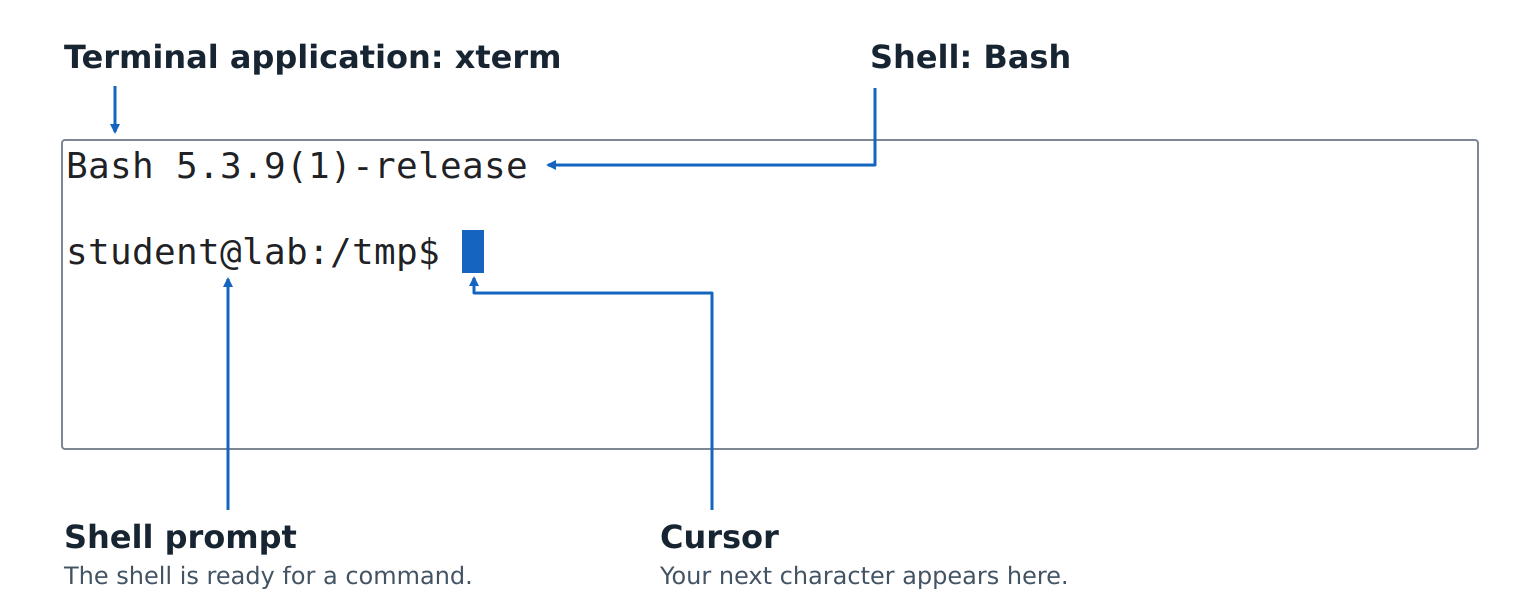
In the screen capture below, xterm is the terminal application and Bash is the shell running inside it. The shell prompt is the text Bash displays when it is ready for a command. The cursor is the blue block marking where the next character you type will appear.
The shell label points to Bash’s version banner to show which program is handling this session. Linux is the operating system supporting both programs.
Follow the section for your computer. You can read the other sections to recognize the tools your classmates use.
Open the Start menu, search for Terminal, and launch Windows Terminal if it is installed. Its tab dropdown lets you choose among available profiles, such as Windows PowerShell, PowerShell, and Command Prompt. Windows Terminal supports multiple shells in one application. [19]
If Terminal is not available, search Start for Windows PowerShell or Command Prompt and open that instead. You can try the commands there, though the window may not provide all the features described below. The application hosting these shells depends on your Windows setup.
Choose a normal session for these chapters. There is no need to select Run as administrator.
Open Spotlight with Command+Space, search for Terminal, and open it. You can also find Terminal in the Utilities folder inside Applications. Apple’s Terminal provides a command-line interface to macOS. [20]
On a Mac, the Command key is the one marked ⌘. It is a different key from Control. When the book says Ctrl+C, it means Control, even on a Mac.
Open your desktop’s application launcher and look for a terminal application. Its name might be Terminal, GNOME Terminal, Console, Konsole, or xterm. Linux desktops do not all ship the same application or assign the same shortcuts. The figure above uses xterm; the Linux shortcut examples in this chapter are specifically for GNOME Terminal.
If you already have a terminal open without a graphical desktop, you can still follow the command examples. Tabs and graphical settings depend on the terminal application you use to connect.
If you already use Visual Studio Code, select Terminal > New Terminal. Its integrated terminal can run installed shells, and the dropdown beside the new-terminal button lets you select a profile. [21]
The terminal panel and the editor are separate places to type. Entering a command into an open text file just adds text to that file. Click inside the terminal panel when you want the shell to receive it.
This book has two main tracks: Bash/zsh and PowerShell. We will also cover Windows Command Prompt, because you will encounter instructions and tools that use it.
| Shell | Where you will encounter it | How this book uses it |
|---|---|---|
| Bash | Linux, macOS, and UNIX-style environments on Windows | A main shell for UNIX command-line work and scripts |
| zsh | macOS and systems where it has been installed | A main interactive UNIX shell, with differences from Bash called out |
| PowerShell | Windows; PowerShell 7 also runs on macOS and Linux | The main Windows track and its object-based approach to automation |
Command Prompt (cmd.exe) |
Windows | Native Windows commands and batch-file conventions |
An interactive shell reads commands as you enter them. A script stores commands in a file so a shell can run them later. We start interactively so that you can inspect each result before moving on.
Bash and zsh share much of their everyday command syntax, but they are different programs. Where an example works in both, we will label it Bash/zsh. Where the behavior differs, we will give separate examples.
Current macOS installations normally use zsh as the default shell in Terminal. Your account or terminal settings can select another shell. [22] Linux systems also vary; your terminal’s profile settings determine which shell it starts.
Windows PowerShell 5.1 and PowerShell 7 are separate products. Windows PowerShell comes with Windows and runs only on Windows; PowerShell 7 is also available for macOS and Linux. [23]
On Windows, powershell.exe starts Windows PowerShell, while pwsh.exe starts the newer PowerShell when it is installed. Installing PowerShell 7 does not replace Windows PowerShell 5.1; they can exist side by side. [24]
Our main PowerShell track targets PowerShell 7. The examples in this chapter also work in Windows PowerShell 5.1. You can start with the version you already have; later chapters will mark examples that require newer features.
Trap: Updating Windows Terminal does not update the shell running inside it. The terminal and PowerShell have their own versions. When comparing your results with a tutorial, check which one the tutorial is talking about.
Windows Subsystem for Linux, or WSL, lets you work in a Linux environment on Windows. A WSL profile in Windows Terminal can therefore start a Linux shell. The surrounding window still belongs to Windows Terminal. [19]
You may also encounter Git Bash, the Bash environment supplied with Git for Windows. It is a different environment from WSL. [25] Record which environment you are using; it affects available commands and how paths work. Either one lets you follow the UNIX track on Windows.
Here are examples of prompts you might see. These are illustrations, not commands to type:
student@laptop:~$
student@MacBook ~ %
PS C:\Users\student>
C:\Users\student>
The first two are typical UNIX-style prompts. They show a username, a computer name, and a location; ~ commonly represents your home directory. The last two resemble default PowerShell and Command Prompt prompts on Windows, including a path to the current directory.
A directory is what a graphical file manager calls a folder. Your shell has a current directory, which gives commands a starting place for finding files. We will explore directories properly in Chapter 3.
Prompts are customizable. A $, %, or > at the end is a clue, not proof of which shell is running. A tab title can also be renamed. Look at your terminal’s profile settings to see which shell it starts.
The shell normally displays a prompt when it is ready for a command. The prompt may contain your username, the computer’s name, or a folder path. The examples above show how its appearance varies between shells.
In the console boxes in this book, bold lines are commands you type, and ordinary lines are output. The $ at the start of a command is our prompt marker, even for Windows shells; do not type it.
Click inside the terminal window so it has focus, type the following line, and press Enter (Return on a Mac):
$ echo console-ready
console-ready
This particular command works in Bash, zsh, PowerShell, and Command Prompt. echo asks for the following text to be written as output. The line console-ready underneath the command is its output.
Then the prompt returns. You entered a command, the shell handled it, and the terminal displayed the result. That is the basic conversation we will build on.
In the HTML edition, Copy commands copies only the commands from a console box, without the $ markers or output. Read each command before pasting it into your shell.
Trap: Do not type the prompt along with a command. If a tutorial shows $ echo hello, the $ may be its way of marking the prompt. The command is echo hello.
A tab gives you another workspace inside the same terminal window. Opening a new shell tab normally starts another shell session. The shells can use the same files, but each has its own immediate state, such as the command currently being typed.
Open a second tab through your terminal’s menu or new-tab button. Type echo second-tab there, then return to the first tab. Your original conversation should still be visible. Two tabs let you keep two tasks within reach without mixing their output.
A pane is a section of a window. Windows Terminal can split a tab into panes running separate sessions. For example, hold Alt while selecting a profile in its dropdown to open that profile in a new pane. Its default Alt+Arrow bindings move focus between panes. [26]
Focus identifies which pane receives your typing. Before entering a command, find the cursor or the active-pane highlight. You can have the right command and still enter it in the wrong session.
Different terminal applications use the word split differently. In macOS Terminal, Split Pane gives you another view of the same session’s scrollback; use a new tab or window for a separate shell. VS Code’s terminal splits, by contrast, can host separate terminal sessions. [21], [27]
Select the output text console-ready with your mouse. Use the terminal’s Copy action, then paste it into a notes document. Copying text is useful for recording results and asking a precise question about an error.
The following are default bindings in the named applications. Your settings may override them. [27], [28], [29]
| Action | Windows Terminal | macOS Terminal | GNOME Terminal |
|---|---|---|---|
| New tab | Ctrl+Shift+T |
Command+T |
Ctrl+Shift+T |
| Copy selected text | Ctrl+Shift+C |
Command+C |
Ctrl+Shift+C |
| Paste | Ctrl+Shift+V |
Command+V |
Ctrl+Shift+V |
| Search displayed text | Ctrl+Shift+F |
Command+F |
Ctrl+Shift+F |
Ctrl+C has another important job: it commonly requests that the current command stop, or cancels a line you are entering. Some terminals also use it for copying when text is selected. Using the explicit Copy action avoids that ambiguity.
To practice pasting a command, copy just echo pasted-on-purpose from this sentence. Paste it at an empty prompt, inspect it, and press Enter.
Trap: A paste can contain more than one line, including an Enter character at the end. Depending on the shell and terminal, that can execute commands immediately. For this exercise, copy only the single command, without a newline.
The terminal keeps a scrollback buffer: earlier displayed text you can revisit after it leaves the screen. Run echo another-line once. At the next prompt, press Up Arrow to recall that command, then press Enter to run it again. Repeat this a few times without retyping the command. Make the window short enough that some output scrolls above the visible area. Use the scrollbar or mouse wheel to look back.
Scrolling changes what you see. It does not return the shell to an earlier point in time. The shell is still waiting at its current prompt.
Use your terminal’s Find action to search for console-ready in the first tab. This searches text the terminal has retained. It does not search the contents of files on disk. Later we will use other tools for that.
The Up Arrow you used above relies on command history: the commands the shell remembers so you can recall and edit them. History belongs to the shell, not the terminal. Scrollback can include commands, output, and error messages. History generally contains commands, not their output.
You can also edit a recalled command before running it. With the usual shell key bindings, try this at an empty prompt:
echo another-line. The cursor starts at the end.line.new-. The command now reads echo another-new-line.The edited command and its output are:
$ echo another-new-line
another-new-line
Left and Right Arrow move the cursor without changing the text. Typing inserts text at the cursor; Backspace removes the character just before it. You can press Up Arrow repeatedly to reach older commands and Down Arrow to move toward newer ones. Recalling a command puts it on the line for editing; it only runs when you press Enter. Chapter 4 covers these editing keys, their alternatives, and how to search history.
Neither feature should be your only record of important work. Scrollback can be limited or cleared, and history retention depends on shell settings. Put observations you want to keep into your notes.
Open your terminal’s settings and find the font and color controls. Choose a comfortable size and a color scheme where you can clearly read ordinary text, highlighted text, and errors. A monospaced font gives each character the same width, helping columns line up.
Try increasing the font size, then restoring it. Also resize the window and watch longer lines wrap. A line wrapping on screen does not necessarily mean there is a newline in the underlying text.
A terminal profile is a saved set of settings. Depending on the application, it can include appearance, the starting folder, and which program to launch. In Windows Terminal, check the command line in a profile’s settings to see what it starts. Changing a profile’s displayed name alone does not change its shell. [19]
Do not confuse a terminal profile with a PowerShell profile. The latter is a script PowerShell can run at startup; we will cover it when we configure shells.
In Windows Terminal, Ctrl+Shift+P opens the command palette. It lets you find terminal actions by name, which is handy before you have memorized their shortcuts. [30] For other terminals, explore the menus and their displayed shortcuts.
At an idle shell prompt, enter:
$ exit
In these shells, exit ends the current shell session. If that shell was the main program in a tab, the terminal may close the tab or show that the session ended, depending on its settings. You can open another session from the terminal’s menu.
Closing a window can also affect programs still running inside it. For now, return to an idle prompt before closing its tab. We will study running programs and their lifetimes later.
n00bs finish the chapter here. You can open a terminal, recognize the shell and prompt, and use the window around them. Hackers start asking what else is out there.
Start with other terminal applications:
Then look at other shells:
Pick one that interests you and read its documentation. What problem does it try to solve? Which feature would make your own work easier? If it runs on your system, try it in a separate session and compare it with the tools you already have.
You can also pimp your shell prompt. Explore your shell’s prompt customization: colors, symbols, and the information it displays. Can you make your current directory easier to spot, or make different shell sessions easier to tell apart? Aim for something that looks good and helps you work without crowding out the command you are typing. We will dig into prompt configuration in Chapter 10.
Change one thing at a time. Run a familiar shell in a different terminal to explore the terminal’s features. Run a different shell in the same terminal to explore the shell’s behavior. Notice which differences belong to which program.
You do not need to replace your everyday setup to explore an alternative. The useful discovery is being able to explain what changed, why it changed, and whether it helps you.
echo first-tab, open a second tab, and press Up Arrow there. Predict what appears before you press the key.$ echo hello exactly as printed in a tutorial and the shell reports an error about $. Explain what went wrong and what they should have typed.In the shell, you type a series of commands. n00bs look at commands as magic incantations to recite. However, commands have a common mode of operation. Learning how commands operate will allow you to quickly understand and use existing commands and build new commands of your own.
Remember our console notation: a bold line beginning with $ is a command to enter. Do not type the $ marker, even if your actual prompt looks completely different. Unmarked lines show output.
The concepts in this chapter are:
To run a command, type the command name at the command prompt in the shell followed by arguments. We use the term options or flags for arguments that are keywords to indicate a certain behavior. We already saw the echo command that prints the message, given as an argument to the command; echo hello will print hello to the terminal.
On Linux and OSX, the head command will show the first few lines of a file, so head README.md will print the first few lines of the file README.md. If we just want the first two lines of the file we can use the -n option to specify the number of lines. head -n 2 README.md runs the command head with three arguments, one of which is an option.
Most shells — all of the ones we are talking about — use spaces to separate arguments. What if we want to pass an argument that has spaces in it? Like
$ echo "Two spaces after the period.  Please."
Two spaces after the period.  Please.
We will see the rules around using quotes a little later. Hopefully, you have a bit of intuition on how to run a command and pass arguments to it.
Now let’s ask for a directory listing: the names of files and directories in a folder. Use an ordinary filesystem directory, such as the home folder where your shell started.
ls lists directory contents. The argument . means the current directory. Run these one at a time and compare the results:
$ ls .
$ ls -a .
Normally, ls leaves out names beginning with a dot. The -a option includes them, along with the special entries . and ... We will explore what those entries mean in Chapter 3. [36]
Read the second command in pieces:
| Piece | Role | Meaning here |
|---|---|---|
ls |
Command name | List directory contents |
-a |
Option | Include names normally hidden by their leading dot |
. |
Path argument | Look in the current directory |
The option and path are both arguments passed to ls, but they do different jobs. The path says where; the option changes how the results are selected.
Get-ChildItem lists the items inside a location. For a filesystem directory, those items are files and subdirectories.
$ Get-ChildItem -Path .
$ Get-ChildItem -Path . -Force
PowerShell calls these named controls parameters. -Path takes a value: the . immediately after it. -Force is a switch parameter; here, it includes hidden items that the normal listing leaves out. It does not bypass access permissions. [37]
Read -Path . as a pair: parameter name, then its argument value. The long names make the request readable once you know where the pieces begin and end.
In cmd.exe, dir lists directory contents.
$ dir .
$ dir /a .
The /a option includes entries with hidden or system attributes that the default listing omits. With no attribute selection after /a, it includes all attribute types. [38]
The three pairs of commands have a similar purpose, but their output formats and definitions of hidden files differ. Do not expect identical listings just because the requests sound similar in English.
Trap: An option belongs to a particular command. -a, -Force, and /a all mean different things to different commands.
Many UNIX tools use a single hyphen for short options, such as -a, and two for longer names, such as --all, but there are plenty of exceptions like java -version. GNU ls, commonly found on Linux, accepts --all as another form of -a. Do not assume every system’s ls accepts the same long options. [36]
PowerShell’s full parameter names normally use one hyphen, as in -Path. Many traditional Windows commands use a slash, as in /a.
You will sometimes see short options combined, but do not combine letters just because a command looks shorter that way. First check that command’s help. And do not assume a word like force has the same consequences everywhere: showing hidden entries is very different from forcing an overwrite.
Suppose your message is console punk, with a space. You need a way to say that the space belongs inside the text rather than separating two arguments. Quotation marks provide that grouping.
echo is not a good argument counter: it puts spaces between the arguments it prints. For this experiment, use printf, which prints according to a format string. In '<%s>\n', %s marks a string to insert, < and > make its boundaries visible, and \n requests a new line. The format is reused for the remaining values. [39]
$ printf '<%s>\n' console punk
<console>
<punk>
$ printf '<%s>\n' "console punk"
<console punk>
Without the quotation marks, console and punk are separate arguments after the format string. With them, console punk is one argument containing a space. The grouping quotation marks themselves are not part of that value.
Single quotes also group this text into one argument. Alternatively, a backslash can escape an unquoted space: tell the shell to treat it as a literal character instead of a separator. You can even join unquoted and quoted pieces without putting a separating space between them:
$ printf '<%s>\n' 'console punk'
<console punk>
$ printf '<%s>\n' console\ punk
<console punk>
$ printf '<%s>\n' console" punk"
<console punk>
All three pass the same value after the format string. The backslash in console\ punk is shell syntax; it is not part of the resulting text. [40], [41]
Use the other kind of quote around a string that contains quotation marks:
$ printf '%s\n' 'say "hello"'
say "hello"
$ printf '%s\n' "it's working"
it's working
Inside double quotes, \" includes a literal double quote:
$ printf '%s\n' "say \"hello\""
say "hello"
A backslash does not escape an apostrophe inside ordinary single quotes. Use double quotes around that text, as in "it's working", instead. Single and double quotes are not interchangeable for every string: double quotes still allow the shell to substitute some things inside them. The next section explains what those things are, starting with variables. [40], [41]
Write-Output writes values to PowerShell’s output stream. Here, the value is one string, meaning a piece of text:
$ Write-Output "console punk"
console punk
The quotation marks keep the two words together as one string. [42] In a default PowerShell session, the familiar name echo is an alias for Write-Output. We will unpack aliases in a moment. [43]
Single quotes also work for this message. PowerShell’s escape character is the backtick, not the backslash; a backtick immediately before an unquoted space keeps it in the argument:
$ Write-Output 'console punk'
console punk
$ Write-Output console` punk
console punk
The backtick is different from the apostrophe used for single quotes. Quoting the whole string is usually easier to read. [44]
As in Bash/zsh, the other kind of quotation mark can appear inside the surrounding pair:
$ Write-Output 'say "hello"'
say "hello"
$ Write-Output "it's working"
it's working
Inside a double-quoted string, escape a double quote with a backtick. Inside a single-quoted string, write an apostrophe twice to include one literal apostrophe:
$ Write-Output "say `"hello`""
say "hello"
$ Write-Output 'it''s working'
it's working
Single-quoted strings are literal; double-quoted strings allow the same kind of substitution, which the next section explains. These examples use a PowerShell cmdlet. Passing embedded quotes to external programs has additional rules and version differences; do not assume the same spelling works everywhere. [42], [44]
Command Prompt has different parsing rules, and its built-in echo treats the following message differently from the UNIX printf example. For the simple message here, enter:
$ echo console punk
console punk
Do not use this result to infer how another command handles spaces. For a path containing spaces, use double quotation marks around the path, such as "C:\Program Files". Single quotation marks are not a substitute for double quotation marks in Command Prompt. [45], [46]
Unlike Bash’s echo or PowerShell’s Write-Output, Command Prompt’s internal echo keeps double quotation marks in the displayed message:
$ echo say "hello"
say "hello"
$ echo "console punk"
"console punk"
This is useful for displaying quotes, but it is not a general rule for passing quoted text to other programs. Command Prompt uses the caret (^) to escape certain special characters, but a caret before a space is not a reliable replacement for quoting an argument to an external program. Keep using double quotes around paths with spaces, and consult the target program’s rules for embedded quotes. [45], [47]
Trap: Escape characters are shell-specific. Bash/zsh use a backslash; PowerShell uses a backtick; Command Prompt uses a caret for some purposes. Copying an escape from another shell can change the text or split an argument instead of protecting it.
Use the quotation marks shown in the example for your shell, and keep the opening and closing marks paired. If an unfinished quote leaves Bash, zsh, or PowerShell waiting for more input, press Ctrl+C to cancel and start again.
The quotation marks in the previous section disappeared before the program saw its argument. That is one example of a general rule: the shell reads your line, transforms parts of it, and only then runs the command with the results. The program never sees your quotes, your variable names, or your wildcards. It sees the arguments the shell produced.
Shells also have variables — names that represent a value. We call these variables environment variables.
When we run commands, we can use these variables as arguments. The commands themselves can also read the arguments from the environment.
The shell fills some variables when it starts: HOME holds the path to your home directory, and PATH holds the list of directories it searches for programs. You can create your own, and a later section shows how.
| Shell | Reference | Value it becomes |
|---|---|---|
| Bash/zsh | $HOME |
/home/student |
| PowerShell | $HOME |
C:\Users\student |
| Command Prompt | %USERPROFILE% |
C:\Users\student |
Commands themselves can also use environment variables. The EDITOR environment variable specifies the editor to use if the command wants to edit a file; git is a big user of this one. The LANG environment variable tells the preferred language for commands that support multiple languages.
Bash/zsh:
$ printenv HOME
$ env
printenv prints one variable; env with no arguments lists them all. A shell variable is created with NAME=value and becomes an environment variable when you export it: [48], [49]
$ DEMO=hello
$ bash -c 'echo "child sees [$DEMO]"'
child sees []
$ export DEMO
$ bash -c 'echo "child sees [$DEMO]"'
child sees [hello]
bash -c starts a child shell to run one command, which shows what a program started from this shell would inherit. The single quotes keep $DEMO from being expanded by the parent before the child runs.
PowerShell:
$ $env:HOME
$ Get-ChildItem Env:
PowerShell exposes the environment as the Env: drive, and $env:NAME reads or sets one variable. Assigning $env:DEMO = "hello" creates an environment variable that child programs inherit; an ordinary $demo = "hello" variable stays inside PowerShell. [50]
Command Prompt:
$ echo %USERPROFILE%
$ set
set with no arguments lists the environment, and set DEMO=hello creates a variable in this session. Command Prompt has no separate shell variables; everything set creates is inherited by child programs. [51]
Changes made this way last only until the session ends. Chapter 10 covers startup files that make settings persistent.
Variable expansion is one of several transformations the shell applies when it runs a command. The ones you will see most often are:
*.md with the matching filenames. Bash and zsh do this; PowerShell and Command Prompt leave the pattern for the command to interpret.Quotes control which transformations happen. Every shell has a way to say “expand this” and “leave this alone”, but the spelling differs, so learn the rules for the shell you are using.
Trap: Single quotes block substitution in Bash, zsh, and PowerShell. echo '$HOME' prints the five characters $HOME, not your home directory, and the same goes for command substitution and, in Bash and zsh, wildcards. Use double quotes when you want the value and single quotes when you want the text exactly as typed. Command Prompt is the exception: it has no quote that blocks substitution, and single quotes are ordinary characters there, so echo '%USERPROFILE%' expands the variable and prints the quotes around it.
printf '<%s>\n' shows exactly which arguments a program received, so keep using it as a probe.
Start with the HOME variable and compare three spellings of a reference to it:
$ printf '<%s>\n' $HOME "$HOME" '$HOME'
</home/student>
</home/student>
<$HOME>
Unquoted and double-quoted references are both expanded. Single quotes turn expansion off, so the program receives the five characters $HOME unchanged. The difference between the first two forms appears when the value contains spaces: unquoted, the shell splits it into several arguments; inside double quotes, it stays one argument. Use "$HOME" by default. [40], [52], [53]
$(...) runs a command and substitutes its output:
$ printf '<%s>\n' "$(date +%Y)"
<2026>
Your year will differ. The point is that date ran first and printf received its output as an argument. [54]
A wildcard pattern is expanded by the shell into matching names. * matches any run of characters within a name. Try this in a directory containing Markdown files, or read the output as an illustration:
$ printf '<%s>\n' *.md
<notes.md>
<todo.md>
$ printf '<%s>\n' '*.md'
<*.md>
The program never sees *.md in the first command; it receives one argument per matching file. With quotes, it receives the literal pattern. [55]
Bash and zsh disagree about a pattern that matches nothing. Bash passes the pattern through unchanged, so the program receives *.zzz. zsh reports no matches found and does not run the command at all, unless you change its NOMATCH option. [55], [56]
Trap: A wildcard is expanded before the command sees it, so a typo changes which files a command touches. rm * .bak with an accidental space names every file in the directory, not the .bak files. Before running a destructive command with a wildcard, run printf '<%s>\n' with the same pattern to see what the shell will pass.
PowerShell uses a $ prefix for variables and expands them inside double quotes but not single quotes:
$ Write-Output $HOME
C:\Users\student
$ Write-Output "$HOME"
C:\Users\student
$ Write-Output '$HOME'
$HOME
$(...) inside a double-quoted string is a subexpression: PowerShell evaluates it and inserts the result. [42], [57]
$ Write-Output "Year: $(Get-Date -Format yyyy)"
Year: 2026
To see which arguments a command received, run a script block with & and print its $args:
$ & { foreach ($a in $args) { "<$a>" } } console punk "console punk"
<console>
<punk>
<console punk>
You do not need to understand the loop yet; treat it as a probe like printf above. [58]
Use the same probe with a wildcard:
$ & { foreach ($a in $args) { "<$a>" } } *.md
<*.md>
PowerShell did not expand the pattern. Cmdlets such as Get-ChildItem interpret wildcards in their own parameters, which is why Get-ChildItem *.md lists matching files and why -LiteralPath exists to switch that off. [59]
External programs receive the arguments PowerShell built, with its own rules for quotes. --% stops PowerShell parsing the rest of the line and passes it to the program almost as typed; it exists for cases where those rules get in the way. [44]
Command Prompt reads a variable with percent signs, and it has no quote that switches expansion off:
$ echo %USERPROFILE%
C:\Users\student
$ echo "%USERPROFILE%"
"C:\Users\student"
Both forms expand the variable; the quotation marks stay in the output because echo displays its text as written. ^ escapes characters such as & and |, which otherwise have a special meaning that we return to in Chapter 7. [45], [51]
Command Prompt does not expand wildcards for you. dir *.md works because dir interprets the pattern itself. An external program receives *.md literally and decides what to do with it.
Wut: The same line can mean three things in three shells. echo $HOME prints your home directory in Bash, zsh, and PowerShell, but Command Prompt prints the text $HOME because $ is not special there. echo %HOME% is a variable reference in Command Prompt and plain text in Bash and zsh.
Not every command is a separate program. A name can lead to several different kinds of thing:
echo; Command Prompt has its own internal echo and dir commands.ls is an example. It could even be a program or script that you have written.Get-ChildItem and Write-Output are examples.Bash documents the distinction between its built-ins and separate programs; PowerShell’s command discovery distinguishes aliases, functions, cmdlets, and applications. [60], [61]
PowerShell cmdlet names conventionally use a Verb-Noun pattern. Get-ChildItem gets child items; Get-Command gets information about commands. The hyphen inside the name is part of the name, not an option separator.
type reports how the shell interprets a command name.
$ type echo
In an uncustomized Bash or zsh session, it reports that echo is a shell built-in. Your shell can report an alias or function instead if your configuration defines one.
Add -a to look for all the matches type can find:
$ type -a ls
You may see a path to an executable, several paths, or an alias as well. The exact wording and paths depend on your shell and installation. [39], [62]
Get-Command reports what kind of command a name selects.
$ Get-Command echo
$ Get-Command Get-ChildItem
$ Get-Command dir
Look at the CommandType and Name columns. With the default aliases, echo points to Write-Output, while dir points to Get-ChildItem. Get-ChildItem itself is a cmdlet. Use Get-Command dir -All to investigate multiple commands sharing that name. [37], [61]
Wut: PowerShell’s dir is not Command Prompt’s dir. The default PowerShell alias selects Get-ChildItem, so it expects that cmdlet’s parameters, not Command Prompt’s /a syntax. A familiar name is a clue, not a guarantee of familiar behavior.
help lists many of Command Prompt’s available commands and describes their use. For a particular command, give its name:
$ help dir
For external program files, where.exe searches the current directory and the directories listed in PATH. For example, find the Command Prompt executable:
$ where.exe cmd.exe
This reports matching file paths, not internal commands or shell aliases. Failure to find an echo.exe would not mean Command Prompt lacks its internal echo. [63], [64]
When you type a name that is not a built-in, alias, or function, the shell walks PATH from first directory to last and runs the first matching executable.
Bash/zsh:
$ echo "$PATH"
$ command -v ls
/usr/bin/ls
PATH uses : between directories. command -v reports what the name resolves to; type -a from earlier lists every candidate. [65]
PowerShell:
$ $env:PATH
$ (Get-Command ls).Source
On Windows, PATH uses ; between directories; PowerShell on Linux and macOS uses :. Get-Command shows the path in its Source property. [66]
Command Prompt:
$ echo %PATH%
$ where.exe notepad.exe
where.exe searches the current directory and then PATH, so it finds the program Command Prompt would run. [64]
The current directory is not on PATH in Bash, zsh, or PowerShell, so a program sitting there is run by path, as ./tool or .\tool.exe; Command Prompt searches the current directory before PATH. [45], [65], [66]
Two consequences follow:
PATH by an installer is seen only by shells started after the change. Open a new tab when a freshly installed tool is not found.PATH, the first one wins.A package manager downloads software from a catalog, installs it, records what it installed, and can update or remove it later. Prefer one over downloading installers by hand: it puts programs on PATH consistently and tells you what version you have.
| Platform | Package manager | Install example |
|---|---|---|
| Debian, Ubuntu | APT | sudo apt install ripgrep |
| Fedora | DNF | sudo dnf install ripgrep |
| macOS | Homebrew | brew install ripgrep |
| Windows | winget | winget install BurntSushi.ripgrep.MSVC |
sudo runs a command with administrator rights, which system-wide installation on Linux needs; Chapter 8 explains it. Homebrew and winget are separate projects from the operating system and use their own catalogs. [67], [68], [69]
Programming languages bring their own package managers, such as pip for Python and npm for JavaScript. They install libraries for that language, sometimes with command-line tools, into directories that may or may not be on PATH.
Knowing how to ask a command about itself is more useful than remembering every option. Different command types have different help systems.
In Bash, help describes built-in commands:
$ help echo
That is Bash’s help system, not a universal command available in every shell. For zsh, its built-in commands are documented together in the zshbuiltins manual:
$ man zshbuiltins
In either shell, use the installed manual for a program such as ls:
$ man ls
man opens a manual page, usually in a pager that lets you move through text a screen at a time. With the common less pager, use Space for the next screen, Up and Down Arrow to move a line, and q to quit. [70] Different pager settings can change those keys. If man or the requested page is not installed, consult the tool’s official documentation instead.
GNU ls also accepts ls --help. That is a feature of that program; --help is not a magic request that works with everything.
Get-Help reads help for a command. Start with an overview, then ask for examples:
$ Get-Help Get-ChildItem
$ Get-Help Get-ChildItem -Examples
If the local help files are missing, you may get only basic syntax rather than the full explanation. Get-Help Get-ChildItem -Online opens the online documentation in your browser and needs internet access. You do not need to change system settings just to read that page. [71]
Use help for a list, then ask about the command you want:
$ help
$ help dir
$ dir /?
For dir, the last two forms show its help. Many Windows utilities recognize /?, but an independently installed program may use something else. Check that program’s documentation instead of trying random switches. [38], [63]
Help often begins with a syntax or synopsis line. It describes the allowed usage of a command, rather than giving you a line to paste unchanged.
For example, Bash’s help echo includes this syntax fragment:
echo [-neE] [arg ...]The brackets mark optional pieces. arg stands for an argument you supply, and ... indicates that arguments can be repeated. You do not type the brackets, the word arg, or the dots literally.
Windows documentation also uses square brackets for optional pieces and angle brackets for values you supply, such as <command>. Read the syntax key when the notation is unfamiliar. [72]
In PowerShell help, a fragment such as [-Path] <String[]> has an extra distinction: the parameter name can be omitted when its value is supplied in the appropriate position. String[] means the value can be an array of strings; those inner brackets do not mean “optional”. For now, keep writing -Path explicitly so the command explains itself. [73]
Tip: Read help with a question in mind. Find the command’s purpose, identify the argument or option you need, and read one relevant example. Predict what your version will do before you run it. You can return for the other options when you have a reason to use them.
PATH decides which executable a name runs, and the first match wins.PATH.type, Get-Command, or Command Prompt’s help and file-location tools to investigate names.n00bs finish the chapter here. You can point to the pieces of a command and find help for the ones you do not understand. Hackers dig deeper.
Choose one command you have used in this chapter and investigate its identity. In Bash or zsh, compare type echo with type -a echo. In PowerShell, inspect Get-Command echo -All and compare the result with Get-Command Write-Output. In Command Prompt, compare what help echo tells you with what where.exe cmd.exe can find. Explain why a help topic, an alias, and an executable path are different kinds of answer.
Then choose one listing option from the help for ls, Get-ChildItem, or dir that changes only the display or selection of entries. Predict the difference, run the command, and explain what changed. Can you make a similar request in another shell without assuming it uses the same syntax?
Finally, find a command nobody has told you about. In Bash or zsh, apropos searches the one-line descriptions of installed manual pages for a keyword, so apropos directory lists commands whose descriptions mention directories. Read the manual page of one that looks interesting and try an option from it. [74] In PowerShell, Get-Command -Noun Item lists the cmdlets that act on items, and Get-Help *item* finds help topics by wildcard. [61], [71] In Command Prompt, read the list from help and pick a command whose description you do not understand yet.
Explore what your shell shows you about its own work. In Bash or zsh, set -x makes the shell print each command after expansion and before running it; set +x turns it off. [75] In PowerShell, Trace-Command can show parameter binding, and Get-Command -All with -ShowCommandInfo exposes more about how a name resolves. Which of the transformations in this chapter can you catch in the act?
Then look at your PATH critically. List its directories one per line and check which ones exist. Is anything on it twice, or in an order you would not have chosen? Investigate how a tool such as pipx, pyenv, or nvm manages several versions of a language, and explain how it uses PATH to do it.
Keep a small note containing the command, what each part means, and where you found the explanation. That is the beginning of a reference you understand, not just a collection of things to paste.
printf '<%s>\n' "a b" a b in Bash or zsh, paying attention to the double spaces, then run it.Write-Output "$HOME" and Write-Output '$HOME' print in PowerShell, then explain the difference in one sentence.echo %USERPROFILE% and prints exactly that text. Explain why, and write the line that would work in Bash.Get-ChildItem *.md lists Markdown files in PowerShell, but the script-block probe shows that the pattern was passed through unchanged. Explain who expanded it.ls in your shell is an alias, a function, or a program, and where the program lives if it is one?A command can be spelled correctly and still fail because it looked for a file in the wrong directory. Every program, including the shell, reads and writes files somewhere in a large tree of directories, and it needs to be told where. This chapter is about that tree: how it is organized on each operating system, how a path names a place in it, where you are standing in it, and how to create, copy, move, remove, and link the files it holds.
The concepts in this chapter are:
. and .. names;The first half changes nothing. The second half creates and deletes files, so it works in a disposable practice directory. Use a normal session without administrator privileges. The PowerShell examples work in Windows PowerShell 5.1 and PowerShell 7 unless a version is named, and Windows-specific paths are labeled.
The earliest personal computers had no folders. MS-DOS 1.0 stored every file on a disk in one list, which was workable for a few dozen files and no more. MS-DOS 2.0 added the ability to put a folder inside a folder, and the same idea had been in UNIX from the start. [9], [14], [16] Folders inside folders let a system sort its files by purpose: commands in one place, each user’s files in another, installed programs in a third.
A graphical file manager calls these containers folders, and the picture of a folder is a good one. On the command line the word is directory. The two words name the same thing; this book uses directory from here on.
Because a directory can hold directories, the whole collection forms a tree. A directory inside another is its child or subdirectory, the containing directory is its parent, and directories with the same parent are siblings. The directory at the top, the one with no parent, is the root.
Here is the top of a macOS filesystem, shortened to the directories that matter for this book. This is a diagram, not something to type:
/
+-- Applications/
+-- Library/
+-- System/
+-- Users/
|   +-- Shared/
|   +-- student/
|       +-- Desktop/
|       +-- Documents/
|       +-- Downloads/
+-- Volumes/
+-- bin/
+-- etc/
+-- tmp/
+-- usr/
    +-- bin/
    +-- local/
The root is written /. Everything on the machine is somewhere below it: the operating system under System and Library, installed programs under Applications, command-line programs under bin and usr/bin, and each person’s files under Users. [76]
Linux uses the same layout with different names in a few places. User directories live under home instead of Users, and installed programs go under usr/bin, usr/local, or opt rather than a single Applications directory. [77] Both are UNIX-style systems, which Chapter 0 explained, so the shared layout is inherited and the naming differences grew afterward.
| Purpose | macOS | Linux |
|---|---|---|
| Root | / |
/ |
| Home directories | /Users |
/home |
| Your home directory | /Users/student |
/home/student |
| Installed applications | /Applications |
/opt, /usr/bin, /usr/local |
| Core commands | /bin, /usr/bin |
/bin, /usr/bin |
| System configuration | /etc, /Library |
/etc |
| Removable drives | /Volumes |
/media, /mnt |
Windows organizes its disk differently, and it grew from MS-DOS rather than UNIX, so the names and the layout are its own:
C:\
+-- Program Files\
+-- Program Files (x86)\
+-- Users\
|   +-- Public\
|   +-- student\
|       +-- Desktop\
|       +-- Documents\
|       +-- Downloads\
+-- Windows\
    +-- System32\
The root of the main disk is C:\, not \ alone, because Windows names each disk with a drive letter; the section on additional storage explains why. The operating system lives under Windows, installed programs under Program Files, and user directories under Users, which is the one name Windows shares with macOS. [78] Command-line programs have no single home; Windows\System32 holds the built-in ones, and installers add their own directories.
A path names a file or directory by listing the directories from the top of the tree down to it. Instead of commas between the names, a path uses a separator: / on UNIX-style systems and \ on Windows. A path that starts at the root is an absolute path, and it names the same place no matter where you are. [79], [80]
| Target | macOS | Linux | Windows |
|---|---|---|---|
| Your home directory | /Users/student |
/home/student |
C:\Users\student |
| A file in Documents | /Users/student/Documents/notes.txt |
/home/student/Documents/notes.txt |
C:\Users\student\Documents\notes.txt |
| A system command | /bin/ls |
/usr/bin/ls |
C:\Windows\System32\cmd.exe |
| A removable drive | /Volumes/USB |
/media/student/USB |
D:\ |
Read /home/student/Documents/notes.txt as “start at the root, enter home, enter student, enter Documents, and there is notes.txt.” The separators are not part of any name; they mark the boundaries between names.
PowerShell on macOS or Linux uses that system’s / paths, and PowerShell on Windows accepts either separator, but the operating system underneath still has one native form. An absolute path is also not portable between computers: the username, the drive, and the layout can all differ, so copy the form of a path from an example and the names from your own machine.
A filename can be almost anything, and the exceptions cause most of the trouble.
Windows and macOS filesystems are normally case-insensitive: Notes.txt and notes.txt name the same file, although the system remembers how you capitalized it. Linux filesystems are case-sensitive: those two names are two different files that can sit side by side. Both Windows and macOS can be configured the other way for particular directories or volumes, so the rule belongs to the filesystem, not to the operating system’s name. [81], [82]
The habit that works everywhere is to type the name exactly as a listing shows it. A project that moves from a Mac to a Linux server breaks when one file is referred to with two spellings.
A UNIX-style filename may contain a backslash, because only / is the separator there; a file named back\slash.txt is legal on Linux and macOS, if unwise. Windows forbids both / and \ in a name, along with :, *, ?, ", <, >, and |, because each of them means something to the system. [17] When a name from one system is not allowed on the other, rename it before copying.
A space in a name is legal everywhere and inconvenient on the command line, where a space separates arguments. Chapter 2 showed the fix: quote the whole name, as in "My Documents", or in Bash and zsh escape the space with a backslash. Directories that Windows and macOS create for you contain spaces, Program Files and Application Support among them, so you cannot avoid learning this.
An extension is the suffix after the last dot in a filename: .txt, .png, .md. It is part of the name, so notes, notes.txt, and notes.txt.txt are three names.
For most files the extension is a hint and nothing more. It tells you and your programs what to expect inside, but renaming picture.png to picture.txt changes nothing about the bytes; the file is still an image, and an image viewer will still open it if asked. Chapter 6 shows the file command, which reports what a file contains regardless of its name.
Windows is the exception. There, a few extensions decide whether a file can run as a program: .exe, .com, .bat, .cmd, and the others in the PATHEXT variable, plus .ps1 for PowerShell scripts. Double-clicking or typing the name of a file with one of those extensions runs it, and a file with any other extension opens in whatever program is associated with it. Chapter 8 returns to this when it explains what makes a file executable. [50]
Graphical file managers can hide extensions. In Finder, Show all filename extensions under Settings > Advanced turns them on; File Explorer has File name extensions on its View menu. Turn them on when comparing a window with a shell listing. [83], [84]
Common extensions you will see in this book:
| Extension | Contents |
|---|---|
.txt, .md |
Plain text, Markdown text |
.sh, .ps1, .bat, .cmd |
Bash, PowerShell, and Command Prompt scripts |
.py, .js, .c |
Source code |
.json, .yaml, .csv |
Structured data as text |
.log |
A program’s log, usually text |
.zip, .tar.gz |
Archives |
.png, .jpg, .pdf |
Images and documents, not text |
.exe, .dll |
Windows programs and libraries |
At any moment, a shell, a program, or an application is running in a particular directory, called its current working directory or just the current directory. When a program is given a name that is not an absolute path, it looks for that name starting there. Each process has its own: two terminal tabs can sit in different directories, and changing one does not move the other.
Your prompt may show the current directory, but it can abbreviate or omit it. Ask the shell directly when you need to know.
Bash/zsh:
$ pwd
pwd means print working directory, and it prints an absolute path such as /home/student or /Users/student. [62], [85]
PowerShell:
$ Get-Location
Look at the Path field; on Windows it might be C:\Users\student. [86]
Command Prompt:
$ cd
cd with no argument displays the current drive and directory. [87]
Wut: Bare cd does different things in different shells. In Bash and zsh it takes you home, in Command Prompt it reports your location, and in PowerShell it takes you home in PowerShell 7 but does nothing in Windows PowerShell 5.1. Check what a command does in the shell you are using. [88]
A relative path starts from the current directory instead of the root. Documents/notes.txt means “the Documents directory here, and notes.txt inside it”, and it names a different file depending on where you are.
Every directory contains two special names that relative paths use:
. means the current directory itself... means its parent.The two dots are one name, not two arguments. Because they exist in every directory, you can use them without knowing the directory’s real name. [80], [89]
Imagine your current directory is game in this tree:
/home/student/
      +-- projects/
      |   +-- game/
      |   |   +-- notes.txt
      |   +-- website/
+-- downloads/| Target | UNIX-style relative path | Windows-style relative path |
|---|---|---|
The file inside game |
notes.txt or ./notes.txt |
notes.txt or .\notes.txt |
The parent, projects |
.. |
.. |
The sibling, website |
../website |
..\website |
downloads under home |
../../downloads |
..\..\downloads |
Read the last row as “up to projects, up to home, down to downloads.” A relative path is convenient inside a project whose layout stays the same wherever it is copied; an absolute path is unambiguous but tied to one machine.
Each shell has a command to change the current directory, and each prints nothing when it succeeds. Check your location afterward rather than treating silence as an error, and read the error when there is one.
Bash/zsh:
$ cd /tmp
$ pwd
/tmp
$ cd ..
$ pwd
/
$ cd
$ pwd
/home/student
cd means change directory. With no argument it goes to your home directory, the value of the HOME variable. cd ~ and cd "$HOME" do the same: the tilde expands to your home directory, and ~alice expands to another user’s home, where permissions allow. cd - returns to the directory you were in before the last cd, which is useful when bouncing between two places. [85], [90], [91]
Do not write cd "~": quoting the tilde stops it expanding, and the shell looks for a directory literally named ~. [41], [90]
PowerShell:
$ Set-Location -LiteralPath /tmp
$ Set-Location -LiteralPath ..
$ Set-Location -LiteralPath $HOME
$ Get-Location
Set-Location changes the current location, and cd is its alias. $HOME and ~ both name your home directory. Set-Location - returns to the previous location in PowerShell 6.2 and later; Windows PowerShell 5.1 has Push-Location and Pop-Location instead. PowerShell does not expand ~alice. [88], [92]
-LiteralPath tells Set-Location to use the path exactly as written, without interpreting characters such as square brackets as wildcard patterns. Chapter 2 used -Path; this chapter uses -LiteralPath so that the examples work for any name.
Command Prompt:
$ cd \
$ cd
$ cd /d "%USERPROFILE%"
$ cd
cd \ goes to the root of the current drive. %USERPROFILE% is your home directory, and the /d option changes the drive as well as the directory, which the next section explains. Command Prompt has no cd -; pushd and popd save and restore a location. [87], [93], [94], [95]
A second disk, a USB stick, or a network share has its own tree. The two families attach that tree to what you already have in different ways.
Windows does not graft new storage into the existing tree. Each volume gets a drive letter, and each letter is the root of its own tree: C:\ for the main disk, D:\ for the next, and so on. A USB stick appears as the next free letter, and a network share can be mapped to one. The letter identifies a volume, not necessarily a separate physical disk. [17]
An absolute Windows path therefore starts with a letter: D:\photos\trip.jpg. Each drive also has its own remembered current directory, and switching drives is a separate act from changing directory:
$ D:
$ cd \photos
$ C:
In Command Prompt, typing a drive letter with a colon switches to that drive, and cd /d D:\photos does both in one step. In PowerShell, Set-Location D:\photos switches drive and directory together, and Get-PSDrive -PSProvider FileSystem lists the drives with their free space. [87], [96]
Trap: C:\notes.txt, C:notes.txt, and \notes.txt are three different paths. The first starts at the root of C:, the second at the remembered current directory of C:, and the third at the root of whatever drive is current. Use a letter followed by a backslash when you mean a drive root. [80]
Network paths look like \\server\share\folder. Recognize the form; you do not need one for this chapter.
UNIX-style systems keep one tree. New storage is mounted at a directory, called the mount point, and from then on the directory’s contents are the new volume’s contents. mount with no arguments lists what is mounted where, and df -h shows each mounted filesystem with its free space. [79], [97]
$ df -h
A USB stick plugged into a Linux desktop is mounted automatically under /media/student/ or /run/media/student/, named after the stick’s label. On macOS it appears under /Volumes/. A path such as /Volumes/USB/photos/trip.jpg looks like any other absolute path, which is the point: programs need not know that the file is on removable media. [76], [77]
A filesystem image is a single file that contains a whole filesystem, such as an .iso for an installer or a .dmg on macOS. Mounting one makes its contents appear at a mount point, the same as a disk: hdiutil attach file.dmg on macOS, sudo mount -o loop file.iso /mnt on Linux, and Mount-DiskImage file.iso in PowerShell on Windows, where the image gets a drive letter. Mounting on Linux needs administrator rights, which Chapter 8 covers; the desktop does it for you when you double-click. [97], [98], [99]
Some entries are left out of directory listings to reduce clutter, and the two families decide which ones differently.
Windows keeps a hidden attribute on each file, separate from its name. dir and File Explorer skip files with the attribute set, and attrib +h name or the file’s Properties window sets it. [38], [100]
UNIX-style systems have no such attribute. By convention, a name that starts with a dot, such as .bashrc or .git, is left out of the default ls listing and of most file managers. Nothing about the file is hidden; ls -a shows it, any program can open it, and the dot is just the first character of its name. [36] Configuration files use this convention, which is why your home directory has more in it than ls shows.
Neither mechanism restricts access. Chapter 8 covers permissions, which do.
Everything from here on creates, changes, or deletes files, so make a place where mistakes do not matter. Go home, create hax0r-practice, and move into it:
Bash/zsh:
$ cd
$ mkdir hax0r-practice
$ cd hax0r-practice
PowerShell:
$ Set-Location -LiteralPath $HOME
$ New-Item -ItemType Directory -Path hax0r-practice
$ Set-Location -LiteralPath hax0r-practice
Command Prompt:
$ cd /d "%USERPROFILE%"
$ mkdir hax0r-practice
$ cd hax0r-practice
mkdir means make directory. PowerShell’s New-Item creates files or directories depending on -ItemType, and on Windows PowerShell also defines a mkdir function that wraps it. Creating a directory that already exists is an error in all three; mkdir -p a/b/c in Bash and zsh, New-Item -ItemType Directory a/b/c, and mkdir a\b\c in Command Prompt create several levels at once. [101], [102], [103]
Check that your prompt or pwd shows hax0r-practice before every command in the rest of the chapter.
You saw the listing commands in Chapter 2. Here they are with the options that show what you need for the rest of the chapter:
Bash/zsh:
$ ls
$ ls -l
$ ls -a
$ ls -F
ls alone prints names. -l is the long listing, one line per entry with permissions, owner, size, and modification time; -a includes dot files; -F marks directories with a trailing / and executables with *. Options combine, so ls -laF is common. [104]
PowerShell:
$ Get-ChildItem
$ Get-ChildItem -Force
The default listing is already a long one, with a Mode column where d marks a directory on Windows and a UnixMode column on Linux and macOS. -Force includes hidden entries. [37]
Command Prompt:
$ dir
$ dir /a
dir shows sizes and times and labels directories <DIR>; /a includes hidden entries. [38]
An empty file is enough to practice with. Create one, then a second with a line of text in it:
Bash/zsh:
$ touch notes.txt
$ printf 'hello\n' > hello.txt
$ ls -l
touch creates an empty file, or updates the modification time of an existing one. The > sends the output of printf into a file instead of the screen, creating the file; Chapter 7 explains redirection fully. The long listing shows hello.txt at six bytes and notes.txt at zero. [105]
PowerShell:
$ New-Item -ItemType File -Path notes.txt
$ Set-Content -Path hello.txt -Value 'hello'
$ Get-ChildItem
New-Item -ItemType File creates an empty file, and Set-Content writes text, creating the file if needed. [102], [106]
Command Prompt:
$ type nul > notes.txt
$ echo hello > hello.txt
$ dir
Command Prompt has no touch; type nul > notes.txt copies nothing into a new file, which is the usual idiom. [46], [107]
Trap: > replaces a file’s contents without asking. printf 'x' > notes.txt empties a file you spent an hour on and writes one character. Check the name after > before you press Enter.
Trap: Windows locks files that a program has open. While Word has report.docx open, or a running program has its log open, a command that tries to overwrite, rename, or delete the file fails with “The process cannot access the file because it is being used by another process”, and some programs open files in a way that blocks reading too. Close the program, or find it with the tools in Chapter 9, before retrying. Linux and macOS allow the operation and let the program keep its old copy. [108]
Copying makes a second, independent file: changing one does not change the other.
Bash/zsh:
$ cp hello.txt copy.txt
$ cp -r . ../hax0r-backup
$ ls ../hax0r-backup
cp takes a source and a destination. If the destination is an existing directory, the copy goes inside it with the same name. Copying a directory needs recursion, which -r requests: cp descends into the directory and copies everything below it. The second command copies the whole practice directory, ., to a new sibling named hax0r-backup. [109]
PowerShell:
$ Copy-Item -Path hello.txt -Destination copy.txt
$ Copy-Item -Path . -Destination ../hax0r-backup -Recurse
$ Get-ChildItem ../hax0r-backup
-Recurse is required for a directory’s contents. [110]
Command Prompt:
$ copy hello.txt copy.txt
$ xcopy . ..\hax0r-backup /e /i
$ dir ..\hax0r-backup
copy handles files. Copying a directory tree uses xcopy, where /e copies subdirectories including empty ones and /i says the destination is a directory; robocopy is the more capable modern tool, with defaults that differ from copy, so read its help first. [111], [112], [113]
If the destination of a copy already exists, most tools replace it, and the replaced file is gone.
cp overwrites silently; -i asks before each overwrite, and -n skips existing files.Copy-Item overwrites silently; -Confirm asks, and -WhatIf shows what would happen without doing it.copy asks before overwriting; in a batch file it does not unless you add /-Y. [109], [111], [114]Try the safe forms, and answer n if asked:
Bash/zsh:
$ cp -i hello.txt notes.txt
PowerShell:
$ Copy-Item -Path hello.txt -Destination notes.txt -WhatIf
Command Prompt:
$ copy hello.txt notes.txt
-WhatIf never acts, so it never asks. It works with most PowerShell commands that change something and is the best habit in this chapter. [114]
The Windows open-file rule applies to copies too. On Windows, open notes.txt in Notepad, then run the copy line above: Notepad does not lock its files, so the copy succeeds, but the same command against a file open in Word or Excel fails with the “being used by another process” message. Which programs lock their files is up to each program.
Moving and renaming are the same operation: the entry gets a new path, and within one filesystem no data is copied. UNIX has one command for both; Windows has two.
Bash/zsh:
$ mkdir projects
$ mv copy.txt renamed.txt
$ mv renamed.txt projects/
$ ls projects
mv renames when the destination is a new name and moves when the destination is an existing directory. It overwrites an existing destination file silently; -i asks first. [115]
PowerShell:
$ New-Item -ItemType Directory -Path projects
$ Rename-Item -Path copy.txt -NewName renamed.txt
$ Move-Item -Path renamed.txt -Destination projects
$ Get-ChildItem projects
Rename-Item changes the name in place and Move-Item changes the location; Move-Item can also give the item a new name at the destination. Move-Item refuses to replace an existing file unless you add -Force. [116], [117]
Command Prompt:
$ mkdir projects
$ ren copy.txt renamed.txt
$ move renamed.txt projects
$ dir projects
ren, also rename, changes a name; move changes location and asks before overwriting in an interactive session. [118], [119]
A move to a different filesystem, such as from your home directory to a USB stick or from C: to D:, cannot just rename the entry. The tool copies the data to the destination and then deletes the original, which takes as long as a copy and can leave a partial copy if it is interrupted. The commands are the same; the time and the risk are not.
Removing a file in the shell does not move it to a trash can. The name is gone immediately, and the only way back is a backup.
Bash/zsh:
$ rm notes.txt
$ rmdir projects
rmdir: failed to remove 'projects': Directory not empty
$ rm -r projects
$ ls
rm removes files. rmdir removes only an empty directory, which is a useful safety check; the error wording differs between GNU and macOS. rm -r removes a directory and everything under it, with no confirmation. rm -i asks before each file, and rm -f suppresses errors and prompts. Do not combine -r and -f until you can explain exactly which path you are giving, because rm -rf with a mistyped path is the classic way to lose a directory. [120], [121]
PowerShell:
$ Remove-Item -Path notes.txt
$ Remove-Item -Path projects
The second command stops and asks, because the directory has contents and you did not say -Recurse. Answer N, preview with -WhatIf, then remove it: [122]
$ Remove-Item -Path projects -Recurse -WhatIf
$ Remove-Item -Path projects -Recurse
Command Prompt:
$ del notes.txt
$ rd projects
$ rd /s projects
del, also erase, removes files. rd, also rmdir, removes an empty directory; /s removes the contents too and asks once, and /q suppresses the question. [123], [124]
Trap: A wildcard in a remove command is expanded or interpreted before anything is deleted, and a space in the wrong place changes what it names. rm * .bak removes every file in the directory, not the .bak files. List the same pattern first with ls, Get-ChildItem, or dir; when the listing shows exactly the files you expect, edit that line into the remove command.
A link gives an existing file or directory a second name. It is the one feature in this chapter that makes the tree less straightforward, because two paths lead to the same thing.
A symbolic link, or symlink, is a small file that holds a path to its target. Opening the link opens the target; deleting the target leaves a link that points nowhere. A symbolic link can point across filesystems, and it can point to a directory.
A hard link is a second directory entry for the same file data. Neither name is the original; the file stays until every hard link to it is removed. Hard links cannot cross filesystems, and on most systems they cannot point to directories. Windows adds a junction, an older kind of directory link that works without special privileges. [79], [125]
hax0r-practice/
+-- hello.txt  ----------------------+
|                                    |   same data on disk
+-- hard.txt   ----------------------+   (hard link: two names, one file)
|
+-- link.txt   --> "hello.txt"           (symlink: a file holding a path)
|
+-- backup-link --> "../hax0r-backup/"   (symlink to a directory)
Bash/zsh:
$ ln -s hello.txt link.txt
$ ln hello.txt hard.txt
$ ln -s ../hax0r-backup backup-link
$ ls -l
ln -s creates a symbolic link, which the long listing shows as link.txt -> hello.txt with an l in the first column. ln without -s creates a hard link, which looks like an ordinary file; ls -li shows that hello.txt and hard.txt share an inode number, the filesystem’s internal identity for the data. [126]
PowerShell:
$ New-Item -ItemType SymbolicLink -Path link.txt -Target hello.txt
$ New-Item -ItemType HardLink -Path hard.txt -Target hello.txt
$ New-Item -ItemType Junction -Path backup-link -Target ../hax0r-backup
$ Get-ChildItem | Select-Object Mode, Name, LinkType, Target
On Windows, creating a symbolic link requires an elevated session or Developer Mode, and the first command fails with a privilege error in an ordinary session; the junction on the third line needs neither. Junction is a Windows feature; on Linux and macOS use SymbolicLink for the directory link instead, and the other two commands work as written. [102], [127]
Command Prompt:
$ mklink link.txt hello.txt
$ mklink /h hard.txt hello.txt
$ mklink /j backup-link ..\hax0r-backup
mklink creates a file symlink by default, /d a directory symlink, /h a hard link, and /j a junction, with the same privilege rule: symlinks need elevation or Developer Mode, junctions and hard links do not. [128]
Removing a link by its own name removes only the link. Going through the link is different: rm -r backup-link/* removes the contents of the real backup directory, and a trailing slash, as in rm -r backup-link/, can do the same depending on the implementation. Check what a path is before recursing through it.
The plain listing answers “what is here.” These options answer “what is here, sorted the way I need” and “what is anywhere below here.”
Bash/zsh:
$ ls -lh
$ ls -lt
$ ls -lS
$ ls -R
-h prints sizes as 4.0K or 2.3M instead of bytes, -t sorts by modification time with the newest first, -S sorts by size, and -r reverses any sort. -R lists every subdirectory too, which is the first way to see a whole tree. [104]
The tree command draws the tree with indentation, like the diagrams in this chapter; it is installed with a package manager on Linux and macOS. find walks a tree and prints every path, with tests to narrow the result:
$ find . -type d
$ find . -name '*.txt'
Chapter 6 covers find properly; for now, find . with no tests is ls -R with full paths. [129], [130]
PowerShell:
$ Get-ChildItem | Sort-Object Length -Descending
$ Get-ChildItem | Sort-Object LastWriteTime
$ Get-ChildItem -Recurse
PowerShell has no sort options on the listing command; instead, the listing is piped to Sort-Object, which Chapter 7 explains. -Recurse lists the whole tree. [37]
Command Prompt:
$ dir /o-s
$ dir /od
$ dir /s
$ tree
/o sorts, with -s for largest first and d for oldest first, and /s searches subdirectories. Windows includes tree, which draws directories and, with /f, the files in them. [38], [131]
Leave the practice directory, then remove it and the backup:
Bash/zsh:
$ cd
$ rm -r hax0r-practice hax0r-backup
PowerShell:
$ Set-Location -LiteralPath $HOME
$ Remove-Item -Path hax0r-practice, hax0r-backup -Recurse
Command Prompt:
$ cd /d "%USERPROFILE%"
$ rd /s hax0r-practice
$ rd /s hax0r-backup
Leaving first matters: Windows refuses to remove the current directory, and on any system the relative name hax0r-practice does not exist inside itself. Recreate the directory whenever a later chapter asks for one.
/ or \; a relative path starts from the current directory, where . is here and .. is the parent.pwd, Get-Location, and bare cd show the current directory; cd, Set-Location, and cd /d change it, and cd - or Set-Location - returns to the previous one.mkdir, touch, cp, mv, rm, ln; New-Item, Copy-Item, Move-Item, Rename-Item, Remove-Item; and mkdir, copy, move, ren, del, rd, mklink create, copy, move, remove, and link.-i, -Confirm, and -WhatIf let you check first.ls -R, Get-ChildItem -Recurse, dir /s, tree, and find show more than one level.n00bs finish the chapter here. You can read a path, find and change your location, and create, copy, move, remove, and link files without a file manager. Hackers look at the tree from the filesystem’s side.
Read the Filesystem Hierarchy Standard for Linux and Apple’s file system overview, and explain why /usr/bin and /usr/local/bin are separate. Then list your home directory with ls -la and identify what every dot file is for.
Investigate cd -, pushd, and popd in Bash and zsh, Push-Location and Pop-Location in PowerShell, and pushd and popd in Command Prompt, including how the Windows versions handle drive changes and network paths. [62], [85], [92], [94], [95] Explain what a directory stack is and when it beats cd -.
Run ls -li on a file and its hard link, then read about inodes and explain what rm actually removes. Find out what stat reports on Linux and macOS, and what Get-Item reports in PowerShell, about the same file.
Look at the tools that protect you from your own commands: trash-cli on Linux, trash on macOS, and the -WhatIf habit in PowerShell. Explore cp --reflink on filesystems that support it, and robocopy /mir on Windows, and explain what each does that a plain copy does not.
Plug in a USB stick and watch where it appears: mount, df -h, /Volumes, or a new drive letter. Then read about what “safely remove” does that pulling the stick out does not.
game as your current directory in the diagram, predict where cd ../../downloads takes you, then what happens if you run the same command again.mv notes.txt projects when projects is an existing directory, and when it is not.cd Downloads reports “No such file or directory” on Linux, but the file manager shows a Downloads folder. Give two different causes and the command that distinguishes them.del report.docx fails with “being used by another process” even though you have permission to delete it. Explain what is happening and what to do first.rm -r backup-link removed only the link, but rm -r backup-link/* emptied the real backup directory. Explain the difference and how to check what a path is before recursing through it.picture.png to picture.txt does not turn it into text, but renaming tool.txt to tool.exe on Windows changes what double-clicking does. Explain both.By now you have typed a wrong character in the middle of a long command and retyped the whole line. You have also run a command, wanted it again with one change, and typed it from scratch. Both habits cost time, and both are unnecessary. The shell has a line editor, a memory of what you ran, and a way to finish names for you.
The concepts in this chapter are:
Each shell has its own line editor with its own defaults. Bash uses Readline, zsh has the Zsh Line Editor (ZLE), and PowerShell uses the PSReadLine module. Command Prompt relies on the editing keys of the Windows console. Their default bindings overlap, which is convenient, but the overlap is a coincidence of history rather than a standard. [132], [133], [134]
A keystroke travels through several programs, and the first one that recognizes it acts on it. Knowing which program owns a shortcut tells you where to look when it does not work and where to change it.
| Owner | Examples | Where to change it |
|---|---|---|
| Terminal application | Ctrl+Shift+T new tab, Cmd+C copy on macOS, Ctrl+Shift+F search |
Terminal settings |
| Terminal driver or console | Ctrl+C interrupt, Ctrl+Z suspend, Ctrl+D end of input, Ctrl+S pause output |
stty on UNIX; console settings on Windows |
| Shell line editor | Ctrl+A, Ctrl+R, Tab, Up Arrow |
Readline, ZLE, or PSReadLine configuration |
| Running program | q in a pager, Ctrl+X in nano, :q in Vim |
The program’s own settings |
On UNIX-style systems the terminal driver, part of the operating system, turns Ctrl+C into an interrupt signal before the shell or program ever sees a character. stty -a prints those assignments; look for intr, susp, eof, stop, and start. [135] On Windows, the console host performs the same role for Ctrl+C. [136]
Trap: Ctrl+S on a UNIX terminal pauses output, and the terminal looks frozen. Nothing is broken; the terminal driver is waiting for Ctrl+Q to resume. Press Ctrl+Q before assuming a program has hung.
Everything below describes default bindings. Your configuration, or a tutorial’s, may differ; Chapter 10 shows how to change them.
The line editor keeps your command in a buffer until you press Enter. Enter runs the whole buffer no matter where the cursor is, which you saw in Chapter 1.
Readline and ZLE start in Emacs mode, named after the editor whose keys they borrow. [133], [137]
| Action | Keys |
|---|---|
| Start or end of line | Ctrl+A, Ctrl+E; also Home, End in most terminals |
| One character | Left, Right; also Ctrl+B, Ctrl+F |
| One word | Alt+B, Alt+F |
Wut: zsh switches to its vi keymap by itself when the EDITOR or VISUAL environment variable contains vi. If Ctrl+A inserts a character instead of moving the cursor, that is why. bindkey -e restores the Emacs keys for the session. [133]
Alt here means the Readline Meta key. Pressing Esc and then the letter does the same thing when Alt is taken by the terminal. macOS Terminal sends Alt+B as a special character unless you enable Use Option as Meta key in the profile’s keyboard settings. [138]
PSReadLine has two default edit modes, and the mode decides most of the keys in this chapter. On Windows the default is Windows mode; on macOS and Linux it is Emacs mode. [134]
| Action | Windows mode | Emacs mode |
|---|---|---|
| Start or end of line | Home, End |
Ctrl+A, Ctrl+E, also Home, End |
| One word | Ctrl+Left, Ctrl+Right |
Alt+B, Alt+F |
Get-PSReadLineOption reports the current mode in its EditMode property, and Get-PSReadLineKeyHandler lists every binding. Check the mode before following a tutorial’s key list. [139]
The console provides Home, End, Left, Right, and Ctrl+Left and Ctrl+Right for word movement. There is no Ctrl+A binding for start of line. [140]
Deleting a few characters with Backspace is fine. Deleting a whole argument or the rest of a line is faster with a kill command, which removes text and keeps it so you can yank it back.
| Action | Keys |
|---|---|
| Delete to start of line | Ctrl+U |
| Delete to end of line | Ctrl+K |
| Delete the word before the cursor | Ctrl+W |
| Delete the word after the cursor | Alt+D |
| Paste the last deleted text | Ctrl+Y |
| Clear the screen, keeping the line | Ctrl+L |
| Undo the last edit | Ctrl+_ or Ctrl+X Ctrl+U |
Try it with a line you do not want to run. Type echo one two three, press Ctrl+W twice, then Ctrl+Y twice, and read the result before you press Enter. [141]
| Action | Windows mode | Emacs mode |
|---|---|---|
| Delete to start of line | Ctrl+Home |
Ctrl+U |
| Delete to end of line | Ctrl+End |
Ctrl+K |
| Delete the word before the cursor | Ctrl+Backspace |
Ctrl+W |
| Paste the last deleted text | Ctrl+Y |
Ctrl+Y |
| Undo | Ctrl+Z |
Ctrl+_ |
| Abandon the line | Esc |
Ctrl+C |
In Windows mode Ctrl+A selects the whole line, as in a text editor, and Ctrl+C copies a selection when there is one. [134], [139]
Esc clears the line. Ctrl+Home and Ctrl+End delete to the start and end of the line. There is no yank. [140]
The shell records the commands you run. Up and Down Arrow walk through them, and each recalled command can be edited before you press Enter.
More useful than walking is searching. Press Ctrl+R, type part of a command, and the shell shows the most recent match. Press Ctrl+R again for an older match, Enter to run it, or the left or right arrow to edit it first. This binding is the same in Readline, ZLE, and both PSReadLine modes. [133], [134], [142]
history prints the numbered list. Bash also expands history designators before running a command:
!! repeats the previous command;!$ is the last argument of the previous command;!42 runs command number 42.Run echo hello and then echo !! to see the expansion appear on your screen before the second command runs. zsh has the same designators. [53], [142], [143]
Trap: History expansion happens inside double quotes. echo "Surprise!" is fine because ! is followed by a quote, but echo "Hello!world" tries to expand !world. Use single quotes for text containing !, or type set +H in Bash to turn expansion off for the session.
Where history is saved, and how much, depends on the shell’s configuration. Bash writes to ~/.bash_history when an interactive shell exits by default; zsh saves nothing until HISTFILE is set, which most distributions and macOS do in a startup file. Chapter 10 returns to these settings. [91], [144]
Get-History lists this session’s commands with numbers, and Invoke-History 5 or its alias r 5 reruns one. PSReadLine keeps its own history file across sessions, separately from Get-History, and it is the one that Up Arrow and Ctrl+R use. [134], [145]
In Windows mode, F8 searches backward for commands that start with what you have typed so far.
Up and Down Arrow recall commands within the session. F7 shows a menu of the session’s history, and doskey /history prints it. The list is not saved when the window closes. [140]
Typing the first few characters of a name and pressing Tab asks the line editor to finish it. Completion reads the real filesystem and command list, so it is also a way to check spelling without running anything.
Press Tab once to complete a unique name. If several names match, Bash completes the common prefix and a second Tab lists the choices. zsh lists the choices immediately and, with its completion system enabled, lets you cycle through them with repeated Tab. [146], [147]
Try cd ~/Do followed by Tab and see what your home directory offers. On Linux, most distributions install bash-completion, which adds completion for command options and arguments. Without it, Bash completes command names and paths only.
In Windows mode, Tab cycles through the matches one at a time, and Shift+Tab cycles backward. In Emacs mode, Tab behaves like Bash and lists the choices. In Windows mode, Ctrl+Space opens a menu completion, where arrow keys pick a match; Chapter 10 shows how to bind MenuComplete in other modes. [134]
PowerShell completes parameter names too. Type Get-ChildItem - and press Tab to walk through the parameters of that cmdlet. It also completes $env: variable names and drive names.
Tab cycles through matching file and directory names in the current directory. It does not complete command names or options. [45]
A long command can be split across lines, and some constructs require it. The shell shows a continuation prompt while it waits for the rest.
A backslash at the very end of a line continues the command on the next line. Bash shows > as the continuation prompt by default:
$ echo one \
> two
one two
An unclosed quote also continues the line, which is why a missing quotation mark leaves the shell waiting. Press Ctrl+C to abandon the whole thing. [40]
PowerShell continues automatically when a line cannot be complete, such as after an open brace, a pipe character, or a comma. A backtick at the end of a line continues it explicitly. The continuation prompt is >>: [148]
$ Write-Output one `
>> two
one
two
Note that Write-Output received two arguments and printed each on its own line, which is a difference from the Bash example, not a mistake. Shift+Enter inserts a new line inside the buffer without running it, in both edit modes.
A caret at the end of a line continues the command, and the continuation prompt is More?:
$ echo one ^
More? two
one two
The caret is Command Prompt’s escape character, which you saw in Chapter 2. [45]
Four different situations look similar and need different keys.
Ctrl+C in Bash, zsh, and PowerShell abandons it and gives you a fresh prompt. Esc does the same in Command Prompt and in PSReadLine’s Windows mode.Ctrl+C asks the program to stop. Most programs comply; Chapter 9 covers the ones that do not.Ctrl+D on UNIX and Ctrl+Z then Enter in Command Prompt send end of input. At an empty Bash or zsh prompt, Ctrl+D exits the shell, which surprises people.q, nano with Ctrl+X, and Vim with Esc then :q. Chapters 5 and 6 cover them.Ctrl+Z at a UNIX prompt does not undo anything. It suspends the running program, which Chapter 9 explains; if you press it by accident, fg brings the program back.
Ctrl+A, Ctrl+E, Ctrl+U, Ctrl+K, Ctrl+W, and Ctrl+Y edit the line in Emacs-mode editors; PSReadLine’s Windows mode uses editor-style keys instead.Ctrl+R searches history in every shell covered here except Command Prompt.Tab completes names, and the shells differ in whether they list or cycle.Ctrl+C cancels, Ctrl+D ends input, Ctrl+Z suspends on UNIX, and Ctrl+Q unfreezes a terminal paused by Ctrl+S.n00bs finish the chapter here. You can edit a line without retyping it, find an old command, and complete names instead of spelling them. Hackers start bending the editor to their habits.
Print your editor’s full binding list and read it: bind -p in Bash, bindkey in zsh, and Get-PSReadLineKeyHandler in PowerShell. Find three bindings you did not know and try them.
Each editor has a vi mode that uses Vim’s keys instead of Emacs keys: set -o vi in Bash, bindkey -v in zsh, and Set-PSReadLineOption -EditMode Vi in PowerShell. Try it for a session after Chapter 5 introduces Vim, and decide which mode fits you.
Investigate fzf, a fuzzy finder that replaces Ctrl+R with an interactive search over history and can complete paths the same way. Explain what it adds beyond the built-in search, and what it costs in setup.
Look at PSReadLine’s predictive IntelliSense, which suggests commands from history as you type, and at zsh’s zsh-autosuggestions plugin, which does the same. What data do they use, and where is it stored?
echo alpha beta gamma, then press Ctrl+W, Ctrl+A, Ctrl+Y. Predict the line before you look.echo hello and then echo !! in Bash. Explain each line of output, including the one the shell prints before running the second command.Ctrl+A expecting the cursor to jump to the start of the line, and the whole line is highlighted instead. Explain what happened and give two ways to get the cursor movement they wanted.Ctrl+S. Nothing appears, but the program is not hung. Explain what happened and how to fix it.Ctrl+C is copy in most desktop programs but cancel in a terminal. Explain which program decides, and why the terminal applications in Chapter 1 use Ctrl+Shift+C for copy.Get-History in PowerShell shows only this session’s commands, but Up Arrow recalls commands from last week. Explain which component owns each list.Configuration files, scripts, notes, and commit messages are all plain text, and the shell expects you to edit them without leaving the terminal. Sometimes you are on a remote machine with no graphical desktop at all. This chapter gives you two terminal editors, a way to hand a file to a graphical editor from the shell, and the facts about text files that trip people up when they move between systems.
The concepts in this chapter are:
The examples create and edit files, so recreate the hax0r-practice directory from Chapter 3 and work inside it.
A text editor loads a file into memory, lets you change that copy, and writes it back when you save. The in-memory copy is called the buffer. Until you save, the file on disk is unchanged, which is why quitting without saving discards your edits and why a crash can lose them.
A word processor stores fonts, sizes, and layout along with the words. A text editor stores only the characters. That is what programs, configuration files, and the shell itself read, so a document saved from a word processor as .docx is not usable where a plain .txt or .sh is expected.
Every editor offers the same core operations under different keys:
The differences are in how you reach those operations. nano prints its commands on screen. Vim has modes: the keys mean different things depending on whether you are moving around or inserting text. A graphical editor uses menus and the shortcuts you know from other desktop programs.
nano is installed on most Linux systems and on macOS. On Windows it is available inside WSL and Git Bash, not in PowerShell or Command Prompt. [149]
Open a new file:
$ nano notes.txt
The screen shows the buffer, a status line, and two rows of commands at the bottom. ^ means Ctrl, so ^O is Ctrl+O, and M- means Alt or Esc followed by the key.
Type a few lines, then:
| Action | Keys |
|---|---|
| Save, called Write Out | Ctrl+O, then Enter to confirm the name |
| Quit | Ctrl+X; nano asks whether to save unsaved changes |
| Cut the current line | Ctrl+K |
| Paste the cut lines | Ctrl+U |
| Search | Ctrl+W, type the text, Enter |
| Search and replace | Ctrl+\ |
| Undo and redo | Alt+U, Alt+E |
| Go to a line number | Ctrl+_ |
| Help | Ctrl+G |
Quit with Ctrl+X, answer Y to save, and confirm the filename. Back at the prompt, cat notes.txt prints what you saved. [149]
nano -l shows line numbers, which helps when an error message names one. nano’s configuration file is ~/.nanorc; Chapter 10 explains configuration files generally.
Vim is installed by default on macOS and on most Linux systems, often as vi as well as vim. It’s a powerful highly customizable editor that starts quickly with lots of sophisticated commands — perfect for hackers. Learning vi makes many of the other command line utilities feel natural. Git for Windows includes it, and it is the editor Git opens for commit messages unless you configure another. Its keys are different from every other program you use, and the reason is its modes. [150]
Vim starts in Normal mode, where letters are commands: j moves down, x deletes a character, and typing a sentence would run a series of commands. Press i to enter Insert mode, where typing inserts text. Press Esc to return to Normal mode. Commands that start with : are typed on the bottom line in Command-line mode and finished with Enter.
Open a file, insert some text, and save:
$ vim notes.txt
i. The bottom line shows -- INSERT --.Esc.:wq and press Enter. This writes the file and quits.Those four steps are enough to edit a commit message or a configuration file. The next table is the survival set; the appendix on Vim keys has more.
| Action | Normal-mode keys |
|---|---|
| Insert before the cursor, or at the end of the line | i, A |
| Open a new line below and insert | o |
| Move by character | h, j, k, l, or the arrow keys |
| Move by word, to line start, to line end | w, b, 0, $ |
| First line, last line, line 42 | gg, G, 42G |
| Delete a character, delete a line | x, dd |
| Copy a line, paste below | yy, p |
| Undo, redo | u, Ctrl+R |
| Search forward, next match | /text Enter, n |
| Save, quit, save and quit | :w, :q, :wq |
| Quit and discard changes | :q! |
Trap: If Vim seems to ignore you, you are probably in the wrong mode. Press Esc twice, then type the command you meant. If the bottom line shows a : you did not intend, Esc clears it.
Run vimtutor in Bash or zsh for a guided half-hour lesson inside Vim itself. It is the most effective way to learn the basics, and it is already installed with Vim. [150]
A terminal editor is not the only choice. Launching a graphical editor from the shell keeps the shell’s current directory and hands the editor the exact file you mean.
code opens Visual Studio Code from any of the shells in this book:
$ code notes.txt
$ code .
The first opens one file; the second opens the current directory as a folder, which is how you usually work on a project. code --wait notes.txt keeps the shell waiting until you close the file, which is what Git needs when it uses VS Code for commit messages. [151]
On Windows, the installer adds code to PATH. On macOS, run Shell Command: Install ‘code’ command in PATH from the Command Palette once. On Linux, the package installs it. If code is not found, that setup step is missing; Chapter 2 explained how to check PATH.
VS Code’s status bar shows the file’s encoding and line-ending style, and clicking either one changes it. Those two settings are the subject of the next sections.
On Windows, notepad notes.txt opens Notepad from PowerShell or Command Prompt. Current Notepad handles UNIX line endings and shows the ending style in its status bar. [152] On macOS, open -e notes.txt opens TextEdit, and open -a "Sublime Text" notes.txt opens a named application. [153]
Shells and tools such as Git consult the EDITOR or VISUAL environment variable to decide which editor to launch. Chapter 10 shows how to set it.
A file is a sequence of bytes. A text file is one where those bytes are meant to be read as characters, and the rule that maps bytes to characters is the encoding. The editor and every other program must agree on the encoding, or the characters come out wrong.
A byte order mark, or BOM, is an optional marker at the start of a file that says which of the UTF encodings it uses. UTF-8 does not need one, and many UNIX tools treat a UTF-8 BOM as unexpected characters at the start of the file.
Inspect a file’s encoding before trusting what the editor shows:
Bash/zsh:
$ printf 'caf\303\251\n' > utf8.txt
$ file utf8.txt
utf8.txt: Unicode text, UTF-8 text
$ od -c utf8.txt
The printf writes the two bytes that make up é in UTF-8. file guesses the encoding from the bytes, and od -c prints every byte, showing the character where it can and the octal value where it cannot. [155], [156]
iconv converts between encodings:
$ iconv -f UTF-8 -t UTF-16 utf8.txt > utf16.txt
$ file utf16.txt
PowerShell:
$ Set-Content -Path utf8.txt -Value 'café'
$ Get-Content -Path utf8.txt -Encoding utf8
$ Format-Hex -Path utf8.txt
Format-Hex shows the bytes. -Encoding on Get-Content and Set-Content chooses the encoding explicitly. [157]
Trap: Windows PowerShell 5.1 and PowerShell 7 have different default encodings. In 5.1, Out-File and > write UTF-16 with a BOM, and Set-Content writes the system’s legacy single-byte encoding. PowerShell 7 writes UTF-8 without a BOM everywhere. A file that looks fine in one and garbled in the other was written with the wrong assumption; add -Encoding utf8 to be explicit. [157]
Command Prompt’s redirection writes the console’s current code page, which is usually not UTF-8. chcp 65001 switches the console to UTF-8 for the session. [158]
A text file marks the end of each line with one or two invisible characters. UNIX-style systems use a single line feed, written LF or \n. Windows uses a carriage return followed by a line feed, CRLF or \r\n. Both are inherited from typewriters and teleprinters, where returning the carriage and advancing the paper were separate motions. [159]
Most programs read either style. The ones that do not produce confusing symptoms: a shell script that fails with \r: command not found, a Git diff where every line changed, or a file that displays as one long line in an old Windows program.
Make a CRLF file and look at it:
Bash/zsh:
$ printf 'one\r\ntwo\r\n' > crlf.txt
$ file crlf.txt
crlf.txt: ASCII text, with CRLF line terminators
$ cat -A crlf.txt
one^M$
two^M$
cat -A shows every character: ^M is the carriage return and $ marks the line feed. Convert to LF by deleting the carriage returns: [160]
$ tr -d '\r' < crlf.txt > lf.txt
$ file lf.txt
lf.txt: ASCII text
tr -d deletes the named character from its input; < and > connect it to files, which Chapter 7 explains. The dos2unix and unix2dos tools, where installed, do the same conversion in place. [161]
PowerShell:
$ (Get-Content -Raw crlf.txt) -replace "`r`n", "`n" | Set-Content -NoNewline lf.txt
Get-Content -Raw reads the whole file as one string instead of one string per line, -replace swaps the endings, and -NoNewline stops Set-Content from adding its own ending. [162]
Editors choose an ending for new files based on the operating system, and most keep whatever an existing file uses. VS Code’s status bar and Notepad’s status bar show which one is in effect. Git can convert line endings on the way in and out of a repository, which Chapter 14 covers; decide on one style per project and stick to it.
Ctrl+O saves, Ctrl+X quits.i to insert, Esc to return to Normal mode, :wq to save and quit, :q! to abandon.code file and code . open VS Code from the shell; --wait makes the shell wait.file, od, or Format-Hex.-Encoding explicitly.file and cat -A reveal which a file uses, and tr -d '\r' converts.n00bs finish the chapter here. You can create and edit a file in nano or Vim, hand a file to VS Code, and diagnose an encoding or line-ending problem. Hackers pick an editor and learn it deeply.
Finish vimtutor, then read about Vim’s text objects and counts: d3w, ci", and >ip. Explain why Vim users describe editing as a language. Look at Neovim and Helix and decide what they change about the model.
Try micro, a terminal editor with desktop-style shortcuts, and compare it with nano. Try Emacs for an afternoon, and notice how many of its keys you already know from Chapter 4.
Investigate EditorConfig, a file that tells editors which line ending, indentation, and encoding a project uses. Which of your editors honor it without a plugin?
Open a file in a hex viewer, xxd or Format-Hex, and find the bytes for a character outside ASCII in your language. Then look up how the same character is encoded in UTF-16 and explain the difference.
ddp on a two-line file, then try it.printf 'a\r\nb\n' | cat -A before running it.bad interpreter: /bin/bash^M. Explain what the ^M is and how to fix the file.cat on Linux shows a strange character at the start and spaces between every letter. Name the encoding they probably wrote and the flag that fixes it.git commit opens an editor and waits, but code notes.txt returns to the prompt immediately. Explain what --wait changes and why Git needs it.You can navigate to a file and open it in an editor. Often that is more than you need: you want to know what a file is, look at its first lines, or find which file in a project mentions a word. Opening each candidate by hand does not scale past a handful of files. The shell has tools that read, measure, and search files without editing them, and they work on a thousand files as easily as one.
The concepts in this chapter are:
find, Get-ChildItem, and dir;grep, rg, Select-String, and findstr;None of these commands modify files. Set up a small practice set first so the examples have something to find.
Recreate hax0r-practice from Chapter 3, move into it, and create three files in two directories.
Bash/zsh:
$ mkdir -p src docs
$ printf 'alpha\nbeta gamma\nGamma ray\ndelta\n' > notes.txt
$ printf 'todo: fix bug\ndone: write docs\n' > docs/todo.md
$ printf 'int main() { return 0; }\n' > src/main.c
PowerShell:
$ New-Item -ItemType Directory -Path src, docs
$ Set-Content -Path notes.txt -Value 'alpha', 'beta gamma', 'Gamma ray', 'delta'
$ Set-Content -Path docs/todo.md -Value 'todo: fix bug', 'done: write docs'
$ Set-Content -Path src/main.c -Value 'int main() { return 0; }'
Set-Content writes each string in the list as one line.
Command Prompt:
$ mkdir src docs
$ (echo alpha& echo beta gamma& echo Gamma ray& echo delta) > notes.txt
$ (echo todo: fix bug& echo done: write docs) > docs\todo.md
$ echo int main() { return 0; } > src\main.c
The parentheses group several commands so that one redirection collects all their output; & separates commands on one line. [45]
cat prints a whole file to the terminal. For anything longer than a screen, use a pager, which shows one screen and waits.
Bash/zsh:
$ less notes.txt
less is the pager you used with man in Chapter 2. Space or f moves forward a screen, b moves back, g and G jump to the start and end, /text searches forward, n repeats the search, and q quits. less -N shows line numbers. [70]
more is an older pager that only moves forward; it exists on every UNIX-style system and in Windows.
PowerShell:
$ Get-Content notes.txt | Out-Host -Paging
PowerShell has no built-in pager of its own. Out-Host -Paging pauses after each screen in the console, and on Windows the more command wraps the Windows more.com pager. Many people install less on Windows through Git for Windows and use it from PowerShell. [163]
Command Prompt:
$ more notes.txt
Space shows the next screen, Enter the next line, and q quits. [164]
Four questions about a file can be answered without opening it: what kind of file it is, what its first lines are, what its last lines are, and how big it is.
Bash/zsh:
$ file src/main.c
src/main.c: C source, ASCII text
$ head -n 2 notes.txt
alpha
beta gamma
$ tail -n 1 notes.txt
delta
$ wc notes.txt
 4  6 33 notes.txt
file inspects the bytes and reports a type, which is more reliable than the extension. head and tail print the first or last lines; -n sets how many, and the default is ten. wc counts lines, words, and bytes; wc -l counts only lines. [155], [165], [166], [167]
tail -f logfile keeps printing as a file grows, which is the standard way to watch a log. Press Ctrl+C to stop.
PowerShell:
$ Get-Content notes.txt -TotalCount 2
$ Get-Content notes.txt -Tail 1
$ Get-Content notes.txt | Measure-Object -Line -Word -Character
Get-Content reads a file as a sequence of lines; -TotalCount and -Tail limit which ones. Measure-Object counts what it receives; its character count excludes the line endings, so it is smaller than the wc byte count. Get-Content -Wait follows a growing file the way tail -f does. PowerShell has no file command; Format-Hex from Chapter 5 shows the bytes, and the file’s extension is otherwise your only hint. [162], [168]
Command Prompt:
$ type notes.txt
$ find /c /v "" notes.txt
type prints a file. Command Prompt has no head or tail; more +3 notes.txt starts at line 3, and the find command, which is a text search tool and not the UNIX find, counts lines with /c /v "". For anything more, use PowerShell. [107], [169]
Searching by name walks a directory tree and reports entries whose names match a pattern.
Bash/zsh:
$ find . -name '*.md'
./docs/todo.md
$ find . -type d
$ find . -type f -name 'main*'
find takes a starting directory and then tests. -name matches the filename against a glob, -type f and -type d select files or directories, and tests combine with an implicit “and”. Quote the pattern so that the shell does not expand it first; Chapter 2 explained why. [130]
find reports hidden entries too. Add -iname for a case-insensitive match, -newer other.txt for files modified more recently than another, and -mmin -60 for files modified in the last hour.
PowerShell:
$ Get-ChildItem -Recurse -Filter *.md
$ Get-ChildItem -Recurse -Directory
$ Get-ChildItem -Recurse -File -Filter main*
-Recurse descends into subdirectories. -Filter matches names with a wildcard, -Directory and -File select the kind of entry, and -Force includes hidden entries. The result is a list of objects, so Select-Object FullName or Where-Object can refine it; Chapter 7 covers that. [37]
Command Prompt:
$ dir /s /b *.md
$ where /r . main*
dir /s searches subdirectories and /b prints bare paths. where /r searches a tree for files matching a pattern. [38], [64]
Searching by content reads each file and reports the lines that match a pattern. This is the tool for “which file mentions this?”.
grep is on every UNIX-style system. It prints matching lines, and with a directory and -r it searches recursively:
$ grep -n gamma notes.txt
2:beta gamma
$ grep -in gamma notes.txt
2:beta gamma
3:Gamma ray
$ grep -rn docs .
./docs/todo.md:2:done: write docs
$ grep -rl main .
./src/main.c
-n adds line numbers, -i ignores case, -r recurses, and -l lists only the filenames. -c counts matching lines, and -v inverts the match to show lines that do not contain the pattern. [170]
ripgrep, run as rg, is a separate tool you install with a package manager. It searches recursively by default, skips hidden files and anything listed in .gitignore, and is fast on large trees:
$ rg gamma
notes.txt
2:beta gamma
$ rg -in gamma
Its options resemble grep’s where they overlap. rg --files lists the files it would search, which shows what its defaults skip; rg -uu searches hidden and ignored files too. [171]
Select-String is PowerShell’s grep:
$ Select-String -Path notes.txt -Pattern gamma
notes.txt:2:beta gamma
notes.txt:3:Gamma ray
$ Get-ChildItem -Recurse -File | Select-String -Pattern docs
It ignores case by default; -CaseSensitive changes that. The output is objects with Path, LineNumber, and Line properties, which is why the second example can hand it a list of files from Get-ChildItem. [172]
findstr searches files for text:
$ findstr /n gamma notes.txt
$ findstr /s /i /n gamma *.txt *.md
/n adds line numbers, /i ignores case, and /s searches subdirectories. Its pattern language is its own limited form of regular expression, and it treats a space in the pattern as “or” unless you add /c:"exact phrase". [173]
Two pattern languages appeared in this chapter, and they use some of the same characters for different things.
A glob matches filenames. * matches any run of characters, ? matches one character, and [abc] matches one of the listed characters. Bash and zsh expand globs before running a command; find -name, Get-ChildItem -Filter, dir, and -like in PowerShell interpret them directly. [55], [59]
A regular expression, or regex, matches text. . matches any one character, * means “zero or more of the previous item”, ^ and $ anchor to the start and end of a line, and [abc] again matches one listed character. grep, rg, Select-String, and -match in PowerShell use regular expressions. [174], [175]
Compare:
| Pattern | As a glob | As a regex |
|---|---|---|
*.txt |
any name ending in .txt |
zero or more of the previous item, then any character, then txt |
a.c |
exactly the name a.c |
a, any character, c: matches abc and a.c |
main* |
names starting with main |
mai followed by zero or more n |
So grep 'a.c' notes.txt would match a line containing abc, and ls a.c would list only a file named exactly that. When a search finds too much or too little, ask which language the tool speaks.
Regular expressions have more: + for one or more, ? for optional, | for alternatives, and {2} for a count, most of which need grep -E or rg. Chapter 7 uses them in pipelines, and they deserve a book of their own.
Tip: Test a pattern against a small file before pointing it at a whole tree. grep -n on notes.txt tells you in one line whether the pattern means what you think.
less pages through a file; q quits, / searches. PowerShell uses Out-Host -Paging or an installed less; Command Prompt uses more.file, head, tail, and wc describe a file without opening it. PowerShell uses Get-Content -TotalCount, -Tail, and Measure-Object.find, Get-ChildItem -Recurse, and dir /s /b search by name; quote glob patterns in Bash and zsh.grep -rn, rg, Select-String, and findstr search by content; rg skips hidden and ignored files by default.* and . mean different things in each.n00bs finish the chapter here. You can page through a file, describe it without opening it, and find files by name or content. Hackers make searching part of how they think.
Learn find’s -exec and xargs, which run a command on every file found, and explain the risk when filenames contain spaces. Compare with Get-ChildItem | ForEach-Object in PowerShell.
Try fd, a find alternative with simpler syntax and ripgrep’s ignore rules, and fzf for interactive filtering of any list. Install one and explain what it does that the built-in tool does not.
Explore the tools that understand file structure: jq for JSON, xmllint for XML, and PowerShell’s ConvertFrom-Json. Why is grep a poor tool for a JSON file?
Look up bat, a cat replacement with syntax highlighting, and hexyl or xxd for binary files. Then read the manual for less and find three features you did not know it had.
grep -c a notes.txt and of grep -v a notes.txt, then run both.find . -name '*.c' -o -name '*.md' prints, then check what -o means in the manual.find . -name *.md prints only one file even though there are several, and sometimes prints an error instead. Explain what the shell did before find ran.rg TODO finds nothing in a project, but grep -r TODO . finds twelve matches. Give two reasons ripgrep might skip those files.Select-String ignores case by default and grep does not. Explain how each tool’s origin explains its default.wc and Measure-Object report different character counts for the same file. Explain what each one counts.import, and only those lines, in grep, rg, and Select-String?Each command so far did one job and printed the result. The shell’s real power is connecting those jobs: sending one command’s output into another, saving output to a file, and running a second command only if the first succeeded. A chain of small tools built this way does work that would otherwise need a program written specially for it.
The concepts in this chapter are:
&&, ||, and ;;The examples read the practice set from Chapter 6, so recreate it if you removed it. Redirection can overwrite files, and the text says so where it applies.
Every program starts with three connections, called standard streams:
Each has a number: 0, 1, and 2. The terminal shows output and errors mixed together, which hides the fact that they are separate streams. The separation matters as soon as you redirect one of them: results go to a file while errors still reach your screen, or the other way round.
The shell sets up those connections before the program starts. Redirection points a stream at a file. A pipe points one program’s standard output at another program’s standard input. The programs themselves do not know or care; sort reads its input the same way whether it comes from the keyboard, a file, or another program.
Bash/zsh:
$ sort notes.txt > sorted.txt
$ echo 'epsilon' >> notes.txt
$ wc -l < notes.txt
5
$ ls notes.txt nothere 2> errors.txt
notes.txt
$ ls notes.txt nothere > all.txt 2>&1
> sends standard output to a file, replacing the file’s contents; >> appends. < reads standard input from a file. 2> redirects standard error, so the first ls shows only its success on screen and puts the error in errors.txt. 2>&1 sends standard error to wherever standard output is going at that moment, so the last command collects both in all.txt. [176]
The order matters: 2>&1 > all.txt sends errors to the terminal, because at the time 2>&1 is processed, standard output still pointed there.
PowerShell:
$ Get-Content notes.txt | Sort-Object > sorted.txt
$ 'epsilon' >> notes.txt
$ Get-ChildItem notes.txt, nothere 2> errors.txt
$ Get-ChildItem notes.txt, nothere *> all.txt
>, >>, and 2> work as in Bash. PowerShell has more than three streams: besides output and error there are warning, verbose, debug, and information streams, numbered 3 to 6. *> redirects all of them, and 2>&1 merges errors into output as in Bash. There is no <; commands read files with Get-Content instead. [177], [178]
Command Prompt:
$ sort notes.txt > sorted.txt
$ echo epsilon >> notes.txt
$ dir notes.txt nothere 2> errors.txt
$ dir notes.txt nothere > all.txt 2>&1
The syntax matches Bash for these forms, including the ordering rule for 2>&1. < file supplies standard input. [179]
Trap: > truncates the target before the command runs. sort notes.txt > notes.txt empties notes.txt first and then sorts nothing. Write to a new file and rename it afterward.
/dev/null on UNIX and $null in PowerShell are places to send output you do not want to see. grep -r pattern . 2>/dev/null hides permission errors; Command Prompt uses nul.
A pipeline joins commands with |. The shell runs them at the same time and streams the first one’s output into the second one’s input.
Bash/zsh:
$ cat notes.txt | sort
$ sort notes.txt | uniq -c
$ grep -r main . | wc -l
1
The first pipeline is a habit to break: sort notes.txt reads the file itself, so cat adds nothing. The second sorts and then counts repeated lines; uniq only sees repeats that are adjacent, which is why sort comes first. The third counts matching lines across a tree. [180]
Longer pipelines are read left to right, one stage at a time. Build them the same way: run the first command, check its output, add | next-command, and check again.
PowerShell:
$ Get-Content notes.txt | Sort-Object
$ Get-ChildItem -Recurse -File | Select-String main | Measure-Object
The syntax is the same, but what flows through the pipe is different, and the next section is about that difference.
Command Prompt:
$ type notes.txt | sort
$ dir /b | findstr txt
Command Prompt pipes text. Its set of filters is small: sort, find, findstr, and more. [173], [181]
In Bash, zsh, and Command Prompt, a pipe carries bytes, usually lines of text. Every tool must parse the text it receives and print text for the next one. That is why ls -l | sort -k5 -n needs sort to be told which column holds the size and that it is a number: the pipe carries a picture of the listing, not the listing itself.
In PowerShell, a pipe carries objects. Get-ChildItem sends FileInfo objects with properties such as Name, Length, and LastWriteTime, and the next cmdlet reads those properties by name:
$ Get-ChildItem -Recurse -File | Where-Object Length -gt 20 | Sort-Object Length -Descending | Select-Object Name, Length
Where-Object filters by a property, Sort-Object sorts by one, and Select-Object keeps the properties you want. No column numbers and no parsing. ForEach-Object runs a block for each object, with $_ standing for the current one: [182], [183], [184], [185], [186]
$ Get-ChildItem -File | ForEach-Object { $_.Name.ToUpper() }
To see what properties an object has, pipe it to Get-Member:
$ Get-Item notes.txt | Get-Member -MemberType Property
That command is how you discover what Where-Object and Sort-Object can use, and it is worth more than any table of cmdlets. [187]
Text still appears in PowerShell pipelines. Get-Content sends strings, one per line, and an external program such as git or grep sends strings too. When you need text from objects, Out-String makes it; when you need objects from text, ConvertFrom-Csv and ConvertFrom-Json parse structured formats.
Trap: Format-Table and Format-List produce formatting objects, not the original data. Put them last in a pipeline. Get-ChildItem | Format-Table | Sort-Object Length sorts nothing useful.
The table shows the same intent in both models:
| Intent | Bash/zsh text pipeline | PowerShell object pipeline |
|---|---|---|
| Keep matching lines or objects | grep pattern |
Where-Object { $_ -match 'pattern' } |
| Sort | sort, sort -n |
Sort-Object, Sort-Object Property |
| Take the first few | head -n 3 |
Select-Object -First 3 |
| Count | wc -l |
Measure-Object |
| Pick a column or property | cut -d, -f2, awk '{print $2}' |
Select-Object Property |
| Remove duplicates | sort \| uniq |
Sort-Object -Unique |
| Do something with each item | xargs, while read loop |
ForEach-Object |
A filter reads standard input, transforms it, and writes standard output. The classic UNIX filters each do one thing, and they combine well because of the streams above.
| Filter | Job | Example |
|---|---|---|
sort |
Sort lines; -n numerically, -r reversed, -u unique |
sort -n sizes.txt |
uniq |
Collapse adjacent duplicate lines; -c counts them |
sort words \| uniq -c |
cut |
Pick fields by delimiter or character position | cut -d, -f2 data.csv |
tr |
Translate or delete characters | tr a-z A-Z |
head, tail |
First or last lines | tail -n 5 |
grep |
Keep matching lines | grep -v '^#' |
wc |
Count lines, words, bytes | wc -l |
tee |
Write input to a file and also pass it on | make \| tee build.log |
Try one that combines several:
$ tr a-z A-Z < notes.txt | sort | uniq | head -n 3
ALPHA
BETA GAMMA
DELTA
Each stage is easy to test alone, and that is the design. [161], [188], [189], [190], [191]
sed and awk are the two heavier filters: sed edits lines with regular expressions, and awk splits lines into fields and can compute with them. sed 's/gamma/GAMMA/' notes.txt replaces the first gamma on each line, and awk '{print $1}' notes.txt prints the first word of each. Both deserve time later; recognize them now. [192], [193]
Every command ends by reporting a number called its exit status. Zero means success. Any other value means failure, and the specific number sometimes says why. The shell records the status of the last command so that you can inspect it and act on it.
Bash/zsh:
$ grep zzz notes.txt
$ echo $?
1
$ grep alpha notes.txt
alpha
$ echo $?
0
$? holds the last exit status. grep returns 1 when nothing matched, which is a report and not an error, and 2 when something went wrong such as a missing file. In a pipeline, $? reports the last command’s status by default; set -o pipefail makes a failure anywhere in the pipeline count. [170], [194]
PowerShell:
$ grep zzz notes.txt
$ $LASTEXITCODE
1
$ Select-String zzz notes.txt
$ $?
True
PowerShell keeps two records. $LASTEXITCODE is the exit status of the last external program. $? is True if the last command ran without error, and a cmdlet that finds nothing has not errored, so $? stays True after Select-String finds no match. [58]
Command Prompt:
$ findstr zzz notes.txt
$ echo %ERRORLEVEL%
1
%ERRORLEVEL% holds the last exit status. [45]
Three operators sequence commands based on exit status.
first && second runs second only if first succeeded.first || second runs second only if first failed.first ; second runs both regardless, in Bash, zsh, and PowerShell. Command Prompt uses & for this.Bash/zsh:
$ mkdir build && cd build
$ grep zzz notes.txt || echo 'not found'
not found
$ cd ..
The first line enters build only if it was created; without &&, a failed mkdir would leave you running the rest somewhere unexpected. [195]
PowerShell:
$ New-Item -ItemType Directory build && Set-Location build
$ grep zzz notes.txt || Write-Output 'not found'
&& and || were added in PowerShell 7. Windows PowerShell 5.1 does not have them, and a script that uses them fails to parse there; use if ($?) { ... } instead. [196]
Command Prompt:
$ mkdir build && cd build
$ findstr zzz notes.txt || echo not found
Command Prompt has had && and || for decades, with & as the unconditional separator. [45]
>, >>, <, and 2>, and 2>&1 merges errors into output.| connects one command’s output to another’s input, and a pipeline is built and tested one stage at a time.Get-Member reveals.sort, uniq, cut, tr, grep, wc, and tee are filters that combine; Where-Object, Sort-Object, Select-Object, and ForEach-Object are their object counterparts.$?, $LASTEXITCODE, or %ERRORLEVEL%.&& and || run the next command based on the previous status; PowerShell gained them in version 7.n00bs finish the chapter here. You can redirect, pipe, read an exit status, and chain commands on success or failure. Hackers make the pipeline their main tool.
Learn xargs and find -exec, then read about -print0 and xargs -0 and explain the filename problem they solve. Compare with ForEach-Object -Parallel in PowerShell 7.
Explore process substitution, <(command), in Bash and zsh: diff <(sort a.txt) <(sort b.txt) compares two sorted lists without temporary files. Explain what the shell creates to make that work.
Spend an hour with awk: sum a column, print lines longer than 80 characters, and count words. Then do the same three tasks in PowerShell with objects, and compare the two approaches honestly.
Investigate how PowerShell binds pipeline input to parameters, using Get-Help Get-Item -Full and looking for “Accept pipeline input”. Why does "notes.txt" | Get-Item work but "notes.txt" | Get-Content does not?
Read about set -o pipefail and set -e, and about $PSNativeCommandUseErrorActionPreference in PowerShell 7.4 and later. When would each one make a script safer, and when would it make it stop for the wrong reason?
printf 'b\na\nb\n' | sort | uniq -c, then run it. Then remove sort and explain the change.Get-ChildItem | Sort-Object Length -Descending | Select-Object -First 1 -ExpandProperty Name prints in your practice directory.ls -l | sort -k5 -n sorts by size, but adding | head -n 1 prints the total line instead of a file. Explain where that line came from.git pull && git push from a tutorial and gets a parse error. Explain why and rewrite it for 5.1.grep returns exit status 1 when it finds nothing, even though nothing went wrong. Explain why that is useful in a script.command 2>&1 > file sends errors to the terminal, not the file. Explain the order in which the shell applies the two redirections.main, in Bash and in PowerShell?Sooner or later a command answers “Permission denied”. The file is right there in the listing, the spelling is right, and the shell still refuses. The refusal is not a bug. The operating system checks who you are and what that identity is allowed to do with each file, and the check applies to every program you run, including the shell.
The concepts in this chapter are:
The examples inspect permissions and change them on files you own inside the practice directory. They do not ask you to run anything as an administrator.
The operating system identifies you by a user account. Every process you start, including the shell, runs as that user, and every file you create is owned by it. A group is a named set of users, so that access can be granted to a team without listing each member on each file.
Find out who you are:
Bash/zsh:
$ whoami
$ id
id prints your numeric user ID, your primary group, and every group you belong to. The sudo or wheel group, where present, is the one that allows elevation, which the last section covers. [197]
PowerShell and Command Prompt:
$ whoami
$ whoami /groups
On Windows, whoami reports computer\user or domain\user, and /groups lists group memberships, including whether the session is a member of Administrators. [198] PowerShell on Linux and macOS runs that system’s whoami.
Two users are special. On UNIX-style systems, root can do anything, and files that belong to the system are owned by it. On Windows, the Administrators group plays that role, and the built-in SYSTEM account owns much of the operating system. Your everyday account should be neither.
On Linux and macOS, every file and directory has an owner, a group, and nine permission bits. The long listing shows all of it:
$ ls -l notes.txt
-rw-r--r-- 1 student student 33 Sep 20 10:00 notes.txt
Read the first field in four parts:
| Characters | Meaning |
|---|---|
- |
Type: - file, d directory, l symbolic link |
rw- |
The owner can read and write, not execute |
r-- |
Members of the group can read |
r-- |
Everyone else, others, can read |
Then come the owner and group names. Your own listing shows your username and your primary group. [199]
The three permissions mean different things for files and directories:
| Permission | On a file | On a directory |
|---|---|---|
r read |
View the contents | List the names inside |
w write |
Change the contents | Create, rename, and delete entries inside |
x execute |
Run it as a program | Enter it and reach the entries inside |
Two consequences are easy to miss. Deleting a file needs write permission on its directory, not on the file. And a directory without x blocks access to everything inside, even if the entries themselves are readable.
chmod changes the permission bits. It has a symbolic form and a numeric form, and both are common.
$ printf '#!/bin/sh\necho ran\n' > hello.sh
$ ls -l hello.sh
-rw-r--r-- 1 student student 20 Sep 20 10:05 hello.sh
$ chmod u+x hello.sh
$ ls -l hello.sh
-rwxr--r-- 1 student student 20 Sep 20 10:05 hello.sh
The symbolic form names who (u owner, g group, o others, a all), an operator (+ add, - remove, = set exactly), and the permissions. chmod go-r hello.sh removes read from group and others; chmod a=r notes.txt makes a file read-only for everyone. [200]
The numeric form gives three digits, one each for owner, group, and others, where read is 4, write is 2, and execute is 1, added together:
| Digits | Permissions | Typical use |
|---|---|---|
644 |
rw-r--r-- |
An ordinary file |
755 |
rwxr-xr-x |
A program or a directory |
600 |
rw------- |
A private file, such as an SSH key |
700 |
rwx------ |
A private directory |
chmod 755 hello.sh and chmod u=rwx,go=rx hello.sh are the same request. The numeric form is what you will see in most instructions. [200]
New files do not start with every permission set. The umask is a per-session setting that removes permissions from new files; a common value of 022 produces 644 files and 755 directories. Run umask to see yours. [201]
chown changes the owner, and chgrp or chown user:group changes the group. Only root can give a file to another user, so most chown commands you see are run with sudo:
$ chown root notes.txt
chown: changing ownership of 'notes.txt': Operation not permitted
You do not need chown in this chapter. Recognize it in instructions, and ask why a file’s owner needs to change before running it. [202]
Windows does not use nine bits. Each file and directory carries an access control list: a list of entries, each naming a user or group, a set of rights such as read, write, modify, or full control, and whether the entry allows or denies them. Entries are usually inherited from the parent directory, which is how a whole tree gets consistent permissions. [203]
icacls shows and edits ACLs from PowerShell or Command Prompt:
$ icacls notes.txt
notes.txt BUILTIN\Administrators:(I)(F)
          NT AUTHORITY\SYSTEM:(I)(F)
          LAPTOP\student:(I)(F)
(I) marks an inherited entry and (F) means full control; (R), (W), and (M) are read, write, and modify. icacls notes.txt /grant "Users:(R)" adds an entry, and /deny adds a deny entry, which wins over any allow. [204]
PowerShell on Windows also has Get-Acl and Set-Acl, which return the ACL as an object you can inspect with Get-Member:
$ Get-Acl notes.txt | Format-List Owner, AccessToString
Get-Acl and Set-Acl exist only on Windows; PowerShell on Linux and macOS does not have them, and the Mode column in its listings shows UNIX permissions instead. [205]
The graphical route is the Security tab in a file’s Properties window, which shows the same list. Use whichever is easier to read, but expect instructions to use icacls.
Wut: “Permission denied” on Windows can come from an ACL, from a file being open in another program, or from a file marked as downloaded from the internet. Check icacls first, then close programs that might hold the file, then look at the Unblock option in the file’s Properties.
The two families answer this question differently, and the difference explains several confusing errors.
On UNIX-style systems, a file runs as a program only if its execute bit is set. For a script, the first line, the shebang, names the interpreter: #!/bin/sh, #!/usr/bin/env python3, or #!/usr/bin/env pwsh. The kernel reads that line and starts the interpreter with the script as its argument. [206]
$ ./hello.sh
bash: ./hello.sh: Permission denied
$ chmod +x hello.sh
$ ./hello.sh
ran
$ bash hello.sh
ran
The ./ is required because the current directory is not on PATH, which Chapter 2 explained. The last line shows the other way to run a script without the execute bit: give it to the interpreter directly. [65]
On Windows, the file extension decides. .exe, .bat, .cmd, and the others listed in the PATHEXT environment variable run as programs; a file without one of those extensions opens in whatever program is associated with it. [50]
PowerShell scripts, .ps1 files, add one more rule: the execution policy. The default on Windows client editions is Restricted, which runs no scripts at all, and many organizations set RemoteSigned, which runs local scripts and only signed downloaded ones. Get-ExecutionPolicy -List shows the setting at each scope, and Set-ExecutionPolicy -Scope CurrentUser RemoteSigned changes it for your account without administrator rights. On Linux and macOS the policy is Unrestricted and not enforced. [207]
Windows also marks files downloaded by a browser with a zone identifier, and PowerShell treats such scripts as remote. Unblock-File script.ps1 removes the mark after you have read the script. [208]
Some operations need more than your account has: installing software system-wide, editing files under /etc or C:\Windows, and changing another user’s files. Elevation runs one command, or one session, with those extra rights.
Bash/zsh:
$ sudo apt update
[sudo] password for student:
sudo runs a single command as root after checking that your account is allowed to, usually through membership of the sudo or wheel group. It asks for your own password, not root’s, and remembers the answer for a few minutes. sudo -i opens a whole root shell; leave it as soon as the task is done. [209]
PowerShell and Command Prompt:
Windows uses User Account Control (UAC). Even an account in the Administrators group runs with ordinary rights until it asks to elevate, which produces the consent prompt. To elevate a shell, right-click Windows Terminal or PowerShell and choose Run as administrator, or start it from an existing session:
$ Start-Process pwsh -Verb RunAs
The elevated window is a separate session; the one you started it from is unchanged. Windows 11 also ships a sudo command, off by default and enabled under Settings > System > For developers, which runs one command elevated. [210], [211]
Use elevation for the specific command that needs it, and no more. An elevated shell makes every typo as powerful as the intended command, and files created while elevated are owned by root or Administrators, which causes the next round of “Permission denied” in your ordinary session.
Trap: Adding sudo to a command because it failed is not troubleshooting. First read the error and check ownership and permissions with ls -l or icacls. If the file is yours, fix the permission bits; if it belongs to the system, ask whether you should be changing it at all.
ls -l shows them and chmod changes them, symbolically or with digits such as 644 and 755.icacls shows and edits them, and Get-Acl exists only on Windows.sudo and Run as administrator elevate one command or session; use them for the specific step that needs them.n00bs finish the chapter here. You can read a permission listing, change the bits on your own files, and explain why a command was denied. Hackers investigate the model behind the bits.
Read about the setuid bit and find a setuid program on your system with find / -perm -4000 -type f 2>/dev/null. Explain why passwd needs it and why setuid scripts are refused.
Explore ACLs on Linux with getfacl and setfacl, and compare them with the Windows model. Then look at file attributes with lsattr and chattr, and at macOS flags with ls -lO and chflags.
Learn how sudo decides who may run what by reading /etc/sudoers documentation, and why editing it with visudo matters. On Windows, read about integrity levels and explain what whoami /groups shows under “Mandatory Label”.
Investigate how containers and sandboxes such as Docker, Flatpak, and Windows Sandbox change the answer to “who can do what”, and what user a process inside one appears to be.
chmod 640 notes.txt, then run it and check.chmod -x . does to your ability to list, enter, and create files in the practice directory, then test it and restore with chmod +x ..sudo to fix a file, the user can no longer save that file from their normal editor. Explain what changed and how to fix it../hello.sh says “Permission denied” but bash hello.sh runs. Explain what each form asks the operating system to do.chmod forms?Most commands so far finished in a fraction of a second. Some do not: a download, a build, a server, an editor, or a sleep you started by mistake. While one of them holds the terminal, you cannot type the next command, and when it misbehaves you need to stop it without closing the window. The operating system tracks every running program, and the shell gives you handles on the ones it started.
The concepts in this chapter are:
The examples start and stop harmless programs such as sleep. Do not practice stopping on programs you did not start.
A process is a running program: the code, its memory, its open files, and its connection to a terminal if it has one. Starting a command creates a new process, and when the command finishes, the process ends and reports an exit status to its parent, the process that started it. Your shell is the parent of everything you run from it, and the shell itself is a child of the terminal application or login manager.
Each process has a number, its PID, which is how every other tool refers to it. PIDs are reused after a process ends, so a number from an hour ago may belong to something else now.
Bash/zsh:
$ ps
$ ps aux
$ pgrep -l sleep
ps alone lists processes attached to this terminal. ps aux lists every process on the system with its user, CPU and memory share, state, and command line; on Linux and macOS the aux form works without a hyphen. pgrep searches by name and prints matching PIDs, with -l adding the name. [212], [213]
PowerShell:
$ Get-Process
$ Get-Process -Name pwsh
$ Get-Process | Sort-Object CPU -Descending | Select-Object -First 5 ProcessName, Id, CPU
Get-Process returns objects with Id, ProcessName, CPU, and WorkingSet properties, so sorting and filtering use the pipeline from Chapter 7. $PID holds the current PowerShell’s own process ID. [214]
Command Prompt:
$ tasklist
$ tasklist /fi "imagename eq notepad.exe"
tasklist lists processes, and /fi filters them. [215]
A command run normally is in the foreground: the shell waits for it, and it owns the terminal’s keyboard. A background command runs while the shell returns to the prompt. The shell keeps a list of the processes it started, called jobs, with a small job number for each.
Append & to start a command in the background:
$ sleep 60 &
[1] 48213
$ jobs
[1]+  Running                 sleep 60 &
The shell prints the job number and the PID and returns the prompt. jobs lists the shell’s jobs; fg brings the most recent one to the foreground, and fg %2 picks job 2. [216], [217]
The other direction works too. Start sleep 60 in the foreground, press Ctrl+Z, and the shell reports Stopped. The process is paused, not gone. bg resumes it in the background, and fg resumes it in the foreground. That is the accidental Ctrl+Z from Chapter 4, and fg is the way back.
A background job that writes to the terminal still writes over your prompt, so redirect its output to a file. And a background job belongs to the shell that started it: closing that terminal usually ends the job. nohup command & starts a command that survives the shell’s exit, writing its output to nohup.out. [218]
PowerShell has jobs too, but they run in a separate PowerShell process rather than sharing the terminal:
$ $j = Start-Job { Start-Sleep 5; 'finished' }
$ Get-Job
$ Receive-Job $j -Wait
finished
$ Remove-Job $j
Start-Job runs a script block in the background and returns a job object. Get-Job lists jobs, Receive-Job collects their output, and Remove-Job cleans up. In PowerShell 7, sleep 5 & at the end of a pipeline does the same as Start-Job. [219], [220]
To start an ordinary program without waiting for it, use Start-Process:
$ Start-Process notepad
$ $p = Start-Process sleep -ArgumentList 60 -PassThru
$ $p.Id
-PassThru returns the process object so that you can inspect or stop it later. Start-Process is not a job; the program runs on its own, and closing PowerShell does not stop it. [221]
start launches a program in a new window or, with /b, in the same window without waiting:
$ start notepad
$ start /b ping -n 10 localhost
Command Prompt has no job list; use tasklist and taskkill to find and stop what start launched. [222]
Programs stop for three reasons: they finish, they are asked to stop, or they are forced to. Prefer them in that order.
Ctrl+C in the foreground asks the program to stop, and most programs do. For a background or unrelated process, you need its PID or name.
Linux and macOS ask and force with signals, small numbered messages the operating system delivers to a process. Two matter every day:
kill sends this by default.$ sleep 60 & [1] 48301 $ kill 48301 $ jobs [1]+ Terminated sleep 60 $ sleep 60 & [2] 48310 $ kill -KILL %2
kill accepts a PID or a job number with %. kill -KILL and kill -9 mean the same; kill -TERM and kill -15 are the default. pkill sleep sends a signal to every process with a matching name, and killall does the same on systems that have it. [213], [217]
A process ended by a signal reports an exit status of 128 plus the signal number. 143 means TERM and 137 means KILL, which is how a script or a log tells you why something stopped. [194]
Ctrl+C sends INT (2), which programs treat like TERM. Ctrl+Z sends TSTP, the stop behind job control.
Trap: Reach for kill -9 last. A database or editor killed with it can leave a corrupt file or a stale lock. Send TERM, wait a few seconds, check with ps or jobs, and only then force it.
$ Stop-Process -Id 48301
$ Stop-Process -Name sleep
$ Get-Process notepad | Stop-Process
Stop-Process ends processes by ID, by name, or from the pipeline. On Windows it is forceful: the process is terminated without a request to close. Stop-Process -Confirm asks before each one, and -WhatIf from Chapter 3 works here too. [224]
On Windows, a graphical program can be asked to close politely with (Get-Process notepad).CloseMainWindow(), which is what clicking its close button does.
$ taskkill /pid 48301
$ taskkill /im notepad.exe
$ taskkill /im notepad.exe /f
Without /f, taskkill asks a windowed program to close; with /f, it forces termination. /im selects by image name, which is the executable’s filename. [225]
When everything is slow, the question is which process is using what.
Bash/zsh:
$ uptime
$ top
$ free -h
$ df -h
$ du -sh ~/Downloads
uptime ends with the load average: the number of processes wanting to run, averaged over one, five, and fifteen minutes. A load near the number of CPU cores, which nproc prints on Linux, means the machine is busy. top shows a live, sorted list of processes; press q to leave it, and read its help with ?. htop, where installed, shows the same with a friendlier display. [226], [227]
free -h reports memory on Linux; macOS uses vm_stat or Activity Monitor instead. df -h shows disk space by filesystem, and du -sh measures one directory tree. [228], [229], [230]
time command reports how long a command took, and timeout 10 command stops it if it runs longer than ten seconds. [180], [231]
PowerShell:
$ Get-Process | Sort-Object WorkingSet -Descending | Select-Object -First 5 ProcessName, WorkingSet
$ Get-PSDrive -PSProvider FileSystem
$ Measure-Command { Get-ChildItem -Recurse }
WorkingSet is memory in bytes; CPU is seconds of processor time used so far. Get-PSDrive shows used and free space per drive, and Measure-Command times a script block. On Windows, Task Manager and Get-Counter give live numbers; on Linux and macOS, use that system’s top. [214], [232]
Command Prompt:
$ tasklist /v
$ systeminfo
tasklist /v adds memory and CPU time to the listing, and systeminfo reports totals. For live monitoring, open Task Manager or use PowerShell. [215]
ps, Get-Process, and tasklist list them.& runs a command in the background in Bash and zsh; jobs, fg, bg, and Ctrl+Z manage the shell’s jobs.Start-Job, Receive-Job, and Remove-Job; Start-Process launches a detached program.kill, Stop-Process, and taskkill end processes by PID or name; try the polite form before the forceful one.top, free, df, and uptime report resource use on UNIX; Get-Process sorted by CPU or WorkingSet and Get-PSDrive do it in PowerShell.n00bs finish the chapter here. You can find a process, move it between foreground and background, stop it, and see what the machine is doing. Hackers look at what a process is doing from the outside.
Explore /proc on Linux: cat /proc/PID/status and ls -l /proc/PID/fd show a process’s state and open files. Compare with lsof -p PID on macOS and Get-Process -Id PID | Select-Object * in PowerShell.
Try strace -p PID on Linux or dtruss on macOS to watch the system calls a program makes. Explain what a program blocked on read is waiting for.
Read about services: systemctl on Linux, launchctl on macOS, and Get-Service on Windows. How does a service differ from a background job you started in a shell?
Investigate nice and renice, and PowerShell’s PriorityClass property, then explain what priority changes and what it does not. Then read about cgroups and explain how a container limits what a process can use.
sleep 30 & jobs; kill %1; sleep 1; jobs, then run it.$p = Start-Process sleep -ArgumentList 5 -PassThru; $p.HasExited; Start-Sleep 6; $p.HasExited prints in PowerShell.python server.py &, closes the terminal, and the server is gone. Explain why and give two ways to keep it running.Ctrl+Z in Vim, the terminal shows a prompt and Vim seems closed, but opening the same file again warns about a swap file. Explain what happened and how to get back.kill -9 reports exit status 137. Explain the arithmetic and why the shell reports it that way.Stop-Process on Windows does not give a program the chance to save its work, while taskkill without /f does. Explain what each one sends.Ctrl+C, from another terminal tab?Every session so far started with the shell’s defaults, plus whatever your operating system or a previous installer put in place. You have already seen settings worth keeping: an EDITOR variable, a PATH entry, a key binding, a prompt that shows the directory. Typing them at every prompt is not an option. The shell reads a startup file when it starts, and that file is where your version of the shell lives.
The concepts in this chapter are:
Every change in this chapter is a text edit to a file in your home directory. Make one change at a time, open a new tab to test it, and keep the old tab open until the new one works.
A startup file is a script in the shell’s own language that the shell runs before showing the first prompt. Anything you could type at the prompt can go in it, and its effects last for the session. Because the file runs every time, a mistake in it affects every new shell, which is why the last section of this chapter exists.
Which file runs depends on the shell and on how it was started. The two distinctions that matter are interactive versus non-interactive, and login versus non-login. A terminal tab is interactive. A script is not. A login shell is the first shell of a session: the one a text console or an SSH connection gives you, and, on macOS, every Terminal tab. Linux terminal tabs are usually non-login shells.
| Shell | Interactive non-login | Login | Notes |
|---|---|---|---|
| Bash | ~/.bashrc |
~/.bash_profile, or ~/.profile if that does not exist |
Most .bash_profile files just run .bashrc |
| zsh | ~/.zshrc |
~/.zprofile, then ~/.zshrc, then ~/.zlogin |
~/.zshenv runs for every zsh, including scripts |
| PowerShell | $PROFILE |
same | Four files for user and host scopes |
| Command Prompt | none by default | none | An AutoRun registry value can name one |
Put interactive settings such as aliases, prompts, and key bindings in ~/.bashrc or ~/.zshrc. Put environment variables that every program needs, such as PATH additions, in the login file so that they are set once and inherited. [233], [234]
Open the file for your shell in an editor and add a line at the end:
$ nano ~/.bashrc
For zsh, the file is ~/.zshrc. Add export EDITOR=nano, save, and then load the file into the current shell to test it without opening a new tab:
$ source ~/.bashrc
$ echo "$EDITOR"
nano
source, also written as a single dot, runs a file in the current shell so that its variables and functions stay. Running the file as a program would set them in a child shell and lose them. [235]
If ~/.bash_profile exists on a Linux machine and ~/.bashrc changes do not appear in login shells, add these lines to ~/.bash_profile:
if [ -f ~/.bashrc ]; then
    . ~/.bashrc
fi
macOS Terminal starts login shells, so on a Mac that file matters for every tab.
$PROFILE holds the path of the current user’s profile for the current host, and it has four properties for the other scopes:
$ $PROFILE
$ $PROFILE | Select-Object *
$ Test-Path $PROFILE
The file does not exist until you create it:
$ New-Item -Path $PROFILE -ItemType File -Force
$ notepad $PROFILE
-Force creates the missing directories too. Use code $PROFILE or nano $PROFILE if you prefer. Add $env:EDITOR = 'code --wait', save, and reload:
$ . $PROFILE
$ $env:EDITOR
The leading dot is dot sourcing, PowerShell’s source. [236]
Windows PowerShell 5.1 and PowerShell 7 have separate profile files, in WindowsPowerShell and PowerShell folders under Documents on Windows. A profile written for one is not read by the other, and a profile that uses PowerShell 7 features fails to load in 5.1.
Trap: A profile is a script, so the execution policy from Chapter 8 applies. Under the default Restricted policy on Windows, PowerShell starts with an error saying the profile cannot be loaded, and nothing in it takes effect. Set the policy for your user to RemoteSigned first.
Command Prompt reads no file at startup unless the AutoRun value under HKCU\Software\Microsoft\Command Processor in the registry names one. That value is a command line, typically "%USERPROFILE%\autorun.cmd", and the script it names can set variables, define macros, and change the prompt. A simpler route is a Windows Terminal profile whose command line is cmd.exe /k "%USERPROFILE%\autorun.cmd", which runs the script and keeps the window open. [45]
An alias is a short name that the shell replaces with a longer command before running it. A function is a named block of shell code that can take arguments and contain logic. Use an alias for a fixed abbreviation and a function for anything that needs an argument in the middle.
$ alias ll='ls -alF'
$ alias gs='git status'
$ ll
$ alias
$ unalias gs
alias with no arguments lists them all. An alias is plain text substitution: ll ~/Downloads becomes ls -alF ~/Downloads. Arguments always go on the end, which is the limit of aliases. [237]
A function takes arguments as $1, $2, and so on:
mkcd() {
    mkdir -p "$1" && cd "$1"
}
Add that to your startup file, reload, and mkcd projects/new creates the directory and enters it. type mkcd reports it as a function, and unset -f mkcd removes it. Chapter 11 develops functions further. [238]
$ Set-Alias -Name ll -Value Get-ChildItem
$ Get-Alias ll
$ Remove-Alias ll
A PowerShell alias maps a name to a command, and only to a command: it cannot include parameters. Set-Alias ll 'Get-ChildItem -Force' is accepted, but running ll then fails, because no command is named Get-ChildItem -Force. Remove such an alias with Remove-Alias; an alias also takes precedence over a function of the same name, so the broken alias would hide a working function. For anything with parameters, write a function: [239]
function ll { Get-ChildItem -Force @args }
function mkcd {
    param([string]$Path)
    New-Item -ItemType Directory -Path $Path -Force | Out-Null
    Set-Location -LiteralPath $Path
}
@args passes along whatever arguments the function received. Put these in $PROFILE and dot-source it. [240]
doskey defines macros, which are Command Prompt’s aliases:
$ doskey ll=dir /a $*
$ doskey /macros
$* stands for the arguments. Macros last for the session; to keep them, put the doskey lines in the AutoRun script. [140]
The prompt is a string the shell builds from a template each time it needs one. Changing it is the most visible customization and one of the most useful: a prompt that shows the current directory answers the question Chapter 3 kept asking.
PS1 holds the template. Backslash sequences stand for pieces of information:
$ PS1='\u@\h:\w\$ '
student@laptop:~/projects$
\u is the username, \h the hostname, \w the current directory with ~ for home, and \$ a $ that becomes # for root. \W gives only the last directory name, and \n starts a new line. Colors use escape sequences wrapped in \[ and \] so that the shell can measure the prompt’s length correctly. [241]
zsh uses PROMPT with percent sequences:
$ PROMPT='%n@%m:%~%# '
%n is the username, %m the hostname, %~ the directory, and %# the % or # marker. %F{blue} and %f turn color on and off, and %? is the last exit status. [242]
The prompt is a function named prompt, and redefining it changes the prompt:
function prompt {
    "PS $(Split-Path -Leaf (Get-Location))> "
}
The function can run any code, which is how prompts show Git branches or timing. Keep it fast, because it runs before every command. [243]
prompt $P$G is the default: the path and a >. $D adds the date, $T the time, and $_ a new line. Put a prompt line in the AutoRun script to keep it. [244]
Chapter 4 used history; these settings decide what it keeps.
Bash:
HISTSIZE=10000
HISTFILESIZE=20000
HISTCONTROL=ignoreboth
shopt -s histappend
HISTSIZE is how many commands the shell remembers, HISTFILESIZE how many the file keeps, and ignoreboth skips duplicates and commands that start with a space. histappend makes each shell add to the file instead of replacing it, so two tabs do not erase each other’s history. [144], [245]
zsh:
HISTFILE=~/.zsh_history
HISTSIZE=10000
SAVEHIST=10000
setopt SHARE_HISTORY HIST_IGNORE_DUPS HIST_IGNORE_SPACE
zsh keeps no history file until HISTFILE is set. SHARE_HISTORY makes commands from one tab visible in another immediately. [56], [91]
PowerShell:
Set-PSReadLineOption -HistoryNoDuplicates
Set-PSReadLineOption -HistorySearchCursorMovesToEnd
(Get-PSReadLineOption).HistorySavePath shows where PSReadLine keeps its file. -MaximumHistoryCount limits it, and -AddToHistoryHandler lets a script block decide which commands to keep, which people use to skip commands containing passwords. [246]
Command Prompt keeps no history between sessions, and there is no setting to change that.
Bash: Readline reads ~/.inputrc. Two lines that most people want:
set completion-ignore-case on
"\e[A": history-search-backward
"\e[B": history-search-forward
The first makes Tab ignore case. The other two make Up and Down Arrow search history for commands that start with what you have typed, instead of walking through everything. bind -f ~/.inputrc reloads it, and bind -p shows the result. Install the bash-completion package for completion of options and arguments, and check that your .bashrc sources it. [247]
zsh: The completion system needs to be turned on:
autoload -Uz compinit && compinit
bindkey -e
bindkey '^[[A' history-search-backward
bindkey '^[[B' history-search-forward
bindkey -e chooses Emacs keys explicitly, which matters after the EDITOR surprise in Chapter 4. [133], [147]
PowerShell:
Set-PSReadLineOption -EditMode Emacs
Set-PSReadLineKeyHandler -Key Ctrl+Spacebar -Function MenuComplete
Set-PSReadLineKeyHandler -Key UpArrow -Function HistorySearchBackward
Set-PSReadLineKeyHandler -Key DownArrow -Function HistorySearchForward
Set-PSReadLineOption -PredictionSource History
The first line picks an edit mode regardless of platform. The next three bind functions to keys; Get-PSReadLineKeyHandler lists the function names you can use. The last line turns on inline suggestions from history. [246], [248]
Completion for a specific command’s arguments comes from Register-ArgumentCompleter, which tools such as Git and the .NET CLI provide scripts for. [249]
A startup file that fails leaves symptoms: an error message before the first prompt, a missing prompt, a shell that exits immediately, or a shell that hangs. The fix is the same each time: start a shell that ignores the file, then repair the file.
| Shell | Start without configuration |
|---|---|
| Bash | bash --norc --noprofile |
| zsh | zsh -f |
| PowerShell | pwsh -NoProfile or powershell -NoProfile |
| Command Prompt | cmd /d |
Run one of those from a working shell, or set it as the command line of a spare terminal profile so that you always have a way in. Then open the startup file in an editor and look at the last change you made. If you cannot remember, comment out the second half of the file with #, test, and narrow it down. [45], [250]
Two habits prevent most of this. Test each addition with source or dot-sourcing in the current tab before opening a new one. And keep your startup files in a Git repository, which Chapter 14 covers, so that git diff shows exactly what changed.
Tip: Add set -x near the top of a Bash startup file temporarily to print every line as it runs. The last line printed before the shell hangs or fails is the one to look at. Remove it afterward.
~/.bashrc, ~/.zshrc, or $PROFILE; environment variables for every program go in the login file.source file and . file run a file in the current shell so its settings stay.PS1 in Bash, PROMPT in zsh, the prompt function in PowerShell, and the prompt command in Command Prompt.~/.inputrc, bindkey, and Set-PSReadLineKeyHandler change key bindings; zsh needs compinit for completion.bash --norc, zsh -f, pwsh -NoProfile, and cmd /d start a shell without its configuration for recovery.n00bs finish the chapter here. You can keep a setting, an alias, and a key binding across sessions and recover when a change breaks the shell. Hackers treat their configuration as a project.
Look at a prompt framework: Starship works in every shell in this book, Oh My Posh targets PowerShell first, and Oh My Zsh is a whole plugin system. Install one and read what it adds to your startup file. Which of its features would you have written yourself, and what does it cost in startup time? Measure with time bash -ic exit or Measure-Command { pwsh -NoProfile -c exit } against your normal startup.
Start a dotfiles repository: put your startup files in Git and symlink them into place, or look at tools such as chezmoi and stow. Explain how you would set up a new machine from it.
Read about direnv, which loads environment variables when you enter a directory, and about PowerShell’s $PSDefaultParameterValues, which changes a cmdlet’s defaults. When is a per-directory setting better than a global one?
Try PSReadLine’s -EditMode Vi and Readline’s set editing-mode vi for a week, and write down which keys you kept.
alias rm='rm -i' changes about rm -rf build, then explain why some people consider that alias dangerous.PS1='\W \$ ' in a Bash session sitting in ~/projects/game.export PATH=/opt/tool/bin to ~/.bashrc and every command afterward reports “command not found”. Explain what happened and how to recover from that terminal.Set-Alias cannot include parameters, but Bash alias can. Explain what each shell substitutes and why PowerShell offers functions instead.PATH change in ~/.bashrc is invisible to a graphical editor launched from the desktop. Explain which processes read that file.A pipeline you have typed three times is a script waiting to be written. A script is a file of commands that a shell runs in order, and once it exists you can run it with one word, give it arguments, and let it make decisions. Writing scripts is also where “I can explain this command” turns into “I can build something”, which is the console punk milestone.
The concepts in this chapter are:
The scripts here read files and print results. Work in the practice directory, and write the scripts with the editor you chose in Chapter 5.
Every line you type at a prompt could be a line in a file. A script adds three things: it runs the lines in order without you, it can take input from its arguments, and it can choose what to do next based on what it finds.
Scripts are also where the shells differ most. A Bash script is text commands with text conditions; the tools it calls are separate programs. A PowerShell script is written in a language with typed parameters, objects, and structured error handling. A batch file is Command Prompt’s own scripting, older and more limited, and still what many Windows installers and build steps use. Learn the form of each, and write new scripts in Bash or PowerShell.
Create greet.sh with this content:
#!/usr/bin/env bash
set -euo pipefail

name="${1:-world}"
echo "Hello, $name!"
echo "You passed $# argument(s)."
Line by line:
#!/usr/bin/env bash finds bash on PATH, which works on Linux and macOS even though they install it in different places. [206]set -euo pipefail makes the script stop on the first failed command, treat an unset variable as an error, and count a failure anywhere in a pipeline. Start every script with it until you know why you would leave part of it out. [75]$1 is the first argument, and ${1:-world} supplies a default when it is missing. $# is the number of arguments, $0 the script’s own name, and "$@" all the arguments, each kept whole. [251], [252]Make it executable and run it:
$ chmod +x greet.sh
$ ./greet.sh
Hello, world!
You passed 0 argument(s).
$ ./greet.sh punk extra
Hello, punk!
You passed 2 argument(s).
Assignment has no spaces around =, and reading a variable needs $. Quote every expansion, "$name" not $name, or a value with spaces splits into several words, which Chapter 2 showed. [253]
Create Greet.ps1:
param(
    [string]$Name = 'world'
)
Write-Output "Hello, $Name!"
Write-Output "You passed $($args.Count) extra argument(s)."
param(...) declares named parameters with types and defaults, and PowerShell binds them from the command line by name or by position. Anything left over lands in $args. [254], [255]
$ ./Greet.ps1
Hello, world!
You passed 0 extra argument(s).
$ ./Greet.ps1 -Name punk
Hello, punk!
$ ./Greet.ps1 punk extra
Hello, punk!
You passed 1 extra argument(s).
No chmod is needed, but the execution policy from Chapter 8 must allow local scripts on Windows. The ./ is required for the same reason as in Bash: the current directory is not searched. [207]
Create greet.bat:
@echo off
setlocal
set "name=%~1"
if "%name%"=="" set "name=world"
echo Hello, %name%!
echo You passed %* as arguments.
endlocal
@echo off stops Command Prompt from printing each line as it runs it. setlocal keeps variable changes inside the script. %~1 is the first argument with surrounding quotes removed, and %* is all of them. [256], [257]
Run it with greet.bat punk. Batch files run from the current directory without a .\ prefix, which Chapter 2 mentioned as a Command Prompt difference.
A script decides by testing something: a string, a number, a file, or whether a command succeeded.
if [ "$#" -eq 0 ]; then
    echo "usage: $0 file..." >&2
    exit 1
fi

if [ -f "$file" ]; then
    echo "$file is a regular file"
elif [ -d "$file" ]; then
    echo "$file is a directory"
else
    echo "$file does not exist" >&2
fi
[ is a command, test by another name, so the spaces around it and its arguments are required. -eq, -lt, and -gt compare numbers; = and != compare strings; -f, -d, and -e test for a file, a directory, or anything existing. Bash also has [[ ... ]], which adds pattern matching such as [[ "$name" == a* ]] and does not split variables, at the cost of not existing in plain sh. [258], [259]
The condition can be any command, because if looks only at the exit status:
if grep -q 'TODO' "$file"; then
    echo "$file has work left"
fi
grep -q prints nothing and reports through its status, which is what a condition needs. [170]
case matches one value against several patterns and is the usual way to handle a command’s first argument:
case "${1:-}" in
    start) echo "starting" ;;
    stop)  echo "stopping" ;;
    *)     echo "usage: $0 start|stop" >&2; exit 1 ;;
esacif ($Path.Count -eq 0) {
Write-Error 'usage: Count.ps1 -Path file...'
exit 1
}
if (Test-Path -LiteralPath $file -PathType Leaf) {
"$file is a file"
} elseif (Test-Path -LiteralPath $file -PathType Container) {
"$file is a directory"
} else {
Write-Warning "$file does not exist"
}Comparison operators are words: -eq, -ne, -lt, -gt, -like for wildcards, and -match for regular expressions. String comparisons ignore case unless you use the -ceq family. Test-Path answers the file questions, and a bare string in a script is output, the same as Write-Output. [260], [261]
switch handles several values:
switch ($Action) {
    'start'  { 'starting' }
    'stop'   { 'stopping' }
    default  { Write-Error 'usage: start|stop'; exit 1 }
}if "%~1"=="" (
echo usage: %~nx0 file... 1>&2
exit /b 1
)
if exist "%~1" (echo exists) else (echo missing)
if %ERRORLEVEL% neq 0 echo the last command failedQuote both sides of a string comparison so that an empty value does not break the syntax. if exist tests files, neq, equ, lss, and gtr compare numbers, and exit /b leaves the script with a code without closing the window. [262], [263]
Loop over the script’s arguments, over files from a glob, or over lines of input:
for file in "$@"; do
    echo "processing $file"
done

for md in *.md; do
    echo "$md"
done

while read -r line; do
    echo "got: $line"
done < notes.txt
for walks a list of words; "$@" keeps each argument whole, and a glob expands to filenames, which Chapter 2 explained. while read -r line reads one line at a time from standard input, here redirected from a file. -r stops read from interpreting backslashes. [39], [264]
break leaves a loop and continue skips to the next item. Arithmetic uses $(( ... )): total=$((total + lines)). [265]
foreach ($file in $Path) {
    "processing $file"
}

foreach ($md in Get-ChildItem -Filter *.md) {
    $md.Name
}

foreach ($line in Get-Content notes.txt) {
    "got: $line"
}

$n = 0
while ($n -lt 3) { $n++; "n=$n" }
foreach walks any collection: an array, the objects a cmdlet returns, or the lines Get-Content produces. ForEach-Object from Chapter 7 does the same inside a pipeline. 1..5 produces a range, and arithmetic is ordinary: $total += $lines. [266], [267]
for %%f in (*.md) do echo %%f
for /f "usebackq delims=" %%l in ("notes.txt") do echo got: %%l
Inside a batch file the loop variable is written %%f; at the prompt it is %f. for /f reads lines, and its option string controls how each line is split. This is where batch files become hard to read; anything more than a simple loop is a reason to switch to PowerShell. [268]
A function inside a script names a step so that the script reads as a sequence of steps.
count_lines() {
    local file="$1"
    wc -l < "$file"
}

usage() {
    echo "usage: $0 file..." >&2
    exit 1
}

[ "$#" -gt 0 ] || usage
for file in "$@"; do
    echo "$file: $(count_lines "$file")"
done
local keeps a variable inside the function. A function’s exit status is that of its last command, or whatever return gives, so functions work in conditions the way commands do. [238]
function Get-LineCount {
    param([string]$File)
    return (Get-Content -LiteralPath $File | Measure-Object -Line).Lines
}

foreach ($file in $Path) {
    "${file}: $(Get-LineCount -File $file)"
}
Define functions before the code that calls them; PowerShell reads a script top to bottom. Verb-Noun names follow the convention from Chapter 2, and Get-Verb lists the approved verbs. [240]
Command Prompt has no functions; call :label jumps to a label and goto :eof returns, which is the batch substitute. [257]
A script is a command, so it reports an exit code. Zero means it did its job; anything else tells the caller it did not, and Chapter 7 showed how &&, ||, and if act on that.
exit 1 ends the script with code 1. Without an exit, the script’s code is that of its last command. With set -e, the first failing command ends the script with that command’s code, which is what you want from a script that copies files or builds something: stopping at the first error beats continuing with half the inputs.
Write errors to standard error with >&2 so that they are not mixed into output someone may be piping. When a command is allowed to fail, say so: grep -q pattern file || true. [75], [194]
Put the pieces together in count.sh:
#!/usr/bin/env bash
set -euo pipefail

if [ "$#" -eq 0 ]; then
    echo "usage: $0 file..." >&2
    exit 1
fi

total=0
for file in "$@"; do
    if [ ! -f "$file" ]; then
        echo "skipping $file: not a file" >&2
        continue
    fi
    lines=$(wc -l < "$file")
    echo "$file: $lines"
    total=$((total + lines))
done
echo "total: $total"
$ ./count.sh notes.txt docs/todo.md missing.txt notes.txt: 4 docs/todo.md: 2 skipping missing.txt: not a file total: 6 $ ./count.sh usage: ./count.sh file... $ echo $? 1
PowerShell has two kinds of error. A terminating error stops the script; a non-terminating error is reported and the script continues, which is the default for most cmdlet failures. $ErrorActionPreference = 'Stop' near the top of a script turns non-terminating errors into terminating ones, the equivalent of set -e, and -ErrorAction Stop does it for one command. [269]
try and catch handle terminating errors:
try {
    $content = Get-Content -LiteralPath $file -ErrorAction Stop
} catch {
    Write-Error "could not read ${file}: $($_.Exception.Message)"
    exit 2
}
exit 2 sets the exit code that $LASTEXITCODE shows to whoever ran the script. The full Count.ps1:
param(
    [Parameter(Mandatory = $true)]
    [string[]]$Path
)
$ErrorActionPreference = 'Stop'

$total = 0
foreach ($file in $Path) {
    if (-not (Test-Path -LiteralPath $file -PathType Leaf)) {
        Write-Warning "skipping ${file}: not a file"
        continue
    }
    $lines = (Get-Content -LiteralPath $file | Measure-Object -Line).Lines
    Write-Output "${file}: $lines"
    $total += $lines
}
Write-Output "total: $total"
if ($total -eq 0) { exit 1 }
$ ./Count.ps1 notes.txt, docs/todo.md, missing.txt notes.txt: 4 docs/todo.md: 2 WARNING: skipping missing.txt: not a file total: 6
[Parameter(Mandatory = $true)] makes PowerShell ask for the value when it is missing, instead of running with nothing. The commas build one array argument, which is how PowerShell passes a list. [255], [270]
exit /b 1 sets the code, and %ERRORLEVEL% after a command tells you whether it failed. Batch has no try; check %ERRORLEVEL% after each command that matters, and use goto :error to a label that cleans up. [263]
Tip: Run a script with bash -x script.sh or set Set-PSDebug -Trace 1 to see each line as it runs with its variables expanded. For Bash, install ShellCheck: it reads a script and reports quoting mistakes and other traps before you run it.
.ps1 or .bat extension does for Windows.set -euo pipefail and quote every variable; start PowerShell scripts with param() and $ErrorActionPreference = 'Stop'.$1, $#, and "$@" carry arguments in Bash; param() and $args do in PowerShell; %1 and %* do in batch files.if tests an exit status in Bash and an expression in PowerShell; [ ] and Test-Path answer file questions.for, while read, foreach, and for /f loop over arguments, files, and lines.try/catch in PowerShell for errors you expect.n00bs finish the chapter here. You can write a script that takes arguments, checks them, loops, and fails properly. Hackers make scripts that other people can use.
Add --help output and argument parsing with getopts in Bash, or a [CmdletBinding()] block with -Verbose and -WhatIf support in PowerShell. Read Get-Help about_Functions_CmdletBindingAttribute and explain what SupportsShouldProcess gives you for free.
Investigate trap in Bash for cleaning up temporary files when a script is interrupted, and finally in PowerShell. Then read about mktemp and New-TemporaryFile.
Write the same small tool three ways: a Bash script, a PowerShell script, and a Python script. Compare the argument handling, error handling, and how each one is installed. When does a shell script stop being the right tool?
Look at POSIX sh versus Bash: run your script with dash or sh and see what breaks. Then read the ShellCheck wiki entry for each warning it gives you.
./greet.sh "console punk" and ./greet.sh console punk, then run both.for f in *.zzz; do echo "$f"; done prints in a directory with no .zzz files, in Bash and in zsh.#!/bin/bash and fails on macOS with “bad interpreter” after the user installed a newer Bash with Homebrew. Explain and fix the shebang.if [$x -eq 5] gives “command not found”. Explain what the shell looked for.Get-Item nothere in a PowerShell script prints an error and the script keeps going. Explain the kind of error and two ways to make it stop.set -e does not stop a script when a command inside an if condition fails. Explain why that exception exists.The shell you have been using runs on the computer in front of you. Much of the interesting work happens elsewhere: a server in a data center, a Raspberry Pi on your desk, a lab machine, a virtual machine in the cloud. The console reaches all of them the same way, and a shell on a remote machine is the same shell you already know.
The concepts in this chapter are:
scp, sftp, and rsync;curl, wget, and Invoke-WebRequest;You need a machine to connect to. A second computer on your network, a virtual machine, a cloud instance, or a Raspberry Pi all work; on Linux and macOS you can also enable the SSH server on your own machine and connect to localhost. The examples use student@lab.example.com; substitute your own user and host.
SSH is a protocol and a pair of programs. The server, sshd, runs on the remote machine and listens on port 22. The client, ssh, runs on yours, opens an encrypted connection, proves who you are, and gives you a shell on the other end. Everything you type travels encrypted, and so does everything that comes back. [271]
Every operating system in this book ships the client. Windows 10 and later include OpenSSH, so ssh works from PowerShell and Command Prompt; the server is an optional feature there. [272]
$ ssh student@lab.example.com
The authenticity of host 'lab.example.com (203.0.113.10)' can't be established.
ED25519 key fingerprint is SHA256:Q7…
Are you sure you want to continue connecting (yes/no/[fingerprint])?
The first connection to a machine shows its host key fingerprint and asks you to confirm it. The host key identifies the server; once you answer yes, ssh stores it in ~/.ssh/known_hosts and checks it silently on every later connection. If someone puts a different machine at that name, the check fails loudly, which is the point. Confirm the fingerprint against one the administrator gave you when it matters. [271]
Then comes the password prompt, and then a prompt on the remote machine. Your terminal is still local; the shell is remote. exit ends the session and returns you to your own shell.
Omit user@ when your username is the same on both machines. -p 2222 selects a different port.
A key pair replaces the password: a private key that stays on your machine and a public key that you place on each server. It is more secure than a password and, once set up, faster.
$ ssh-keygen -t ed25519 -C 'student laptop'
$ ssh-copy-id student@lab.example.com
ssh-keygen creates ~/.ssh/id_ed25519 and ~/.ssh/id_ed25519.pub. Accept the default location and give the key a passphrase; the passphrase protects the file if your laptop is lost. ssh-copy-id appends the public key to ~/.ssh/authorized_keys on the server, after one last password login. The private key file must be readable only by you, mode 600, and ssh refuses to use it otherwise. [273]
Windows has no ssh-copy-id. Copy the public key by hand:
$ type $env:USERPROFILE\.ssh\id_ed25519.pub | ssh student@lab.example.com "mkdir -p ~/.ssh && cat >> ~/.ssh/authorized_keys"
An agent holds the unlocked key so that you type the passphrase once per session. ssh-agent with ssh-add does this on Linux and macOS; on Windows the OpenSSH Authentication Agent service does, once started. [271], [274]
~/.ssh/config gives a host a short name and remembers its settings:
Host lab
    HostName lab.example.com
    User student
    Port 22
    IdentityFile ~/.ssh/id_ed25519
After that, ssh lab does everything the long form did, and scp and rsync read the same file. [275]
A command after the host runs there and returns, with its output arriving in your terminal:
$ ssh lab uptime
$ ssh lab 'ls -l /var/log | head'
$ ssh lab 'df -h' > lab-disk.txt
Quote the remote command so that your local shell does not expand its pipes and variables first. The last line shows the two shells working together: the remote df runs on the server, and the local > writes the result on your machine. Chapter 7’s exit status carries across too, so ssh lab test -f /tmp/done && echo finished works. [271]
scp copies files over SSH with cp’s syntax, where a path with host: in front is remote:
$ scp notes.txt lab:~/
$ scp lab:~/results.csv .
$ scp -r docs lab:~/docs
-r copies a directory. scp overwrites without asking, like cp. [276]
sftp lab opens an interactive session with ls, cd, get, and put commands, plus lls and lcd for the local side. It suits a look around before deciding what to copy. [277]
rsync copies only what changed, which makes it the tool for repeated transfers and backups:
$ rsync -av docs/ lab:~/docs/
$ rsync -av --delete lab:~/results/ ./results/
-a preserves permissions and times and recurses; -v lists what it copied. The trailing slash on a source directory means “the contents of”, and leaving it off copies the directory itself into the destination. --delete removes files from the destination that are gone from the source, so preview it first with -n, the dry run. rsync is standard on Linux and macOS; on Windows it is available through WSL. [278]
Trap: rsync -av docs lab:~/docs/ and rsync -av docs/ lab:~/docs/ put the files in different places. Run with -n and read the file list before any transfer with --delete.
Most tools and data arrive over HTTP, and a command-line download can be scripted, resumed, and checked.
Bash/zsh and Command Prompt:
$ curl -O https://example.com/index.html
$ curl -o page.html https://example.com/
$ curl -sSL https://example.com/api | head
-O saves with the remote filename, -o with a name you choose. -L follows redirects, -s silences the progress bar, and -S still shows errors. Without -o or -O, curl prints to standard output, so it fits into a pipeline. Windows 10 and later ship curl.exe. [279]
wget https://example.com/file.zip saves the file and resumes with -c; it is common on Linux and absent by default on macOS and Windows. [280]
PowerShell:
$ Invoke-WebRequest -Uri https://example.com/file.zip -OutFile file.zip
$ Invoke-RestMethod -Uri https://api.github.com/repos/git/git
Invoke-WebRequest downloads; Invoke-RestMethod fetches and parses JSON or XML into objects that the pipeline can use. iwr and irm are their aliases. [281], [282]
Wut: In Windows PowerShell 5.1, curl and wget are aliases for Invoke-WebRequest, so a curl command from a tutorial fails with parameter errors. PowerShell 7 removed those aliases. Type curl.exe to be sure you get the real program.
Whatever you download, check it before running it. A checksum, which Chapter 13 covers, confirms that the file is the one the publisher meant; reading a script before running it confirms what it does.
Work through the layers in order, and stop at the first one that fails.
ping lab.example.com, nslookup lab.example.com, or Test-Connection lab.example.com in PowerShell. “Could not resolve hostname” is a name problem, not an SSH problem. [283], [284]ping reply says the machine is up, though some networks block ping.ssh -v lab prints each step of the connection, and “Connection refused” or “Connection timed out” points at the server or a firewall. On Windows, Test-NetConnection lab.example.com -Port 22 tests one port. [285]authorized_keys, that the private key’s permissions are 600, and that ssh -v shows it being offered.known_hosts. If the machine was reinstalled, remove the old line with ssh-keygen -R lab.example.com; if it was not, stop and ask.ssh -v answers most questions; -vv and -vvv add detail.
A connection can drop: your laptop sleeps, the Wi-Fi changes, the train enters a tunnel. When it does, the remote shell and everything it was running end with it. A terminal multiplexer keeps a session alive on the server so that you can reconnect to it.
tmux is the usual choice, installed with a package manager on the server:
$ tmux new -s work
That opens a session named work with a status bar at the bottom. Work in it as usual. To leave the session running and return to the plain shell, press Ctrl+B and then d, which detaches. Later, from a new connection: [286]
$ tmux ls
work: 1 windows (created Sun Sep 20 10:00:00 2026)
$ tmux attach -t work
Everything is as you left it, including a program that kept running while you were gone. tmux kill-session -t work ends it when you are done.
tmux also splits the terminal: Ctrl+B % splits into two panes side by side, Ctrl+B " one above the other, and Ctrl+B with an arrow key moves between them. Ctrl+B c creates a new window and Ctrl+B n moves to the next one. The Ctrl+B prefix is what makes tmux keys different from terminal and shell keys, which Chapter 4 sorted out. [287]
GNU screen is the older tool with the same idea, and some servers have only that; its prefix is Ctrl+A. On Windows, run tmux inside WSL, or rely on Windows Terminal’s tabs for local work and tmux on the remote side where it matters.
ssh user@host opens an encrypted shell on another machine; the first connection records the server’s host key in known_hosts.ssh-keygen -t ed25519 and ssh-copy-id replace passwords with a key pair; keep the private key at mode 600 and give it a passphrase.~/.ssh/config names hosts and remembers their settings for ssh, scp, and rsync.ssh host command runs one command remotely; quote it so the local shell leaves it alone.scp copies like cp, sftp browses, and rsync -av copies only what changed; a trailing slash on a source directory changes what is copied.curl -O, wget, and Invoke-WebRequest -OutFile download; PowerShell 5.1’s curl is an alias for something else.ssh -v.tmux new -s name, Ctrl+B d, and tmux attach -t name keep a remote session alive across disconnections.n00bs finish the chapter here. You can connect with a key, run a command remotely, move files both ways, and reattach to a session. Hackers use SSH as a building block.
Learn port forwarding: ssh -L 8080:localhost:80 lab brings a remote web server to your browser, and -R does the reverse. Explain what a jump host is and set one up with ProxyJump in your config.
Read about ssh-agent forwarding, then read why many administrators disable it. Compare with hardware keys and sk-ssh-ed25519.
Explore mosh, which survives roaming and sleep better than plain SSH, and explain what it changes about the connection.
Configure tmux: a ~/.tmux.conf with a different prefix, mouse support, and a status line you like. Then look at Zellij as an alternative and compare its defaults.
Write a script that uses rsync to back up a directory to another machine, with a dry run first and a log. Chapter 11 has everything you need.
ssh lab 'echo $HOME' and ssh lab "echo $HOME" print when your local and remote home directories differ, then explain the difference.rsync -av src lab:~/dest/ and rsync -av src/ lab:~/dest/, then test with -n.ssh lab says “Permission denied (publickey)” right after you copied your public key with scp to the server’s home directory. Explain what is missing.curl in Windows PowerShell 5.1 fails with “A parameter cannot be found that matches parameter name ‘O’”. Explain and fix.Almost nobody works on one operating system. A Windows laptop deploys to a Linux server, a Mac shares a project with a Windows teammate, and a class hands out a script that has to run on all three. Each boundary crossing has the same handful of traps: paths that only one side understands, files that look the same and are not, archives that unpack differently, and commands that share a name but not their options. This chapter collects those traps and the tools that handle them.
The concepts in this chapter are:
C:\Users\student and /mnt/c/Users/student;tar, zip, and PowerShell’s Compress-Archive;The examples create archives and checksums in the practice directory. Nothing needs administrator rights; installing WSL does, and its instructions say so.
The Windows Subsystem for Linux runs a Linux distribution inside Windows with its own filesystem, package manager, and shell. It is an addition to Windows, not a replacement for PowerShell or Command Prompt, and it is the easiest way to follow the UNIX track of this book on a Windows machine while keeping the Windows track available in the next tab. [288]
Install it from an elevated PowerShell, then reboot:
$ wsl --install
That installs the current WSL version and Ubuntu by default. wsl --list --online shows other distributions, and wsl --install -d Debian picks one. Afterward, Windows Terminal offers a profile for the distribution, and wsl from any Windows shell opens its default shell. [289]
Three commands are enough to move between the two worlds:
$ wsl --list --verbose
$ wsl
$ wsl ls -la
The first shows installed distributions and whether they are running. The second opens a Linux shell in the current directory, translated to its Linux path. The third runs one Linux command from PowerShell or Command Prompt and returns, so that wsl grep -r pattern . gives a Windows shell the UNIX tools. [290]
From inside WSL, the reverse also works: explorer.exe . opens the current Linux directory in File Explorer, code . opens it in VS Code with its WSL extension, and notepad.exe file.txt runs a Windows program on a Linux file. [291]
WSL keeps Linux files in a Linux filesystem and shows the Windows drives under /mnt:
| Where you are | Your Windows home | Your Linux home |
|---|---|---|
| In Windows | C:\Users\student |
\\wsl$\Ubuntu\home\student |
| In WSL | /mnt/c/Users/student |
/home/student |
wslpath converts between the two spellings:
$ wslpath 'C:\Users\student\Documents'
/mnt/c/Users/student/Documents
$ wslpath -w /home/student/project
\\wsl$\Ubuntu\home\student\project
Quote a Windows path in Bash, or the backslashes are escape characters, which Chapter 2 explained. Git Bash, the other UNIX-style environment on Windows, has the same idea with cygpath and mounts drives as /c/Users/student instead. [25], [292]
Where a file lives decides which tools are fast and which permissions apply. Linux tools working on /mnt/c cross a translation layer and run slower; Windows tools reaching into \\wsl$ do the same in the other direction. Keep a project on the side that does most of the work with it: a Linux build in the Linux filesystem, a Windows application’s files on C:. Permissions from Chapter 8 follow the filesystem too: files under /mnt/c show Windows permissions approximated as rwx for everyone, and chmod there does nothing unless the drive is mounted with metadata. [292]
Trap: Editing a file inside the Linux filesystem with a Windows program that does not know about WSL, by browsing to it through some other route than \\wsl$, can corrupt the Linux filesystem. Use the \\wsl$ path or explorer.exe . from inside WSL, which route through the supported interface.
Chapter 5 explained LF and CRLF endings and UTF-8 versus other encodings. The boundary is where they bite, because a file written on one side is read on the other.
$'\r': command not found or bad interpreter. Convert with tr -d '\r', dos2unix, or the editor’s line-ending switch.> is UTF-16, and grep in WSL finds nothing in it. Pass -Encoding utf8, or write it from PowerShell 7.Git can convert endings on the way in and out. The core.autocrlf setting and a .gitattributes file with * text=auto make the repository store LF and let each side check out what it prefers. Chapter 14 introduces Git; when you get there, set this once per project so that teammates on different systems do not commit every line of every file. [293]
Editors settle most of it. VS Code shows the encoding and line ending in its status bar, and an .editorconfig file in the project fixes both for everyone who opens it.
An archive packs a directory tree into one file so that it can be copied, downloaded, or attached as a unit. Two formats matter: tar on UNIX, usually compressed with gzip to .tar.gz or .tgz, and zip everywhere.
Bash/zsh:
$ tar -czf project.tar.gz project
$ tar -tzf project.tar.gz
project/
project/README.md
project/src/
project/src/main.c
$ tar -xzf project.tar.gz -C out
The options are create, list, or extract (-c, -t, -x), through gzip (-z), naming the file (-f). Always list an archive before extracting it: a tar file that unpacks a hundred files into the current directory instead of a subdirectory is a common annoyance. -C extracts into a directory you choose. [294]
$ zip -r project.zip project
$ unzip -l project.zip
$ unzip project.zip -d out
zip -r recurses, unzip -l lists, and -d picks the destination. [295]
PowerShell:
$ Compress-Archive -Path project -DestinationPath project.zip
$ Expand-Archive -Path project.zip -DestinationPath out
These cmdlets handle zip only. Windows 10 and later also ship tar.exe, which is BSD tar and understands both formats, so tar -xzf project.tar.gz works in PowerShell and Command Prompt too. [296], [297]
Archives cross the boundary with their contents’ line endings and permissions. A zip made on Windows carries no execute bits, so a script extracted on Linux needs chmod +x again. tar preserves UNIX permissions and ownership, which is why source code ships as .tar.gz.
A checksum, more precisely a cryptographic hash, is a fixed-length fingerprint computed from a file’s bytes. Change one byte and the fingerprint changes completely. Publishers post the hash next to a download so that you can confirm the file you received is the one they built. SHA-256 is the usual algorithm today; MD5 and SHA-1 still appear in older instructions and are fine for detecting accidental corruption, not for security. [298]
Bash/zsh:
$ sha256sum project.tar.gz
7af027f849b8daded806…  project.tar.gz
$ sha256sum project.tar.gz > SHA256SUMS
$ sha256sum -c SHA256SUMS
project.tar.gz: OK
sha256sum prints the hash and the filename; -c reads such a file and checks every entry. macOS has no sha256sum by default; shasum -a 256 produces the same output. [299]
PowerShell:
$ Get-FileHash project.zip
$ (Get-FileHash project.zip).Hash -eq 'A1B2…'
Get-FileHash defaults to SHA-256 and returns an object; compare its Hash property with the published value. Command Prompt uses certutil -hashfile project.zip SHA256. [300], [301]
A matching hash proves the file is the one the publisher hashed. It does not prove the publisher is trustworthy; that is what signatures are for, which is beyond this book.
macOS ships the BSD versions of the classic UNIX tools, and Linux ships the GNU versions. They agree on the everyday options in this book and disagree at the edges, which is where tutorials written on one system fail on the other.
| Task | GNU (Linux) | BSD (macOS) |
|---|---|---|
Edit a file in place with sed |
sed -i 's/a/b/' f |
sed -i '' 's/a/b/' f |
| Yesterday’s date | date -d yesterday |
date -v-1d |
| Resolve a path to its absolute form | readlink -f path |
realpath path (macOS 13 and later) |
File size in bytes with stat |
stat -c %s f |
stat -f %z f |
Colored ls |
ls --color |
ls -G |
Long options such as --all |
Usually accepted | Often absent |
Two habits handle the difference. Read the local manual page with man rather than trusting a tutorial’s options, and prefer the short, POSIX options that both accept when writing a script that must run on both. Homebrew’s coreutils package installs GNU tools on macOS under names starting with g, such as gsed and gdate, for when you need one. [302], [303]
Windows adds a third variant: the tar, curl, find, and sort that ship with Windows are not GNU tools either, and find and sort in Command Prompt are unrelated programs with the same names, which Chapter 6 warned about.
wsl enters it, wsl command runs one command, and explorer.exe . looks back./mnt in WSL and the Linux filesystem appears at \\wsl$ in Windows; wslpath converts between them..gitattributes in shared repositories.tar -czf, tar -xzf, zip -r, unzip, and Compress-Archive pack and unpack; list an archive before extracting it.sha256sum, shasum -a 256, and Get-FileHash verify that a file is the one the publisher hashed.man for the options that differ.n00bs finish the chapter here. You can move between Windows and Linux on one machine, unpack and verify a download, and recognize a BSD-versus-GNU problem. Hackers make their tools work everywhere.
Read the WSL documentation on wsl.conf and .wslconfig, and change the default user, memory limit, or mount options. Then explore WSLg and run a Linux graphical program.
Investigate containers as another way across the boundary: run a Linux shell with Docker on any host, and explain how that differs from WSL and from a virtual machine.
Take a script you wrote in Chapter 11 and make it run unchanged on Linux, macOS, and WSL. Use ShellCheck, replace GNU-only options, and test each system. Then read the POSIX specification for one utility you used and compare it with both manual pages.
Learn gpg --verify and Sigstore’s cosign, and explain what a signature proves that a checksum does not.
Look at how package managers and language ecosystems handle line endings and encodings for you: Git’s .gitattributes, EditorConfig, and Python’s newline parameter. Where do they disagree?
wsl --list --verbose shows on a machine with one distribution that is not running, then explain what “running” means for a WSL distribution.tar -tzf project.tar.gz | head -1 for an archive made with tar -czf project.tar.gz project/, and explain what the trailing slash changes, if anything.bash script.sh from /mnt/c/Users/student/Desktop prints $'\r': command not found. Explain and fix.sed -i 's/foo/bar/' config.txt on a Mac reports “undefined label” or creates a file named config.txts. Explain what BSD sed expected.cd to inside WSL?You have written scripts, startup files, and notes. Right now they are protected by nothing: an editor slip, a wrong rm, or a bad idea at midnight replaces the good version with no way back. Version control records each version you choose to keep, shows you what changed between them, and gets an old one back. Git is the version control system almost everyone uses, and its basics fit in one chapter.
The concepts in this chapter are:
status reports about them;diff: seeing what changed before you commit it;add and commit: choosing what to record and describing it;log and show: reading history;Git is a separate program. Linux distributions and Homebrew install it with a package manager, and Git for Windows installs it with Git Bash; git --version confirms it is on PATH. The commands are identical in every shell, because git is an external program in all of them.
A repository is a directory that Git tracks, plus a hidden .git directory inside it where Git keeps the history. A commit is a snapshot of the tracked files at one moment, with a message saying why, the author, and the time. Commits form a chain, each pointing at the one before, and that chain is the history.
Nothing is recorded until you ask. Editing a file changes the working tree, the ordinary files on disk. git add copies a file’s current state into the staging area, also called the index, which is the set of changes the next commit will contain. git commit turns the staging area into a commit. The staging step is what lets you commit one fix while leaving unrelated edits for later.
Tell Git who you are once, so that commits carry your name:
$ git config --global user.name 'Student Name'
$ git config --global user.email 'student@example.com'
--global writes to ~/.gitconfig, which applies to every repository on this account. [304]
Turn the practice directory into a repository:
$ cd ~/hax0r-practice
$ git init
Initialized empty Git repository in /home/student/hax0r-practice/.git/
$ git status
On branch main
No commits yet
git init creates the .git directory and nothing else. git status is the command you will run most: it reports which files are changed, staged, or unknown to Git. If your Git names the first branch master, git config --global init.defaultBranch main changes the default for new repositories; the name does not matter for this chapter. [305], [306]
Create a file, then look at what Git says:
$ printf 'hello\n' > notes.txt
$ git status --short
?? notes.txt
?? marks an untracked file: Git sees it and is not recording it. Stage it and commit:
$ git add notes.txt
$ git status --short
A  notes.txt
$ git commit -m 'Add notes'
[main (root-commit) 5177c52] Add notes
 1 file changed, 1 insertion(+)
A means added to the staging area. The commit message after -m should say what the change does and, when it is not obvious, why. git commit without -m opens the editor from Chapter 5, which is where --wait and EDITOR matter. [307], [308]
Now change the file and follow the same path, with one stop to look at the difference:
$ printf 'hello\nworld\n' > notes.txt
$ git status --short
 M notes.txt
$ git diff
diff --git a/notes.txt b/notes.txt
--- a/notes.txt
+++ b/notes.txt
@@ -1 +1,2 @@
 hello
+world
M in the second column means modified in the working tree and not staged. git diff shows the change as lines removed with - and added with +, and reading it before staging is the habit that catches stray edits. After git add, git diff shows nothing, because it compares the working tree with the staging area; git diff --staged shows what the next commit will contain. [309]
$ git add notes.txt
$ git commit -m 'Add a second line'
git add . stages everything under the current directory, and git commit -a stages every modified tracked file and commits in one step. Both are convenient and both are how unrelated changes and unwanted files end up in a commit; run git status first.
$ git log
$ git log --oneline
1553927 Add a second line
5177c52 Add notes
$ git log --oneline --stat
$ git show HEAD
git log lists commits, newest first, with their hash, author, date, and message. --oneline compresses each to one line, and --stat adds which files changed. git show prints one commit with its diff; HEAD is the current commit, HEAD~1 the one before, and any hash prefix names a specific one. git show HEAD~1:notes.txt prints the file as it was in that commit, without touching the working tree. [310], [311]
Restoration is why you kept the history.
$ printf 'oops\n' > notes.txt
$ git restore notes.txt
$ cat notes.txt
hello
world
git restore file replaces the working-tree file with the version in the staging area, or the last commit if nothing is staged. The bad edit is gone, so be sure that is what you want; the command does not ask. [312]
Two related situations:
git restore --staged file removes the file from the staging area and leaves the working tree alone.git restore --source HEAD~2 file takes that commit’s version.Git also has git checkout for the same jobs, which older instructions use. git restore was added to make the two meanings of checkout separate; prefer it in new work. [312]
Commits themselves are not deleted by any command in this chapter. Even a commit you regret stays in the history, and that is the property the next section depends on.
Some files belong in the directory and not in the history: build output, editor backups, downloaded dependencies, and anything containing a secret. A .gitignore file lists patterns for Git to skip:
build/
*.log
.env
.DS_Store
A pattern ending in / matches a directory, * works as in a glob, and a leading ! re-includes something an earlier pattern excluded. Commit .gitignore itself, so that everyone who clones the repository ignores the same things. git status no longer lists ignored files, and git add . skips them. [313]
Ignoring stops Git from adding a file. It does not remove a file that is already tracked; for that, git rm --cached file stops tracking it while leaving it on disk.
A secret is a password, an API token, an SSH private key, or anything else that grants access. Once committed, a secret is in the history, and the history is what gets copied when a repository is shared or pushed. Removing the file in a later commit does not help:
$ git rm --cached secret.txt
$ git commit -m 'Stop tracking secret'
$ git show HEAD~1:secret.txt
TOKEN=abc
The token is still there for anyone with the repository. Treat a committed secret as leaked: change the token, then clean the history if the repository was shared, using tools such as git filter-repo, which are outside this chapter. [314]
Prevention is cheaper:
.env and list it in .gitignore before creating it.git status and git diff --staged before every commit, especially after git add ..~/.ssh and configuration in ~/.config, outside any repository.gitleaks, which refuses commits containing things that look like credentials.Trap: git add . inside your home directory, or in a directory containing .ssh, .env, or a browser profile, stages everything there. Initialize repositories in project directories, never in your home directory itself. If you did, rm -r .git in the home directory removes the repository without touching the files.
git init starts one and git status reports its state.git add, and into history with git commit -m.git diff shows unstaged changes, git diff --staged shows what the next commit contains, and git log --oneline lists history.git restore file discards working-tree changes, git restore --staged file unstages, and --source fetches an older version..gitignore keeps build output and secrets from being added; git rm --cached stops tracking a file already added.git diff --staged.n00bs finish the chapter here. You can record versions of your work, see what changed, and get an old version back. Hackers use history as a tool, not just a backup.
Learn branches: git switch -c experiment starts one, and git merge brings it back. Explain what a branch is in terms of commits pointing at commits, and try git log --graph --oneline --all after a merge.
Put your repository on a remote: GitHub, GitLab, or a bare repository on the lab machine from Chapter 12 over SSH. Learn git remote, git push, git pull, and git clone, and explain what origin is.
Investigate git stash, git bisect, and git blame, and describe a situation where each one saved you time. Then read about git reflog and explain why a commit is hard to lose even after a mistake.
Look at how other people write commit messages: read the log of a project you use. Read about Conventional Commits and decide whether the structure helps.
Start the dotfiles repository suggested in Chapter 10, and use git diff the next time a shell setting breaks.
git status --short after creating a file, then after git add, then after editing it again without adding, and check each step.git diff and git diff --staged each show after git add notes.txt followed by one more edit to notes.txt..gitignore lists *.log, but git status still shows debug.log as modified. Explain why and give the command that fixes it..env file with an API key, and the author deleted it in the next commit. Explain why the key must still be changed.git restore notes.txt does not ask for confirmation, while rm -i does. Explain what Git assumes about the version it restores from.Every chapter so far practiced one skill at a time. Real work does not arrive that way. It arrives as “the site was slow last week, find out why”, and the answer takes exploring a directory, reading files, building a pipeline, writing a script, fixing what breaks, and keeping the result. This chapter is that job, done end to end, in your own shell.
The project is a log report tool. You will generate three days of server logs, investigate them by hand, turn the investigation into a script, break the script three ways and repair it, and put the tool under version control. Both tracks are given in full; do the one for your main shell, then read the other.
The chapter is a checklist as much as a lesson. When you can do each step without looking back at earlier chapters, you have earned console punk.
Create a project directory, not inside any other repository, and start Git there:
$ mkdir console-punk
$ cd console-punk
$ git init
Every command that follows runs from this directory. Check with pwd or Get-Location before each section; Chapter 3’s habit applies to the whole project.
Rather than download sample data, write the generator yourself. It is a small script in the style of Chapter 11, and it gives you logs whose contents you understand.
Bash: save as make-logs.sh:
#!/usr/bin/env bash
set -euo pipefail
mkdir -p logs
for day in 18 19 20; do
    f="logs/2026-09-$day.log"
    : > "$f"
    for i in $(seq 1 40); do
        stamp="2026-09-$day 10:$(printf '%02d' "$i"):00"
        case $((i % 7)) in
            0) echo "$stamp ERROR db: connection refused" >> "$f" ;;
            3) echo "$stamp WARN  web: slow response 1200ms" >> "$f" ;;
            5) echo "$stamp ERROR web: 500 on /checkout" >> "$f" ;;
            *) echo "$stamp INFO  web: 200 GET /index.html" >> "$f" ;;
        esac
    done
done
: > "$f" empties the file; : is a command that does nothing, and the redirection does the work. seq 1 40 prints the numbers, and $((i % 7)) picks a line type by remainder.
$ chmod +x make-logs.sh
$ ./make-logs.sh
$ ls logs
2026-09-18.log  2026-09-19.log  2026-09-20.log
PowerShell: save as Make-Logs.ps1:
New-Item -ItemType Directory -Path logs -Force | Out-Null
foreach ($day in 18, 19, 20) {
    $lines = foreach ($i in 1..40) {
        $stamp = '2026-09-{0} 10:{1:d2}:00' -f $day, $i
        switch ($i % 7) {
            0 { "$stamp ERROR db: connection refused" }
            3 { "$stamp WARN  web: slow response 1200ms" }
            5 { "$stamp ERROR web: 500 on /checkout" }
            default { "$stamp INFO  web: 200 GET /index.html" }
        }
    }
    Set-Content -Path "logs/2026-09-$day.log" -Value $lines
}
The -f operator formats a string, with {1:d2} padding the minute to two digits. A foreach used as a value collects everything its body outputs, so $lines holds forty strings.
$ ./Make-Logs.ps1
$ Get-ChildItem logs
Read one file with less or Get-Content before going on. Each line is a timestamp, a level, a component, and a message, separated by spaces.
Answer these questions with the tools from Chapters 3 and 6, and write down the command that answered each.
ERROR?db or web, appear in the logs?Bash/zsh:
$ wc -l logs/*.log
$ grep -l ERROR logs/*.log
$ grep -n ERROR logs/2026-09-18.log | head -n 1
$ awk '{print $4}' logs/*.log | sort -u
PowerShell:
$ Get-ChildItem logs | ForEach-Object { "$($_.Name): $((Get-Content $_).Count)" }
$ Select-String -Path logs/*.log -Pattern ERROR -CaseSensitive -List | Select-Object Filename
$ Select-String -Path logs/2026-09-18.log -Pattern ERROR -CaseSensitive | Select-Object -First 1 LineNumber, Line
$ Get-Content logs/*.log | ForEach-Object { ($_ -split '\s+')[3] } | Sort-Object -Unique
The fourth command uses awk and a regular-expression split rather than cut -d' ', because the WARN and INFO lines have two spaces after the level and a single-space split would produce an empty field there. If a command did not do what you expected, that is the point of this section. Fix it before moving on, and note what was wrong.
The report has two parts: errors per file, and the most common error messages across all files. Build each as a pipeline at the prompt, one stage at a time, as Chapter 7 showed.
Bash/zsh:
$ grep -c ERROR logs/*.log
logs/2026-09-18.log:11
logs/2026-09-19.log:11
logs/2026-09-20.log:11
$ grep -h ERROR logs/*.log | cut -d' ' -f4- | sort | uniq -c | sort -rn
18 web: 500 on /checkout
15 db: connection refused
grep -c counts per file. The second pipeline drops filenames with -h, keeps the message from the fourth field onward with cut -f4-, and counts repeats with the sort | uniq -c | sort -rn pattern.
PowerShell:
$ Get-ChildItem logs | ForEach-Object { "$($_.Name): $((Select-String -Path $_ -Pattern ERROR -CaseSensitive).Count)" }
$ Select-String -Path logs/*.log -Pattern ERROR -CaseSensitive | ForEach-Object { ($_.Line -split ' ', 4)[3] } | Group-Object | Sort-Object Count -Descending | Select-Object Count, Name
-split ' ', 4 splits into at most four pieces so that the message keeps its spaces, and Group-Object does what sort | uniq -c does, with objects.
Compare the two tracks’ output. The numbers must match; the form differs because one pipeline carries text and the other carries objects.
Turn the pipelines into a tool that takes a directory, prints the report, and exits nonzero when there were errors, so that another script or a scheduler can act on it.
Bash: save as report.sh:
#!/usr/bin/env bash
set -euo pipefail
dir="${1:-logs}"
if [ ! -d "$dir" ]; then
echo "usage: $0 [log-directory]" >&2
exit 2
fi
total=0
for log in "$dir"/*.log; do
count=$(grep -c ERROR "$log" || true)
printf '%s: %s errors\n' "$(basename "$log")" "$count"
total=$((total + count))
done
echo "most common errors:"
grep -h ERROR "$dir"/*.log | cut -d' ' -f4- | sort | uniq -c | sort -rn | head -n 3 || true
echo "total: $total"
[ "$total" -eq 0 ]The || true after grep -c matters: grep exits 1 when a file has no matches, and set -e would end the script there. The last line is the exit status: [ succeeds when the total is zero and fails otherwise, and the script’s status is that of its last command.
$ chmod +x report.sh
$ ./report.sh
2026-09-18.log: 11 errors
2026-09-19.log: 11 errors
2026-09-20.log: 11 errors
most common errors:
18 web: 500 on /checkout
15 db: connection refused
total: 33
$ echo $?
1
PowerShell: save as Report.ps1:
param(
[string]$Directory = 'logs'
)
if (-not (Test-Path -LiteralPath $Directory -PathType Container)) {
Write-Error "usage: Report.ps1 [-Directory log-directory]"
exit 2
}
$ErrorActionPreference = 'Stop'
$logs = Get-ChildItem -LiteralPath $Directory -Filter *.log
$total = 0
foreach ($log in $logs) {
$count = (Select-String -LiteralPath $log.FullName -Pattern 'ERROR' -CaseSensitive | Measure-Object).Count
'{0}: {1} errors' -f $log.Name, $count
$total += $count
}
'most common errors:'
$logs |
Select-String -Pattern 'ERROR' -CaseSensitive |
ForEach-Object { ($_.Line -split ' ', 4)[3] } |
Group-Object |
Sort-Object Count -Descending |
Select-Object -First 3 Count, Name |
Format-Table -HideTableHeaders
"total: $total"
if ($total -ne 0) { exit 1 }
exit 0$ErrorActionPreference = 'Stop' comes after the usage check on purpose; the next section shows why. The final exit 0 is also deliberate.
$ ./Report.ps1 $ $LASTEXITCODE 1
A tool you have only seen working is a tool you do not understand. Each of these breaks is one you will see again; diagnose it with the chapter that covers it before reading the fix.
Make a directory with a log that has no errors and run the report on it:
$ mkdir quiet $ printf '2026-09-21 10:00:00 INFO web: 200 GET /\n' > quiet/2026-09-21.log $ ./report.sh quiet
Bash: without the || true after the “most common errors” pipeline, the script prints the per-file line and then stops before total, with status 1. grep -h found nothing, exited 1, pipefail made the pipeline fail, and set -e ended the script. The version above already has the fix; remove the || true to see the failure, then put it back. Decide for each command in a script whether “nothing found” is an error.
PowerShell: the script runs to the end, prints total: 0, and exits 0. Now delete the last line, exit 0, and run the report twice, first on logs and then on quiet:
$ ./Report.ps1 $ ./Report.ps1 -Directory quiet $ $LASTEXITCODE 1
$LASTEXITCODE still says 1. A script that finishes without calling exit leaves $LASTEXITCODE as it was, so the value belongs to the previous run. Always end a script with an explicit exit, or check $? instead, which reports the last command’s success.
Run the report on a directory that does not exist and check the status:
$ ./report.sh nowhere usage: ./report.sh [log-directory] $ echo $? 2
PowerShell: move $ErrorActionPreference = 'Stop' above the usage check and run ./Report.ps1 -Directory nowhere. The message appears, but $LASTEXITCODE is 1, not 2, because Write-Error under a Stop preference is a terminating error and the script never reached exit 2. Chapter 11’s rule applies: decide which errors stop the script, and put the preference where it takes effect only after the checks you handle yourself.
Copy the script through a Windows editor, or simulate it:
$ tr -d '\r' < report.sh | sed 's/$/\r/' > report-crlf.sh $ chmod +x report-crlf.sh $ ./report-crlf.sh /usr/bin/env: 'bash\r': No such file or directory
The kernel read the shebang line up to the line feed and asked env for a program named bash followed by a carriage return. file report-crlf.sh confirms the CRLF endings, and tr -d '\r' from Chapter 5 repairs the file. On Windows, PowerShell reads both endings, which is why the PowerShell track has no version of this break.
$ chmod -x report.sh $ ./report.sh bash: ./report.sh: Permission denied $ bash report.sh
Chapter 8: running a file directly needs the execute bit, and handing it to the interpreter does not. Restore the bit with chmod +x report.sh. The PowerShell equivalent on Windows is the execution policy; if ./Report.ps1 reports that scripts are disabled, Set-ExecutionPolicy -Scope CurrentUser RemoteSigned is the fix, and Chapter 8 says why.
The tool works and you understand its failure modes. Record it.
$ printf 'logs/\nquiet/\n*.log\n' > .gitignore $ git status --short $ git add .gitignore make-logs.sh report.sh $ git commit -m 'Add log report tool'
PowerShell users add Make-Logs.ps1 and Report.ps1 instead. The logs are generated, so they stay out of the repository; the generator is the thing worth keeping. git status before the commit shows that report-crlf.sh is untracked, and it should stay that way: delete it.
Now improve the tool, and commit the improvement separately. Add a count of WARN lines to the per-file report, in whichever track you are using, and run it. Then:
$ git diff $ git add report.sh $ git commit -m 'Report warnings alongside errors' $ git log --oneline
Finally, break the script with a bad edit, confirm it fails, and use git restore report.sh to get the working version back. That round trip, change, check, commit, and recover, is the whole reason Chapter 14 exists.
Each of these uses one more chapter. Do any that interest you.
scp or rsync, run the report there over ssh, and bring the output back. Then run the generator inside a tmux session and detach while it works.tar and publish a SHA256SUMS next to it.report runs the tool from anywhere, and a prompt that shows the Git branch.cron or a Windows scheduled task, in the background, writing to a log of its own.That is the milestone. The next book in the series, console punk to hacker & modder, starts from here.
grep -c ERROR logs/*.log | cut -d: -f2 | paste -sd+ | bc, then run it and explain each stage../report.sh logs quiet does, given the script as written, and decide whether that is a bug../report.sh prints total: 0 on a directory that clearly contains errors. Their logs use the word Error. Explain and decide whether to change the script or the logs.git add ., git status shows logs/ as staged even though .gitignore lists it. Give two possible causes and the command that tells them apart.|| true in two places and the PowerShell script needs none, yet the PowerShell script needs an explicit exit 0. Explain what each shell counts as failure.-split ' ', 4 and the Bash pipeline uses cut -f4-. Explain why both need to say “four”.report.sh and Report.ps1 produce the same counts on the same logs?The same intent in each shell. Names that look alike do not share options or behavior; the chapter in the last column explains the differences.
| Task | Bash/zsh | PowerShell | Command Prompt | Chapter |
|---|---|---|---|---|
| Print text | echo text, printf '%s\n' text |
Write-Output text |
echo text |
2 |
| Show the current directory | pwd |
Get-Location |
cd |
3 |
| List a directory | ls -l, ls -a |
Get-ChildItem, -Force |
dir, dir /a |
3 |
| Change directory | cd path |
Set-Location path |
cd path, cd /d D:\path |
3 |
| Go home | cd |
Set-Location $HOME |
cd /d "%USERPROFILE%" |
3 |
| Create a directory | mkdir -p a/b |
New-Item -ItemType Directory a/b |
mkdir a\b |
3 |
| Create an empty file | touch f |
New-Item -ItemType File f |
type nul > f |
3 |
| Copy a file | cp src dst |
Copy-Item src dst |
copy src dst |
3 |
| Copy a tree | cp -r src dst |
Copy-Item src dst -Recurse |
xcopy src dst /e /i |
3 |
| Move or rename | mv old new |
Move-Item, Rename-Item |
move, ren |
3 |
| Remove a file | rm f |
Remove-Item f |
del f |
3 |
| Remove a tree | rm -r d |
Remove-Item d -Recurse |
rd /s d |
3 |
| Preview a destructive command | -i, or list the pattern first |
-WhatIf, -Confirm |
list the pattern first | 3 |
| Print a file | cat f |
Get-Content f |
type f |
6 |
| Page through a file | less f |
Get-Content f \| Out-Host -Paging |
more f |
6 |
| First or last lines | head -n 5 f, tail -n 5 f |
Get-Content f -TotalCount 5, -Tail 5 |
more +N f |
6 |
| Count lines | wc -l f |
(Get-Content f \| Measure-Object -Line).Lines |
find /c /v "" f |
6 |
| Find files by name | find . -name '*.md' |
Get-ChildItem -Recurse -Filter *.md |
dir /s /b *.md |
6 |
| Find text in files | grep -rn text ., rg text |
Get-ChildItem -Recurse \| Select-String text |
findstr /s /n text * |
6 |
| Read a variable | "$HOME" |
$HOME, $env:PATH |
%USERPROFILE% |
2 |
| Set a session variable | export NAME=value |
$env:NAME = 'value' |
set NAME=value |
2 |
Show PATH |
echo "$PATH" |
$env:PATH |
echo %PATH% |
2 |
| What does a name run | type -a name |
Get-Command name -All |
where.exe name, help name |
2 |
| Get help | man cmd, help builtin |
Get-Help cmd -Examples |
help cmd, cmd /? |
2 |
| Search history | Ctrl+R |
Ctrl+R |
F7 |
4 |
| Redirect output and errors | > f, 2> f, 2>&1 |
> f, 2> f, *> f |
> f, 2> f, 2>&1 |
7 |
| Pipe | a \| b (text) |
a \| b (objects) |
a \| b (text) |
7 |
| Last exit status | $? |
$?, $LASTEXITCODE |
%ERRORLEVEL% |
7 |
| Run if the previous succeeded | a && b |
a && b (PowerShell 7) |
a && b |
7 |
| Show permissions | ls -l |
icacls f (Windows) |
icacls f |
8 |
| Change permissions | chmod 755 f |
icacls f /grant ... |
icacls f /grant ... |
8 |
| Run elevated | sudo cmd |
Start-Process pwsh -Verb RunAs |
Run as administrator | 8 |
| List processes | ps aux |
Get-Process |
tasklist |
9 |
| Stop a process | kill PID, kill -KILL PID |
Stop-Process -Id PID |
taskkill /pid PID /f |
9 |
| Run in the background | cmd & |
Start-Job { cmd }, Start-Process cmd |
start /b cmd |
9 |
| Define an alias | alias ll='ls -alF' |
Set-Alias ll Get-ChildItem |
doskey ll=dir /a $* |
10 |
| Define a function | f() { ...; } |
function f { ... } |
call :label |
10, 11 |
| Reload the startup file | source ~/.bashrc |
. $PROFILE |
none | 10 |
| Start without configuration | bash --norc, zsh -f |
pwsh -NoProfile |
cmd /d |
10 |
| Script arguments | $1, $#, "$@" |
param(), $args |
%1, %* |
11 |
| Download a file | curl -O url, wget url |
Invoke-WebRequest url -OutFile f |
curl -O url |
12 |
| Connect to a machine | ssh user@host |
ssh user@host |
ssh user@host |
12 |
| Copy to a machine | scp f host:~/, rsync -av d/ host:d/ |
scp f host:~/ |
scp f host:~/ |
12 |
| Pack a directory | tar -czf d.tar.gz d, zip -r d.zip d |
Compress-Archive d d.zip, tar -czf |
tar -czf d.tar.gz d |
13 |
| Unpack | tar -xzf f, unzip f |
Expand-Archive f dest, tar -xzf f |
tar -xzf f |
13 |
| Checksum | sha256sum f, shasum -a 256 f |
Get-FileHash f |
certutil -hashfile f SHA256 |
13 |
| Record a change | git add f && git commit -m msg |
same | same | 14 |
Defaults only; Chapter 4 explains who owns each key and Chapter 10 how to change them.
| Action | Windows Terminal | macOS Terminal | GNOME Terminal |
|---|---|---|---|
| New tab | Ctrl+Shift+T |
Cmd+T |
Ctrl+Shift+T |
| Close tab | Ctrl+Shift+W |
Cmd+W |
Ctrl+Shift+W |
| Next tab | Ctrl+Tab |
Cmd+Shift+] |
Ctrl+Page Down |
| Copy selection | Ctrl+Shift+C |
Cmd+C |
Ctrl+Shift+C |
| Paste | Ctrl+Shift+V |
Cmd+V |
Ctrl+Shift+V |
| Find | Ctrl+Shift+F |
Cmd+F |
Ctrl+Shift+F |
| Split pane | Alt+Shift+D |
Cmd+D (same session) |
none |
| Command palette | Ctrl+Shift+P |
none | none |
| Larger or smaller text | Ctrl+=, Ctrl+- |
Cmd+=, Cmd+- |
Ctrl+=, Ctrl+- |
These act before the shell sees a character; stty -a shows the assignments.
| Key | Effect |
|---|---|
Ctrl+C |
Interrupt the foreground program (INT) |
Ctrl+Z |
Suspend the foreground program (TSTP); fg resumes it |
Ctrl+D |
End of input; exits the shell at an empty prompt |
Ctrl+S, Ctrl+Q |
Pause and resume output |
Ctrl+\ |
Quit with a core dump (QUIT) |
| Action | Readline and ZLE (Emacs mode) | PSReadLine Emacs mode | PSReadLine Windows mode | Command Prompt |
|---|---|---|---|---|
| Start of line | Ctrl+A, Home |
Ctrl+A, Home |
Home |
Home |
| End of line | Ctrl+E, End |
Ctrl+E, End |
End |
End |
| Back or forward a word | Alt+B, Alt+F |
Alt+B, Alt+F |
Ctrl+Left, Ctrl+Right |
Ctrl+Left, Ctrl+Right |
| Delete to start of line | Ctrl+U |
Ctrl+U |
Ctrl+Home |
Ctrl+Home |
| Delete to end of line | Ctrl+K |
Ctrl+K |
Ctrl+End |
Ctrl+End |
| Delete previous word | Ctrl+W |
Ctrl+W |
Ctrl+Backspace |
Ctrl+Backspace |
| Delete next word | Alt+D |
Alt+D |
Ctrl+Delete |
Ctrl+Delete |
| Paste deleted text | Ctrl+Y |
Ctrl+Y |
Ctrl+Y |
none |
| Undo | Ctrl+_ |
Ctrl+_ |
Ctrl+Z |
none |
| Abandon the line | Ctrl+C |
Ctrl+C |
Esc |
Esc |
| Clear the screen | Ctrl+L |
Ctrl+L |
Ctrl+L |
cls |
| Previous or next command | Up, Down |
Up, Down |
Up, Down |
Up, Down |
| Search history | Ctrl+R |
Ctrl+R |
Ctrl+R, F8 |
F7 menu |
| Complete | Tab (list on second press) |
Tab (list) |
Tab (cycle), Ctrl+Space (menu) |
Tab (cycle) |
| Insert a newline | \ then Enter |
Shift+Enter |
Shift+Enter |
^ then Enter |
| Program | Quit | Help | Notes |
|---|---|---|---|
less, man |
q |
h |
/text searches, n next, g and G start and end |
more |
q |
h |
Space for next screen |
top |
q |
? |
M sorts by memory, P by CPU in most versions |
nano |
Ctrl+X |
Ctrl+G |
Ctrl+O saves |
| Vim | Esc, then :q! |
:help |
Appendix D |
| tmux | Ctrl+B d detaches |
Ctrl+B ? |
Prefix is Ctrl+B |
| GNU screen | Ctrl+A d detaches |
Ctrl+A ? |
Prefix is Ctrl+A |
Where each shell and tool reads its configuration. Chapter 10 explains when each file runs; Chapter 12 covers the SSH files and Chapter 14 the Git ones.
| Shell | Interactive non-login | Login | Every invocation | Line editor |
|---|---|---|---|---|
| Bash | ~/.bashrc |
~/.bash_profile, else ~/.bash_login, else ~/.profile |
$BASH_ENV if set |
~/.inputrc |
| zsh | ~/.zshrc |
~/.zprofile, ~/.zshrc, ~/.zlogin |
~/.zshenv |
~/.zshrc (bindkey) |
| PowerShell 7 | $PROFILE |
same | same | $PROFILE (Set-PSReadLineKeyHandler) |
| Windows PowerShell 5.1 | $PROFILE |
same | same | same |
| Command Prompt | none | none | AutoRun registry value |
none |
Logout files: ~/.bash_logout and ~/.zlogout run when a login shell exits.
$PROFILE alone is the current-user, current-host file. The other three are properties of the same variable.
| Scope | PowerShell 7 on Windows | Windows PowerShell 5.1 | PowerShell 7 on macOS and Linux |
|---|---|---|---|
| Current user, current host | Documents\PowerShell\Microsoft.PowerShell_profile.ps1 |
Documents\WindowsPowerShell\Microsoft.PowerShell_profile.ps1 |
~/.config/powershell/Microsoft.PowerShell_profile.ps1 |
| Current user, all hosts | Documents\PowerShell\profile.ps1 |
Documents\WindowsPowerShell\profile.ps1 |
~/.config/powershell/profile.ps1 |
| All users, current host | $PSHOME\Microsoft.PowerShell_profile.ps1 |
$PSHOME\Microsoft.PowerShell_profile.ps1 |
$PSHOME/Microsoft.PowerShell_profile.ps1 |
| All users, all hosts | $PSHOME\profile.ps1 |
$PSHOME\profile.ps1 |
$PSHOME/profile.ps1 |
Documents may be redirected to OneDrive on Windows; $PROFILE always shows the real path. PSReadLine history lives in (Get-PSReadLineOption).HistorySavePath.
| Shell | Start without configuration |
|---|---|
| Bash | bash --norc --noprofile |
| zsh | zsh -f |
| PowerShell | pwsh -NoProfile, powershell -NoProfile |
| Command Prompt | cmd /d |
| Tool | User file | Notes |
|---|---|---|
| Readline (Bash and others) | ~/.inputrc |
bind -f ~/.inputrc reloads |
| nano | ~/.nanorc |
|
| Vim | ~/.vimrc |
Neovim uses ~/.config/nvim/init.vim or init.lua |
| Git | ~/.gitconfig |
git config --global writes it; per-repository settings in .git/config |
| SSH client | ~/.ssh/config |
Keys in ~/.ssh, known_hosts beside them; directory mode 700, private keys 600 |
| tmux | ~/.tmux.conf |
|
| Windows Terminal | settings.json via Settings > Open JSON file |
|
| macOS Terminal | Profiles in Terminal > Settings | |
| GNOME Terminal | Profiles in Preferences | |
| VS Code | settings.json via the Command Palette |
|
| EditorConfig | .editorconfig in the project |
Read by many editors |
Enough Vim to edit a file, save it, and get out. Chapter 5 introduces the modes; vimtutor teaches the rest in half an hour. [150]
| Mode | You are here when | Get here with | Leave with |
|---|---|---|---|
| Normal | Vim starts; keys are commands | Esc |
i, a, o, v, : |
| Insert | Bottom line shows -- INSERT --; typing inserts |
i, a, o |
Esc |
| Visual | Text is highlighted for a command | v, V |
Esc |
| Command-line | Bottom line shows : |
: |
Enter runs, Esc cancels |
When in doubt, press Esc twice and start over.
| Keys | Effect |
|---|---|
vim file |
Open a file, creating it on save if it does not exist |
:w |
Save |
:q |
Quit; refuses if there are unsaved changes |
:wq or ZZ |
Save and quit |
:q! |
Quit and discard changes |
:e file |
Open another file |
:help topic |
Read help; :q closes the help window |
| Keys | Insert |
|---|---|
i, a |
Before or after the cursor |
I, A |
At the start or end of the line |
o, O |
On a new line below or above |
| Keys | Move |
|---|---|
h, j, k, l |
Left, down, up, right; arrow keys work too |
w, b |
Next word, previous word |
0, $ |
Start and end of line |
gg, G, 42G |
First line, last line, line 42 |
Ctrl+D, Ctrl+U |
Half a page down or up |
/text Enter, n, N |
Search forward; next and previous match |
% |
Matching bracket |
| Keys | Effect |
|---|---|
x |
Delete the character under the cursor |
dd, 3dd |
Delete one line, three lines |
dw, d$ |
Delete to the end of the word, to the end of the line |
yy, p, P |
Copy a line; paste below or above |
u, Ctrl+R |
Undo, redo |
. |
Repeat the last change |
r, ~ |
Replace one character; toggle case |
>>, << |
Indent, unindent |
:%s/old/new/g |
Replace everywhere in the file; add c to confirm each |
A count before a command repeats it: 5j moves down five lines, 2dw deletes two words.
Press v for characters, V for lines, or Ctrl+V for a block, move to extend the selection, then d to delete, y to copy, or > to indent.
Type these on the command line, or put them in ~/.vimrc without the colon:
| Setting | Effect |
|---|---|
:set number |
Show line numbers |
:set paste |
Paste from the terminal without auto-indent; :set nopaste afterward |
:syntax on |
Color code by language |
:set hlsearch |
Highlight matches; :noh clears |
:set fileformat=unix |
Write LF line endings on save |